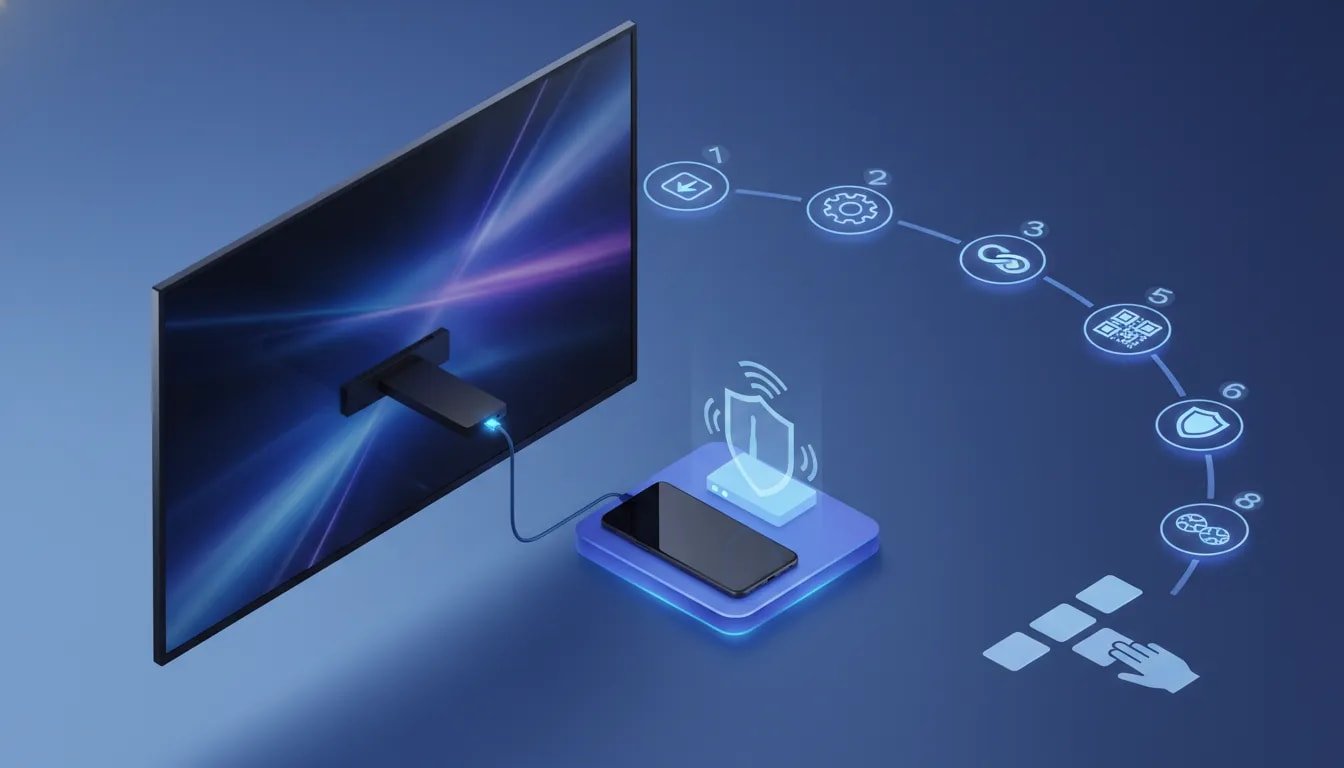
If you want your FireStick set up to stream sports, live events, and pay-per-view with free third-party apps, this is the full process from start to finish.
The setup is simple once you know the order:
- Install Downloader
- Enable Developer Options
- Allow installs from unknown apps
- Install Unlinked
- Add a library code
- Install a VPN first
- Install sports apps
- Move your favorite apps to the front for quick access
That’s the whole game plan. The rest is just clicking through the right screens in the right order.
Table of Contents
- 🔥 What you’re setting up
- 🔎 Step 1: Install Downloader from the Amazon App Store
- ⚙️ Step 2: Turn on Developer Options
- 🛠️ Step 3: Enable ADB Debugging and Install Unknown Apps
- 📥 Step 4: Use Downloader to install Unlinked
- 🔓 Step 5: Allow Unlinked to install apps too
- 🏪 Step 6: Open Unlinked and add the app library
- 🔐 Step 7: Install a VPN before anything else
- 🏈 Step 8: Install the sports apps
- 📂 Step 9: Move your most-used apps to the front
- 🌐 Step 10: Connect to IPVanish before opening streaming apps
- 🚀 Why the VPN matters so much
- 📺 Which sports app should you open first?
- ❓ FAQ
- 🔥 Final setup checklist
🔥 What you’re setting up
The goal here is to put free apps on an Amazon FireStick that are not available in the Amazon App Store, then use those apps to access sports streams, live events, and PPV options.
The main tools used in this setup are:
- Downloader for grabbing APK files
- Unlinked for accessing an app library
- IPVanish VPN for privacy, security, and avoiding ISP throttling or restrictions
- Sports apps including AKB 47 Sports, G Sports, and Sports X
If you are also into movie apps, TV show apps, or live TV apps, the same app store concept can be used for that too. For more FireStick app resources, there’s also the Download APK – Fire Prodigy Media page.
🔎 Step 1: Install Downloader from the Amazon App Store
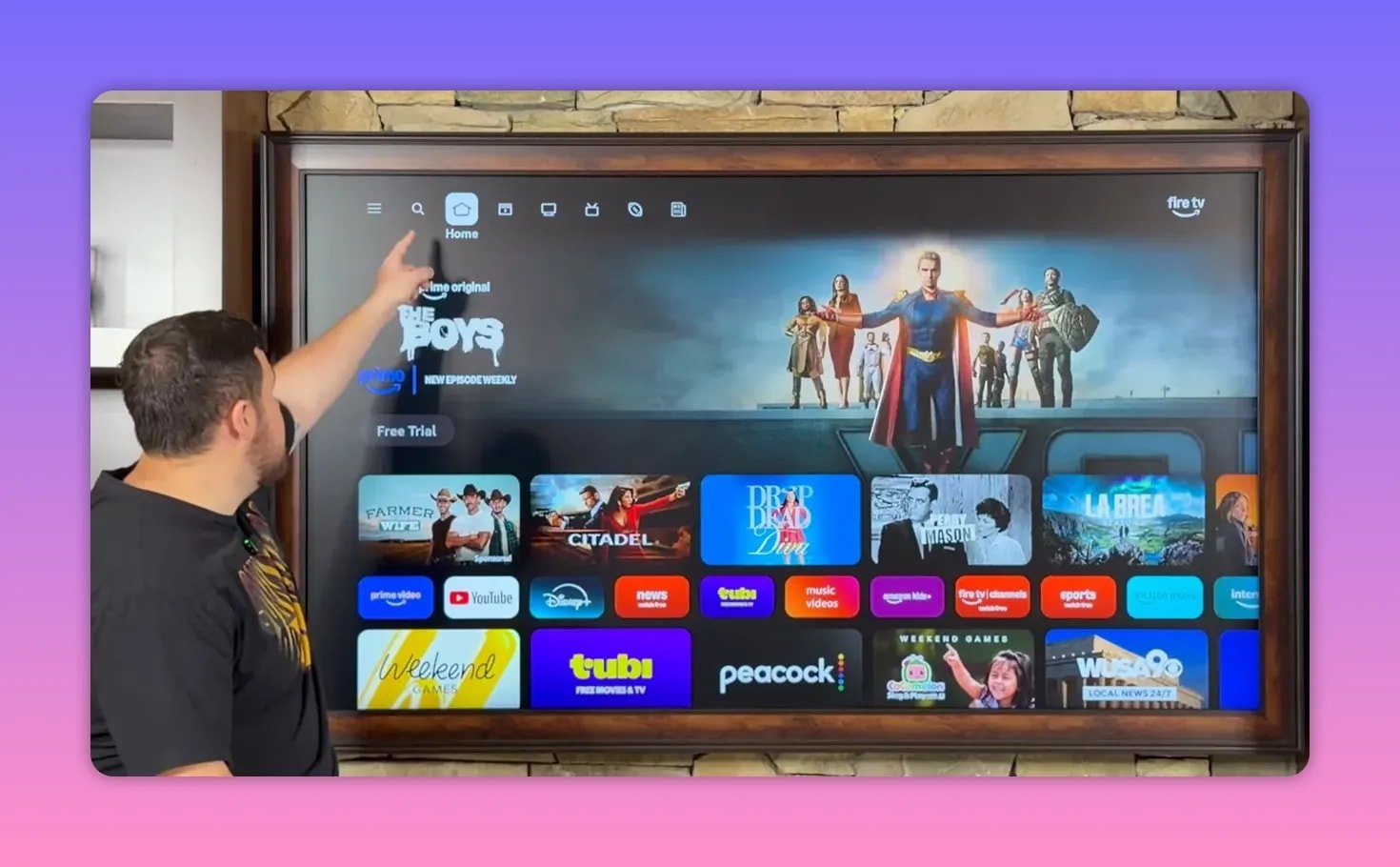
Start on the FireStick home screen and go to the magnifying glass search icon.
Search for Downloader. Usually, after typing the first letter or two, FireStick will auto-suggest it. Select the orange Downloader app and install it.
Once Downloader finishes downloading, do not continue straight into the app yet. Before using it, you need to change a few device settings so FireStick will allow third-party installs.
⚙️ Step 2: Turn on Developer Options
From the home screen:
- Open Settings
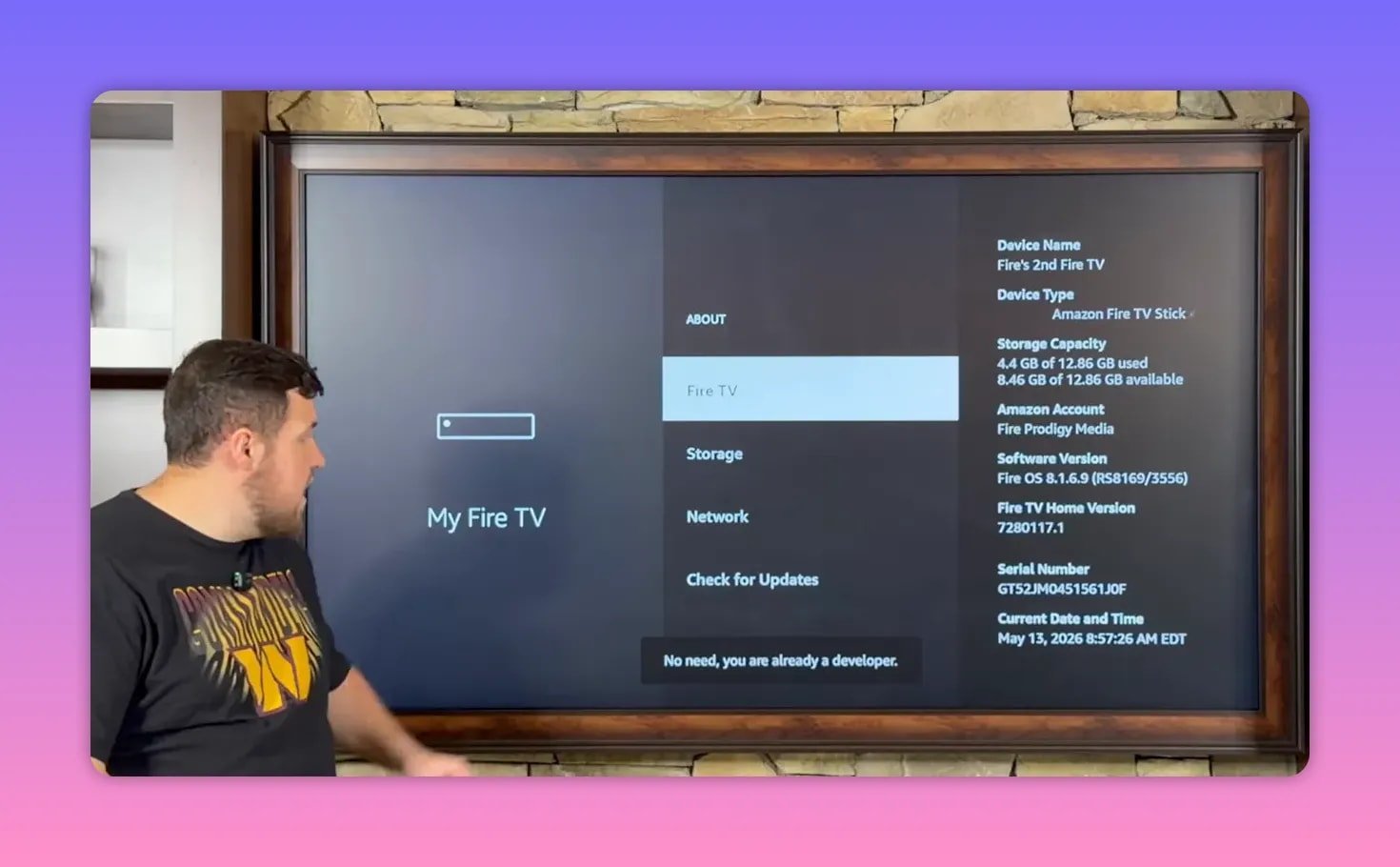
- Go to My Fire TV
On some FireStick versions, this section may be called My Device. If your FireStick software is older, it may also be in a slightly different spot. Same idea, same destination.
If you already see Developer Options, great. Open it and continue.
If you do not see Developer Options, here’s how to reveal it:
- Open About
- Highlight your device name
- Click the center button on the remote several times
If it works, FireStick will confirm that you are now a developer. After that, back out and Developer Options should appear.
🛠️ Step 3: Enable ADB Debugging and Install Unknown Apps
Inside Developer Options, make two changes:
- Turn ADB Debugging to On
- Open Install Unknown Apps and turn Downloader to On
This gives Downloader permission to install files that are not coming from the Amazon App Store.
If this part is skipped, the rest of the setup won’t work correctly.
📥 Step 4: Use Downloader to install Unlinked
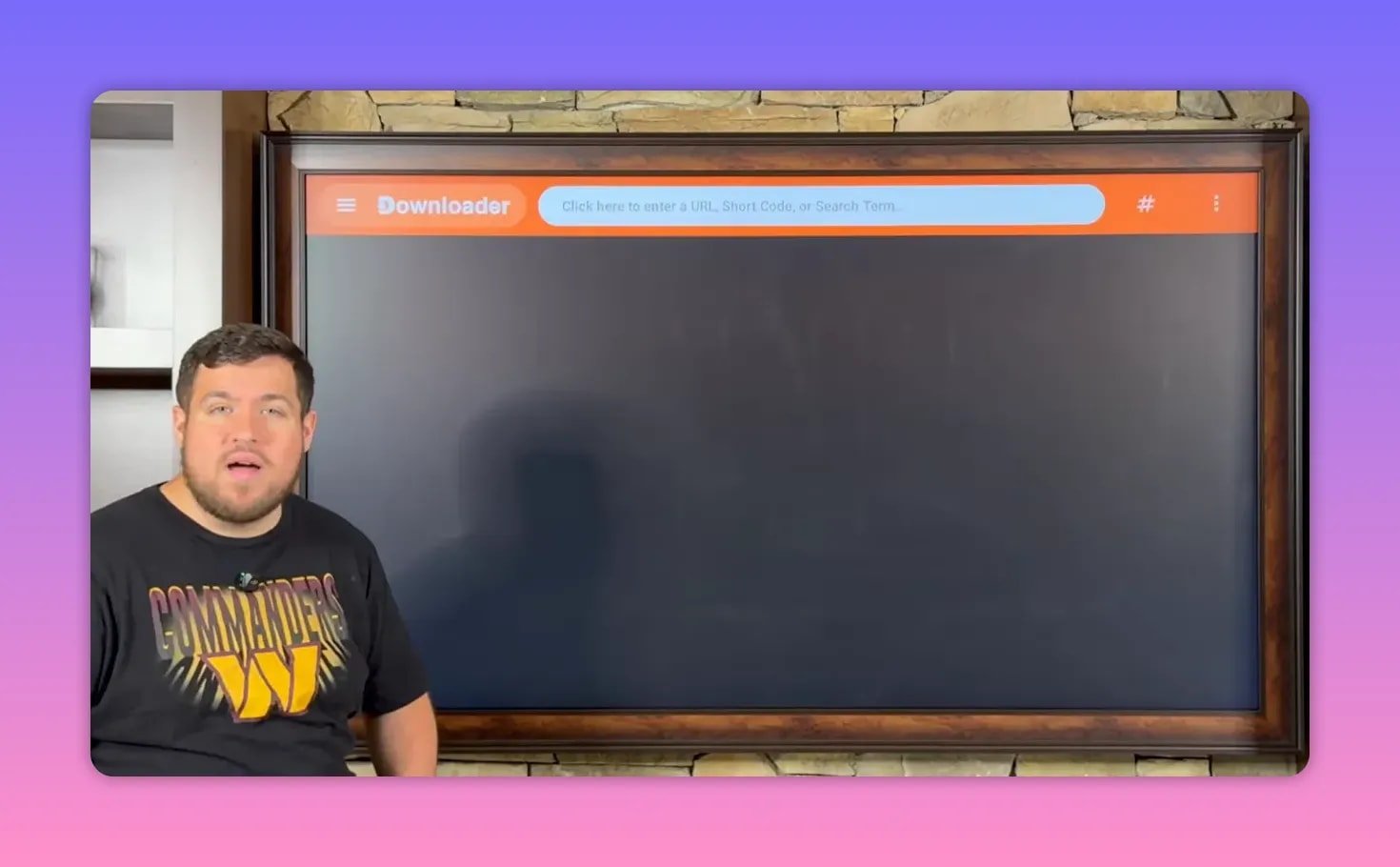
Go back to your apps list and open Downloader.
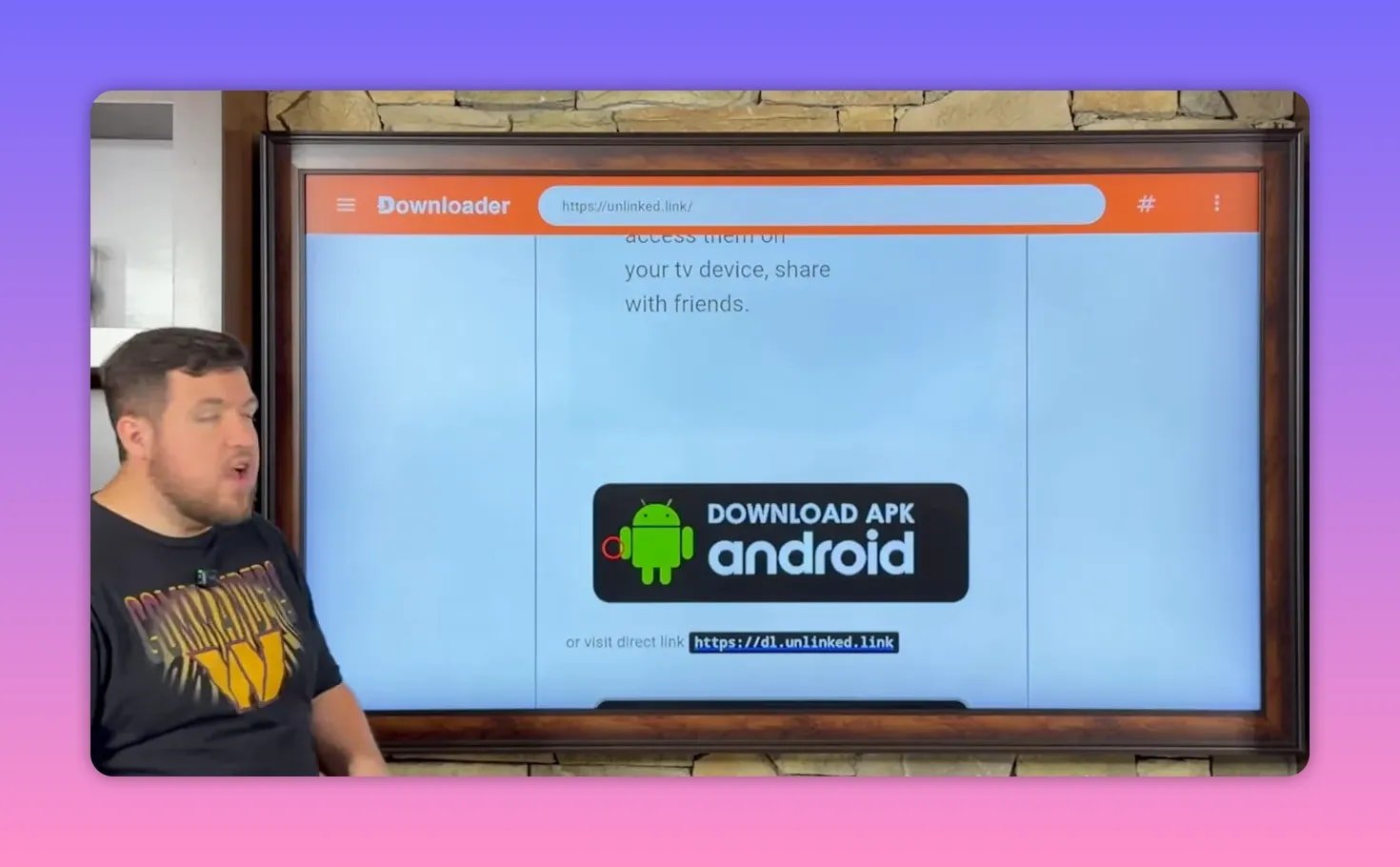
Inside Downloader, move the cursor into the search box and enter the web address shown in the setup. Downloader works like a lightweight browser, so this is where you can directly visit APK download pages.
After entering the address:
- Select Next
- On the page that opens, scroll carefully until you find Download APK Android
- Select it
- Choose Install
Once Unlinked is installed, choose Done instead of opening it immediately. Then delete the leftover installation file. That file is no longer needed and just takes up space.
🔓 Step 5: Allow Unlinked to install apps too
Now that Unlinked is on the device, FireStick still needs permission to let it install other apps.
Go back to:
- Settings
- My Fire TV
- Developer Options
- Install Unknown Apps
Find Unlinked in the list and switch it to On.
This is the same thing you already did for Downloader. You’re just repeating it for the next app in the chain.
🏪 Step 6: Open Unlinked and add the app library
After that, go to your apps list, scroll to the end, and open Unlinked.
You’ll see an option to Add a new library. Select it, and Unlinked will prompt you for a code.
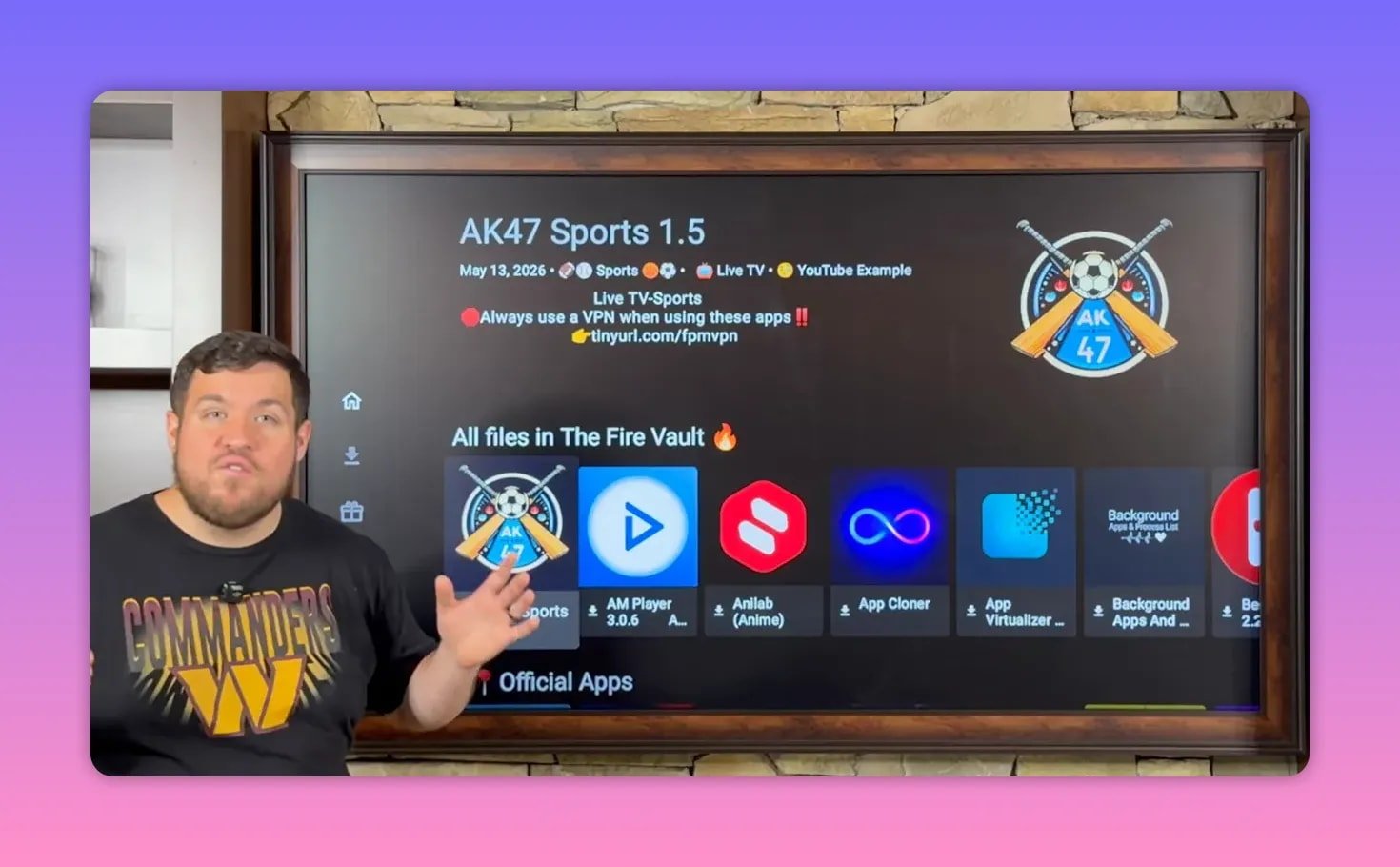
The code opens a specific app store library. In this setup, that library is the creator’s Fire Vault, which contains more than 50 apps across categories like:
- Sports
- Movies
- TV shows
- Live TV
- Pay-per-view
After entering the code and moving forward, you’ll also see a message explaining why using a VPN with third-party apps is important. Read it, acknowledge it, and continue into the library.
🔐 Step 7: Install a VPN before anything else
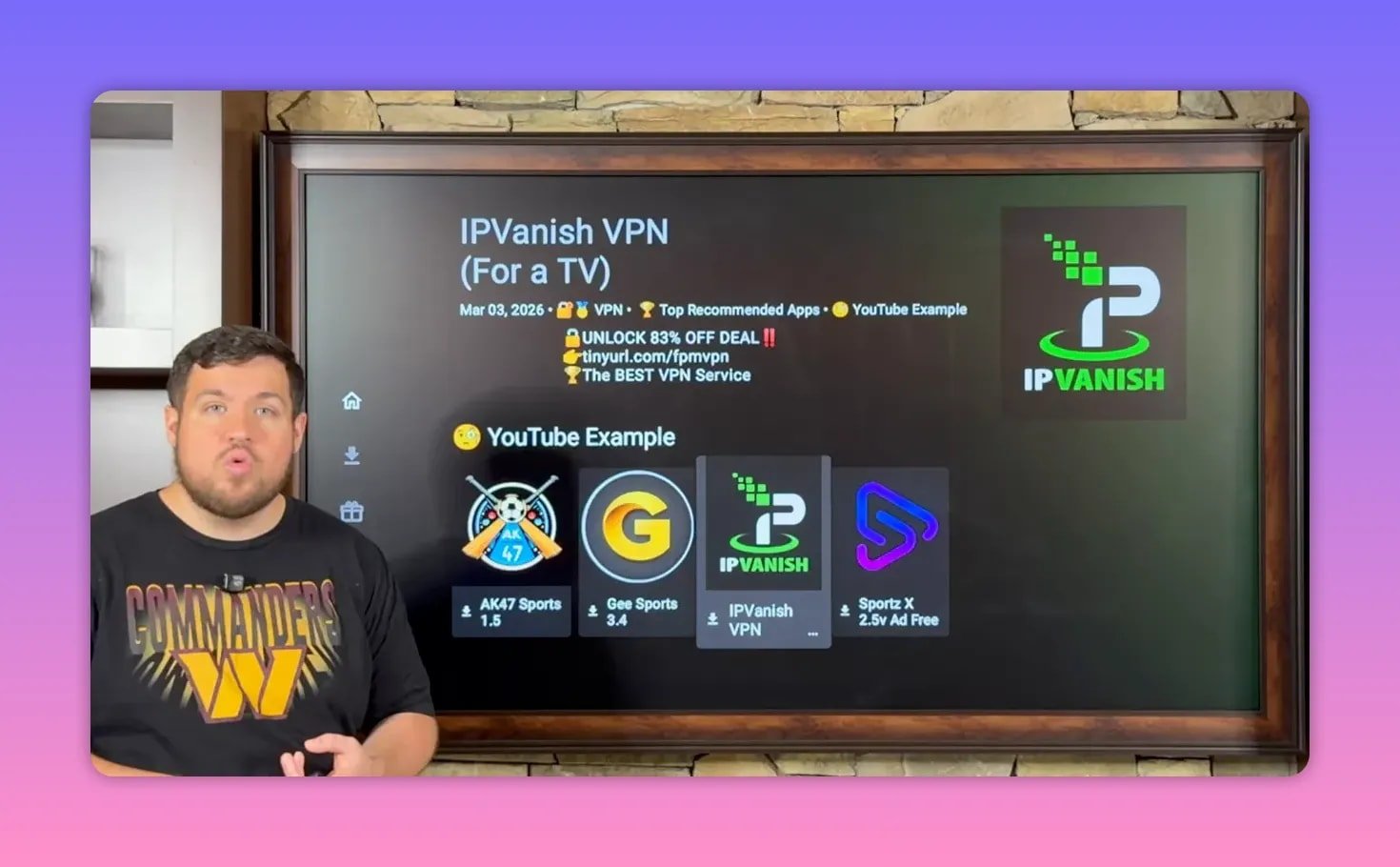
Inside the library, the first recommended app is IPVanish VPN, and honestly, that should be the first install every single time.
Why? Because according to the setup, a VPN helps with several common problems:
- Privacy by hiding your activity
- Security while using third-party apps
- Anonymity while streaming
- Bypassing restrictions placed by some countries or internet providers
- Avoiding ISP throttling that can cause poor performance or buffering
Some streaming apps will even prompt you to use a VPN on launch, so it’s not something to treat like an optional extra. It’s part of the setup.
Install IPVanish by selecting it in the library, then choosing:
- Download
- Install App
- Install
If you want more FireStick help beyond this setup, the broader Fire Prodigy Media resource hub may be useful too.
🏈 Step 8: Install the sports apps
Once the VPN is installed, go back into the Unlinked library and install the sports apps recommended in the setup.
AKB 47 Sports
This one is presented as a strong option for catching games as they happen, along with live events and PPV streams. The big selling point is simple: if there’s a game or event you do not want to miss, this app is supposed to give you a shot at finding it.
G Sports
G Sports is described as another solid choice for sports, live events, and pay-per-view. It serves as a backup or alternative option so you are not relying on just one app.
Sports X
Sports X gets the most praise in the setup and is clearly the favorite. The reason is convenience. It reportedly shows a full list of events happening that day, including games, live events, and PPV. That makes it easy to open the app, see what’s on, and jump straight into what you want.
That matters even more if you follow teams outside your local market. One example mentioned is someone on the West Coast trying to follow an East Coast team. Traditional TV often blocks that kind of access or just doesn’t carry the game in your area. These apps are presented as a workaround for that problem.
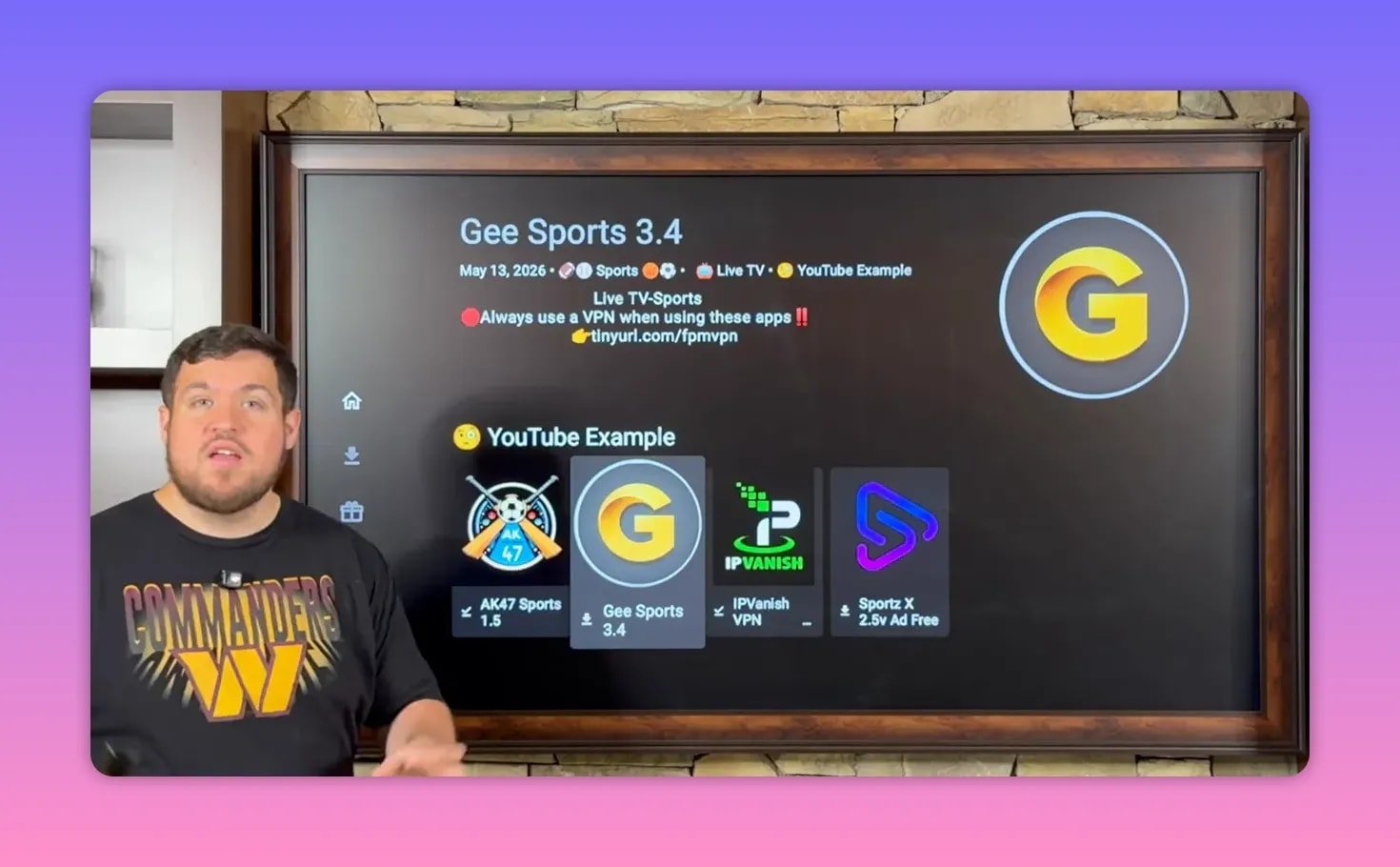
Install each app the same way:
- Select the app
- Choose Download
- Choose Install App
- Choose Install
Even though the setup focuses on sports apps, the app library also includes many more categories if you want to browse later.
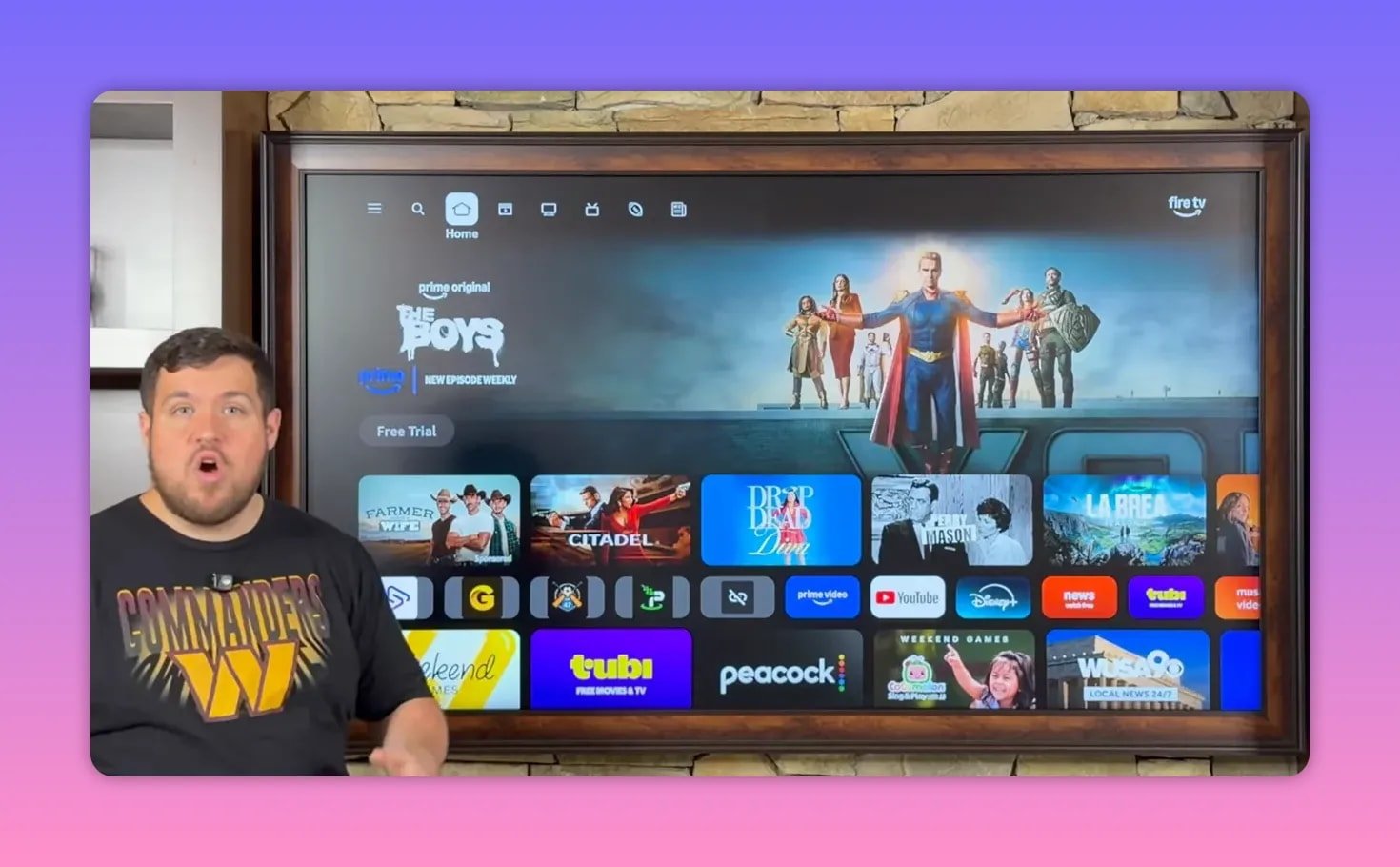
📂 Step 9: Move your most-used apps to the front
By default, newly installed apps usually end up at the end of your app list, which gets annoying fast.
A much cleaner setup is to move the important ones to the front so they’re always easy to find. The recommended list to move forward is:
- Unlinked
- IPVanish
- AKB 47 Sports
- G Sports
- Sports X
To do that:
- Highlight the app
- Hold the center button on the remote
- Select Move to Front
Repeat for each app you want on the main home row.
That way, every time you press Home, your key apps are right there instead of buried at the far end of the applications list.
🌐 Step 10: Connect to IPVanish before opening streaming apps
This is the habit that can save you a lot of headaches: open the VPN first.
Inside IPVanish, sign up or log in with your account. The setup provides a VPN discount link here:
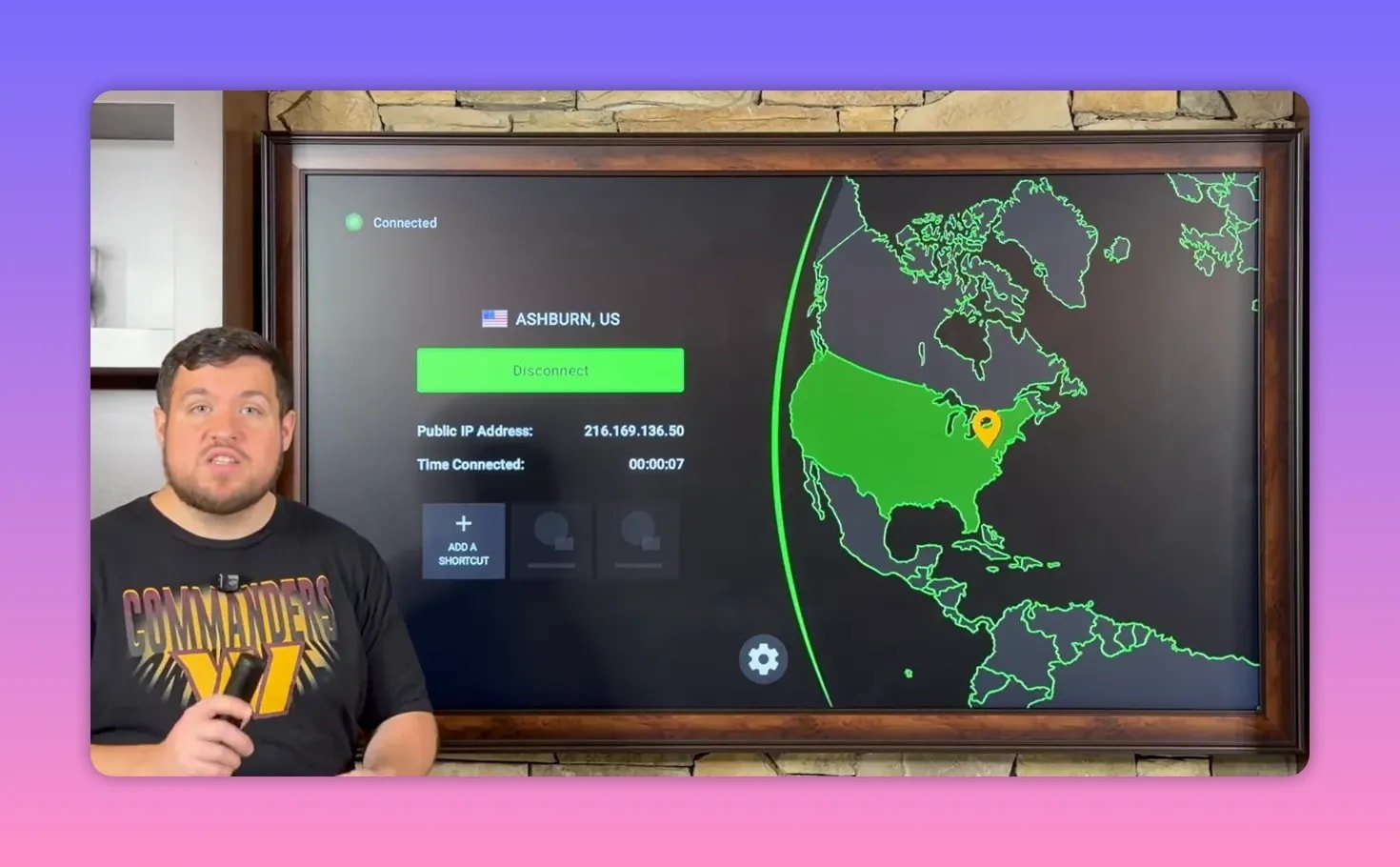
Once signed in, connecting is easy:
- Highlight the green Connect button
- Select it
- If prompted, choose OK
When your country is highlighted in green, the VPN is active.
You can also:
- Use the gear icon to adjust VPN settings
- Use the server location icon to change your server
- Check the time connected counter to confirm the session is running
The VPN stays connected until you either disconnect manually or turn off the device.
🚀 Why the VPN matters so much
A big point in this setup is that a VPN is not just about privacy. It is also one of the most practical troubleshooting tools.
Common issues people run into with third-party streaming apps include:
- Buffering
- Apps failing to load properly
- Install problems
- Restricted access depending on ISP or location
The claim made here is that many of those issues improve once the VPN is turned on. In other words, if something seems broken, the first question should be whether the VPN is connected.
That fits with the wider FireStick strategy: more privacy, fewer restrictions, and smoother streaming.
📺 Which sports app should you open first?
If you just want the fastest recommendation, Sports X gets the strongest endorsement. It is described as the go-to app because it lays out what’s happening each day in a way that is easy to browse.
That said, having multiple options installed is smart. Sports apps can vary in reliability from event to event, so keeping AKB 47 Sports, G Sports, and Sports X on hand gives you flexibility.
That is really the whole point of this setup. You are not depending on one source. You are building a small sports toolkit on your FireStick.
❓ FAQ
Do I need Downloader to install these apps?
Yes. Downloader is the first tool used to install Unlinked, and it also requires permission under Install Unknown Apps before it can work properly.
What if Developer Options is missing on my FireStick?
Go to Settings, then My Fire TV, then About. Highlight your device name and press the center button several times until FireStick enables developer mode.
Why do I need to enable Install Unknown Apps twice?
Because each app needs permission separately. First you enable Downloader so it can install Unlinked. Then you enable Unlinked so it can install the sports apps and VPN.
Which app is recommended most for sports and PPV?
Sports X is presented as the favorite because it shows a list of events happening that day, including sports, live events, and pay-per-view options.
Should I use a VPN every time?
Yes. The setup strongly recommends turning on IPVanish before opening any third-party app. It is used for privacy, security, anonymity, and to help avoid throttling or restrictions.
Can I move these apps to the FireStick home screen?
Yes. Highlight the app, hold the center button on the remote, and select Move to Front. That makes your most-used apps easier to access every time you return to the home screen.
Are there apps in the library besides sports apps?
Yes. The app library is described as having more than 50 apps, including options for movies, TV shows, live TV, sports, and more.
🔥 Final setup checklist
If you want the quick version to make sure nothing was missed, here it is:
- Install Downloader from the Amazon App Store
- Enable Developer Options
- Turn on ADB Debugging
- Allow Downloader under Install Unknown Apps
- Use Downloader to install Unlinked
- Delete the leftover APK file
- Allow Unlinked under Install Unknown Apps
- Open Unlinked and add the app library code
- Install IPVanish VPN
- Install AKB 47 Sports, G Sports, and Sports X
- Move your key apps to the front
- Connect to the VPN before opening the streaming apps
Once that’s done, your FireStick is set up with quick access to free sports, live event, and PPV apps, plus a VPN ready to go before you open anything.