
If one of your go-to FireStick apps suddenly stopped working, started throwing error messages, or flat-out told you it will no longer be updated, you are definitely not alone.
This happens all the time in the FireStick world. Apps disappear. Developers move on. Servers go down. Legal pressure shows up. And just like that, something you were using yesterday is useless today.
The good news is simple: there are always replacement apps.
If you need working alternatives for movies, TV shows, sports, and live TV on FireStick or Android TV, here’s a clean way to get set up, plus a few app recommendations that are still doing the job.
Table of Contents
- 🔥 Why FireStick apps stop working
- 🛠️ What you need before installing replacement apps
- 📥 How to install the app store used for replacement apps
- 🏪 Accessing the app library with 50+ options
- 🔐 Why using a VPN matters before opening third-party apps
- 🎬 Best FireStick replacement apps featured here
- 📦 Why installing more than one app is the smart move
- 📍 Move your new apps to the front of the FireStick home screen
- 🌐 How to connect to IPVanish on FireStick
- ✅ A practical FireStick setup that keeps you covered
- ❓FAQ
- 🚀 Final takeaway
🔥 Why FireStick apps stop working
Before getting into the replacements, it helps to understand why this keeps happening in the first place.
- Developers quit. A lot of these apps are side projects, not full-time businesses.
- Legal pressure kicks in. Some apps get pushed offline or abandoned.
- Servers get shut down. Even if the app still installs, the content may stop loading properly.
So if an app is giving you a shutdown notice or just isn’t working the way it should, that does not mean your FireStick is the problem. A lot of the time, the app itself is simply done.
🛠️ What you need before installing replacement apps
If you already know how to sideload apps, this part will feel familiar. If not, this is the foundation.
To install third-party APKs on a FireStick, you first need the Downloader app from the Amazon Appstore.
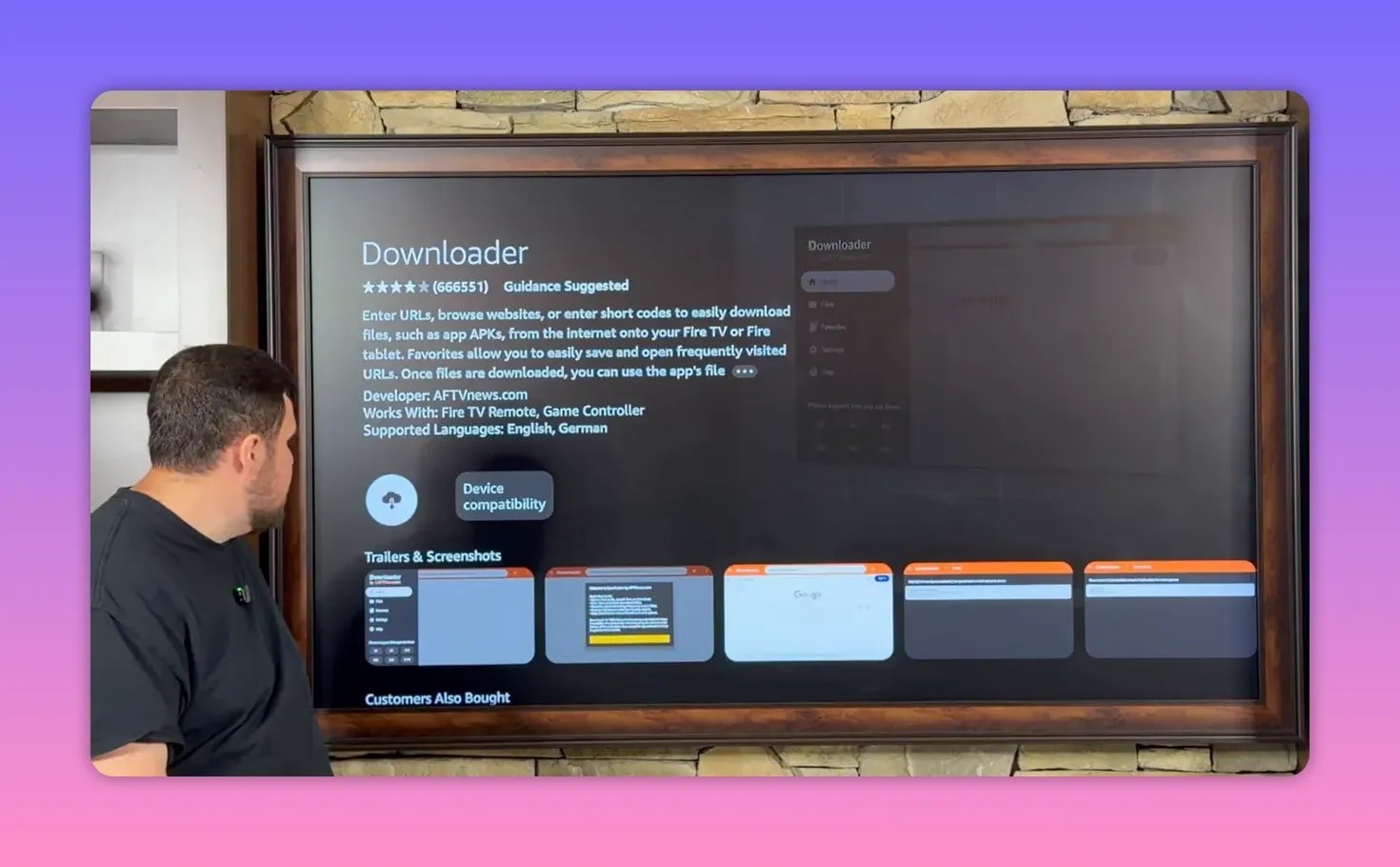
Install Downloader
- Go to the Search icon on your Fire TV home screen.
- Type Downloader.
- Select the orange Downloader app.
- Download and install it.
Once Downloader is installed, do not just open it and start sideloading. There is one more setup step first.
Enable Developer Options on FireStick
- Go to Settings.
- Open My Fire TV. On some devices it may say My Device.
- Select About.
- Highlight your device name and press the center button several times until developer mode is enabled.
If developer mode was already active, FireStick will let you know. If not, you should get a confirmation that you are now a developer.
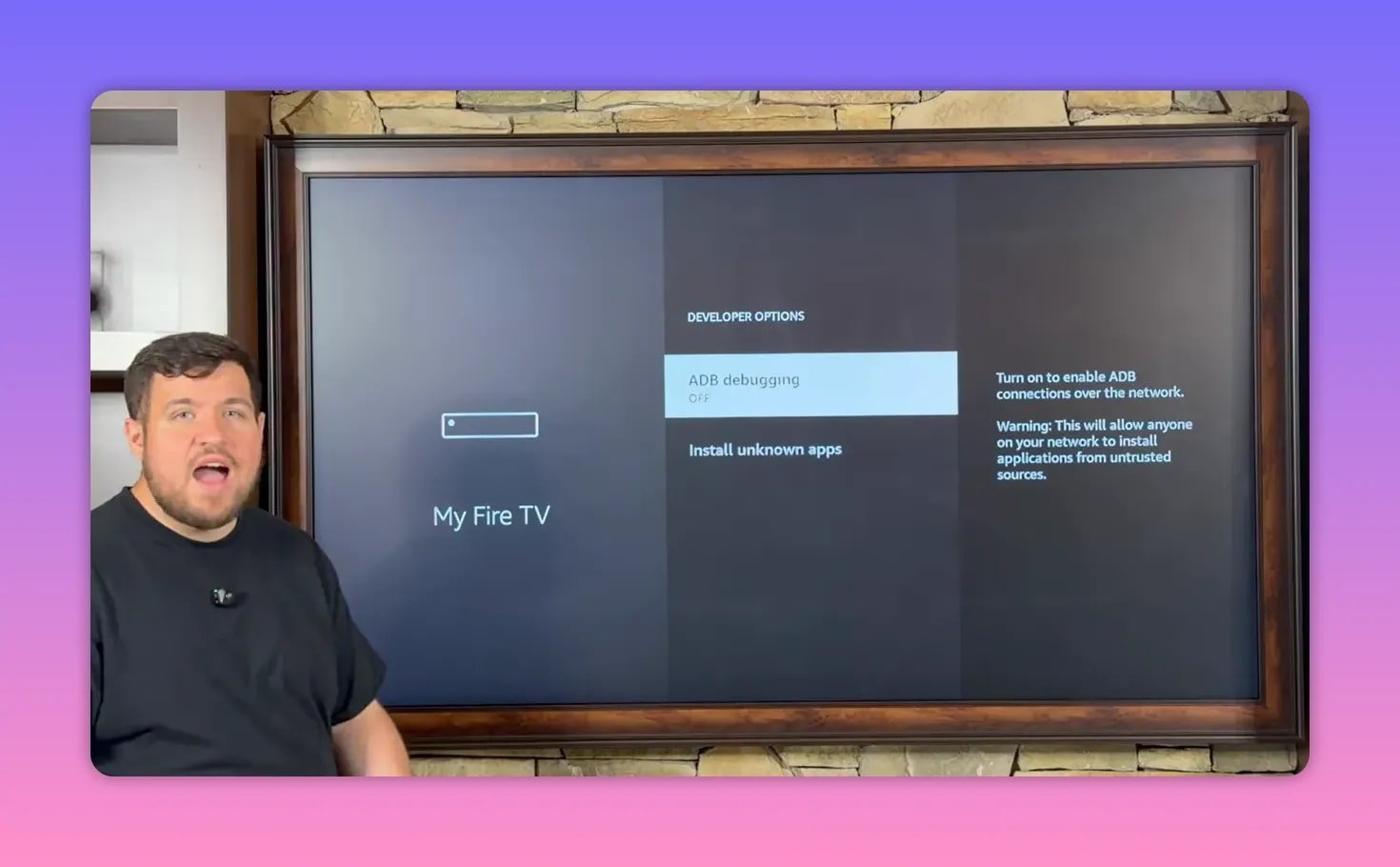
Turn on ADB Debugging and Unknown Apps
- Go back to My Fire TV.
- Open Developer Options.
- Turn ADB Debugging on.
- Open Install Unknown Apps.
- Turn Downloader on.
That is the permission FireStick needs before Downloader can install APK files.
📥 How to install the app store used for replacement apps
After Downloader is ready, open it and use it like a browser to visit the URL shown during setup.
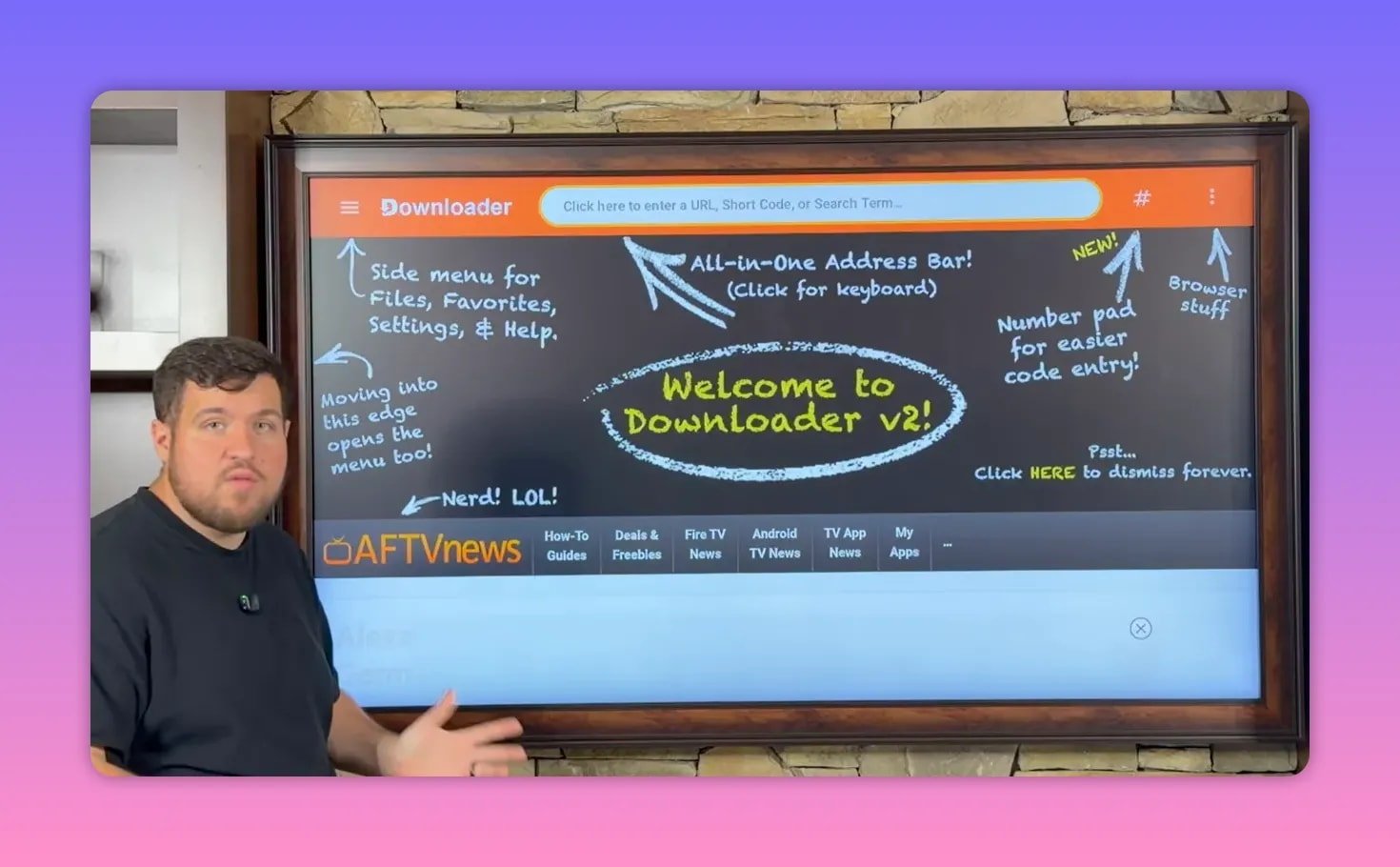
After entering the address and selecting Next, the goal is to install an app called Unlinked.
On the download page:
- Scroll until you find Download APK Android.
- Select it.
- Choose Install.
- When installation finishes, choose Done instead of Open.
- Delete the leftover installation file to save space.
That delete step is small, but it keeps your device cleaner. There is no reason to leave junk APK files sitting around once the app is installed.
Give Unlinked permission to install apps
After installing Unlinked, go back to:
- Settings
- My Fire TV
- Developer Options
- Install Unknown Apps
Then turn Unlinked on as well.
Once that is done, Unlinked can install apps from inside its own library.
🏪 Accessing the app library with 50+ options
When you open Unlinked, you will be prompted to add a new library and enter a code to access a specific store.
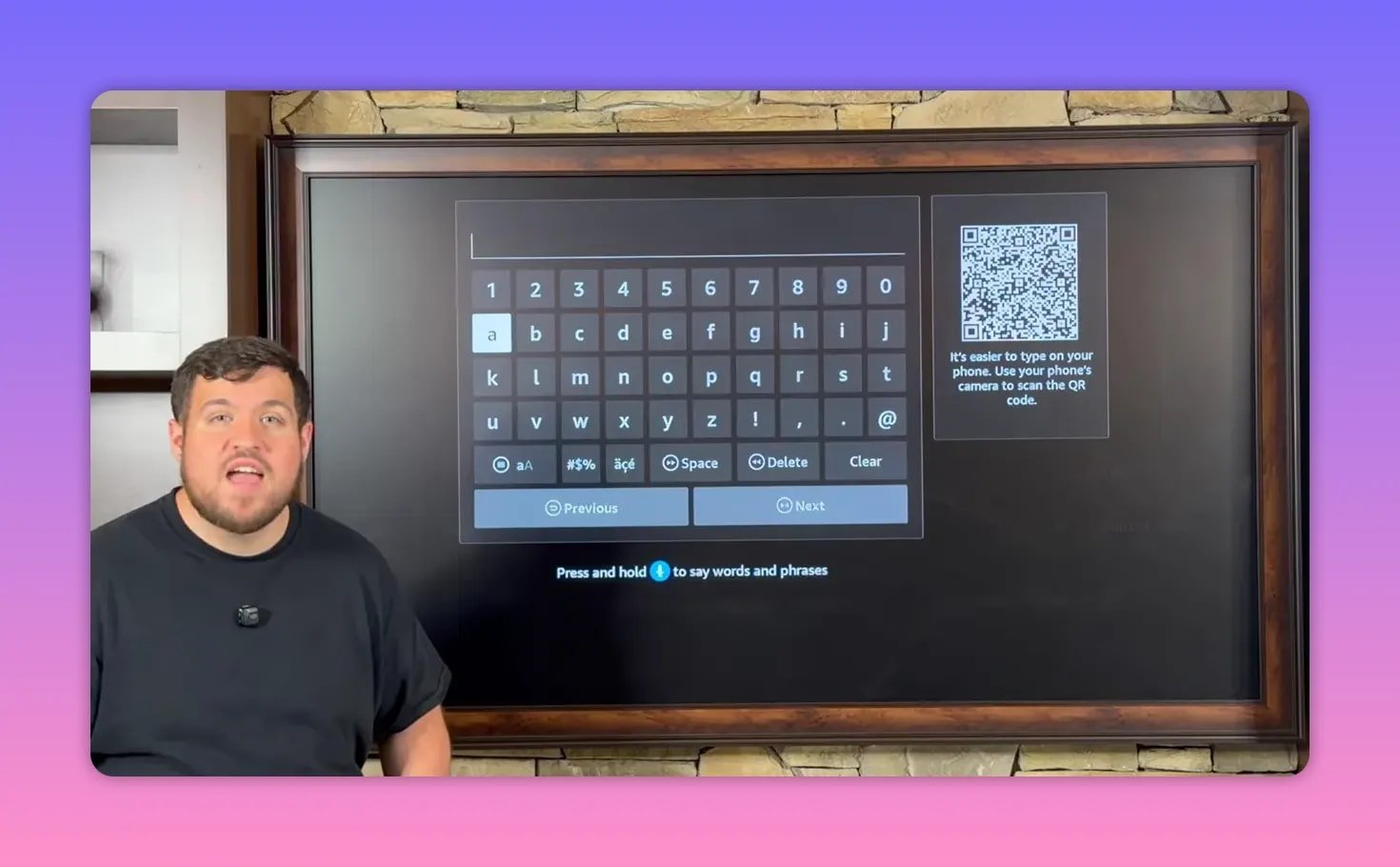
The library featured here is a private app store called the Fire Vault, which organizes more than 50 apps by category. The apps are listed alphabetically, and there are sections for different entertainment needs.
If you are looking for more than just a couple of replacements, this kind of library makes life a lot easier. Instead of hunting APKs one by one, you can browse a collection that has already been sorted and maintained.
If you want more FireStick setup resources and related downloads, you can also check https://jobice.org/download.
🔐 Why using a VPN matters before opening third-party apps
Before installing or opening third-party streaming apps, there is a big point that gets repeated for a reason: use a VPN.
The recommended app here is IPVanish, and it is treated as the most important install of the whole process.
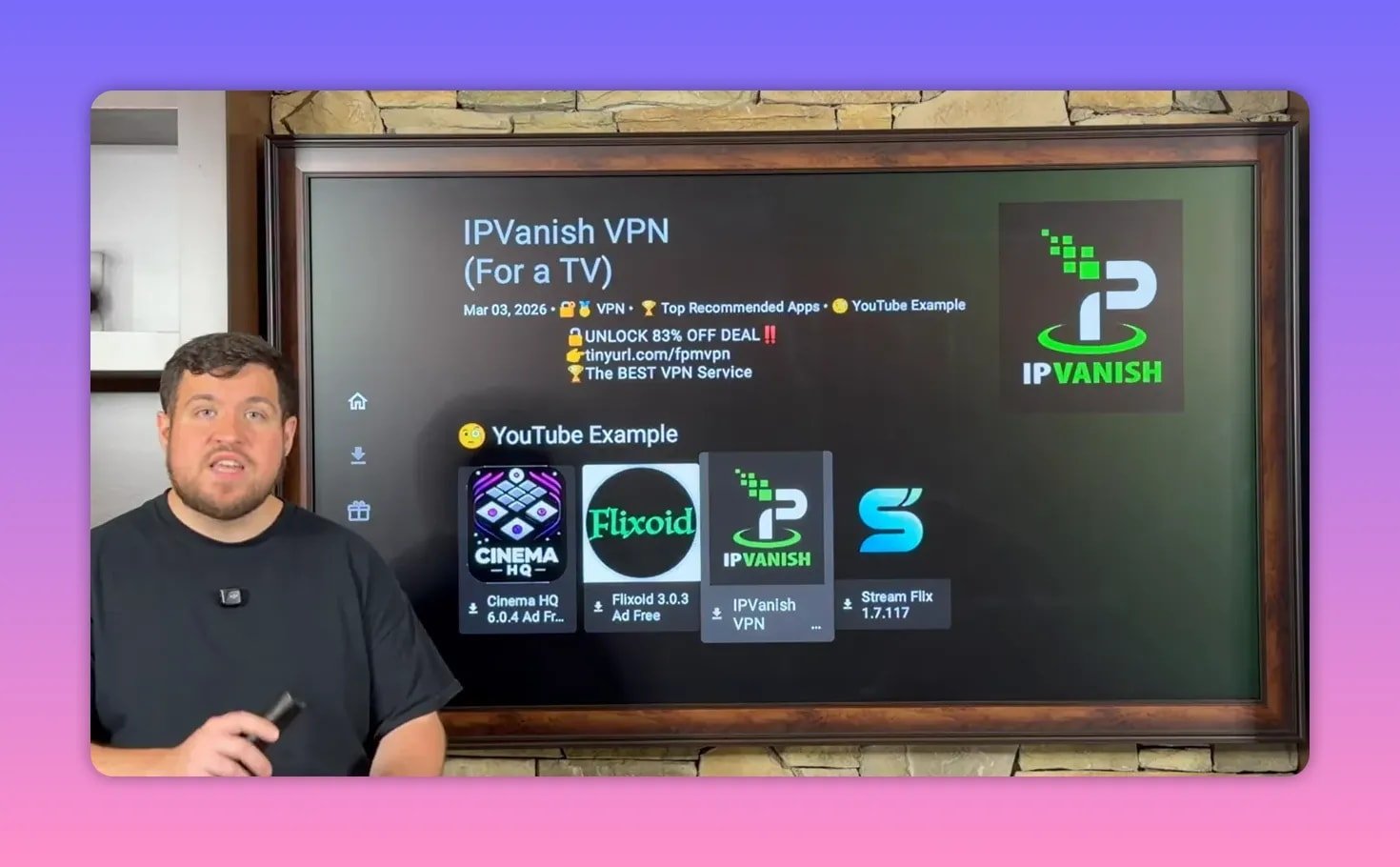
Why? Because a VPN can help with more than privacy.
- It helps keep your activity private.
- It helps bypass ISP throttling and restrictions.
- It can unlock access where internet censorship is interfering.
- It often fixes buffering and playback issues caused by your connection being limited.
A lot of people blame the app when streams buffer or installations fail. Sometimes the problem is the internet provider putting restrictions on the connection. Turn on the VPN first, and a lot of those issues disappear.
The VPN discount link referenced during setup is available here: https://tinyurl.com/fpmvpn.
🎬 Best FireStick replacement apps featured here
If your favorite FireStick app is gone, these are the three replacements highlighted as strong options.
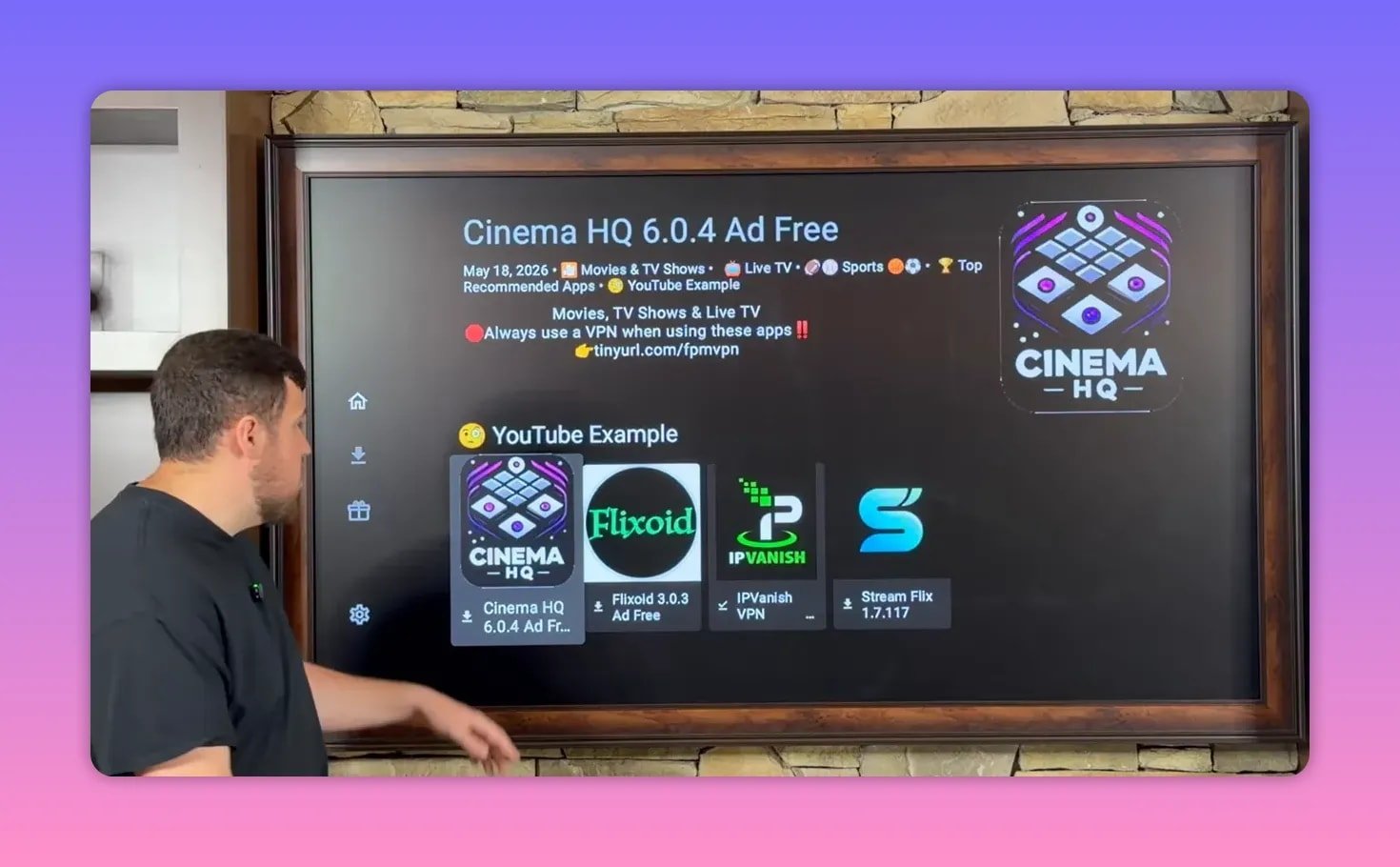
Cinema HQ
Cinema HQ is positioned as one of the top all-in-one choices.
What it offers:
- Movies
- TV shows
- Live TV
- Sports
That combination makes it especially useful if you do not want to jump between multiple apps just to find different types of content. It was also marked as one of the top five apps in the store.
Flicksoid
Flicksoid is a solid pick if your main focus is on-demand content.
What it offers:
- Brand-new movies
- Older movies
- New TV shows
- Older TV shows
If movies and series are the main reason you use your FireStick, this is one of the replacement apps worth grabbing.
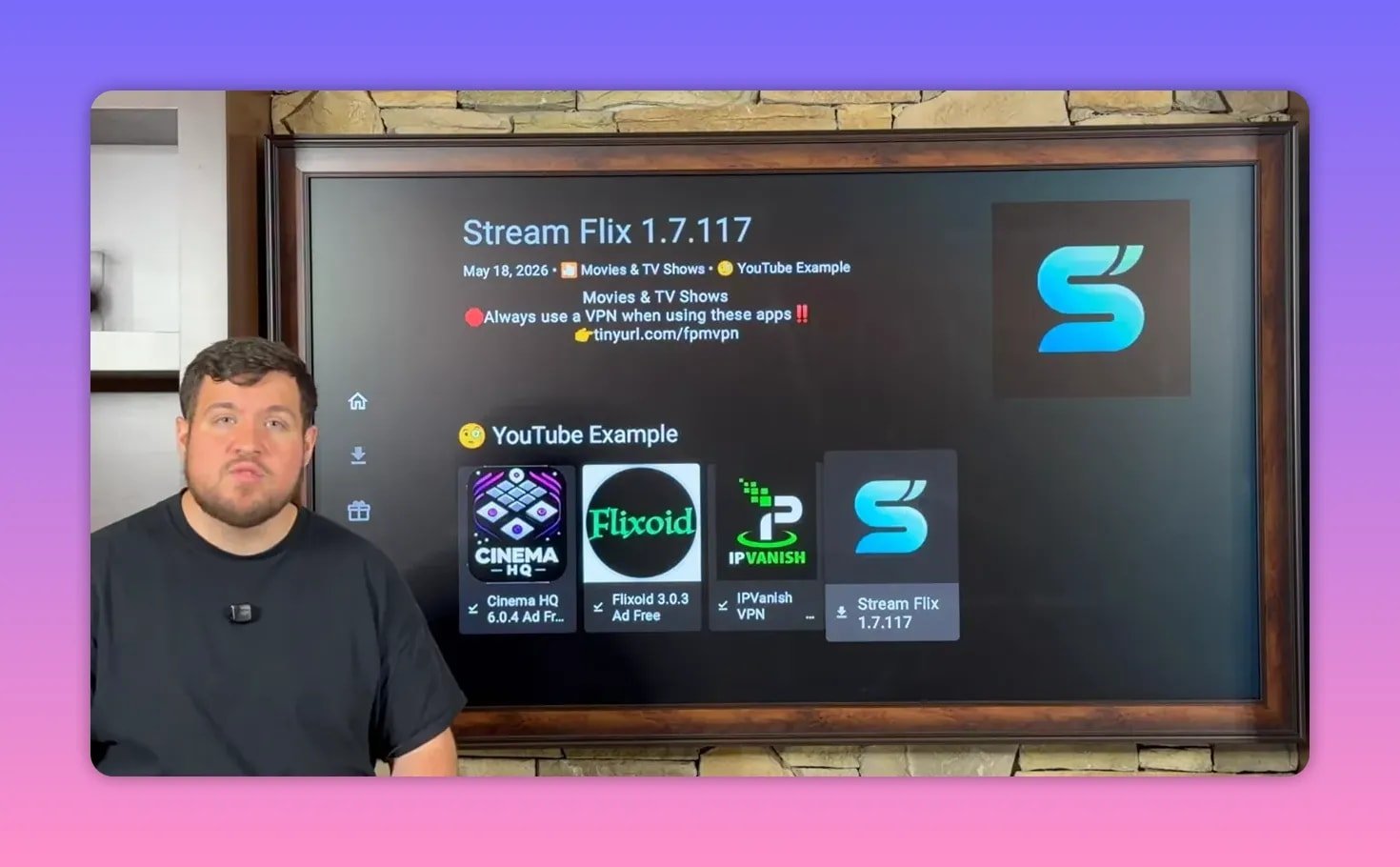
Stream Flick
Stream Flick gets a lot of praise as another strong movie and TV show app.
Like Flicksoid, it focuses heavily on a large on-demand catalog, giving you another option if one app has better links, a cleaner layout, or content you prefer on a particular day.
That is really the bigger strategy here: options matter. If one app has issues, another can pick up the slack.
📦 Why installing more than one app is the smart move
One of the best takeaways here is that you should not rely on a single app.
Even if Cinema HQ, Flicksoid, or Stream Flick is working perfectly today, the FireStick landscape changes fast. That is why having multiple apps installed makes sense.
A good setup gives you:
- An all-in-one option like Cinema HQ
- A dedicated movies and TV app like Flicksoid
- A second backup for movies and TV like Stream Flick
- A maintained library where you can find new replacements when needed
That way, you are never stuck when one app goes down.
If you want more general FireStick help and related resources, there is also a broader page here: https://jobice.org.
📍 Move your new apps to the front of the FireStick home screen
After installing your apps, they usually end up buried in the long app list. That gets annoying fast.
There is an easy fix.
- Go to the full app list.
- Highlight the app you want.
- Hold the center button on the remote.
- Select Move to front.
Repeat that for:
- Unlinked
- IPVanish
- Cinema HQ
- Flicksoid
- Stream Flick
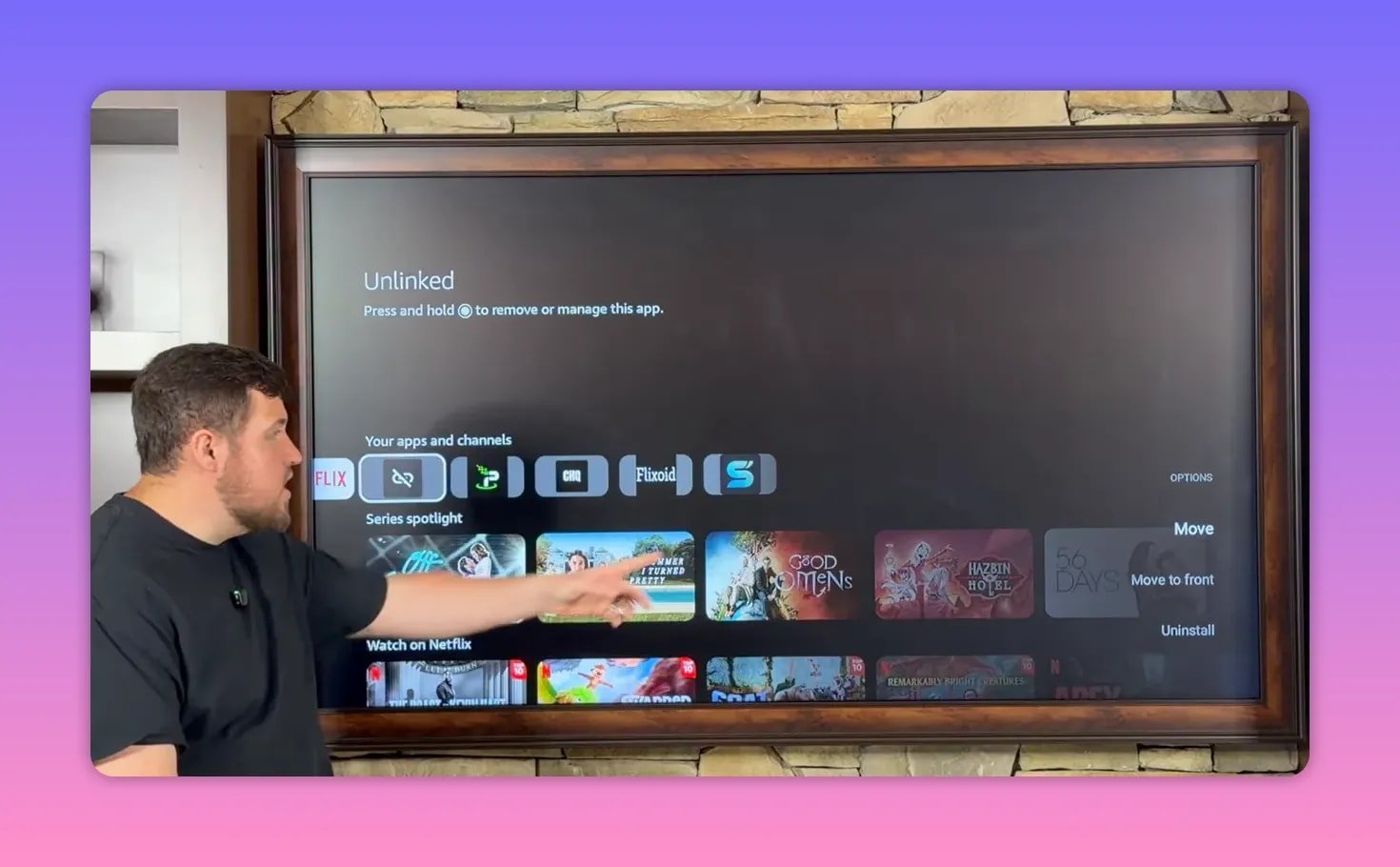
Once you do that, your most-used apps stay front row and center on the home screen, which saves time every single day.
🌐 How to connect to IPVanish on FireStick
After installing IPVanish, open it before launching any third-party streaming app.
If you do not already have an account, sign up through the website, choose a plan, and log in with the email confirmation you receive.
Inside the app, connecting is simple:
- Open IPVanish.
- Select Connect.
- If a permissions popup appears, choose OK.
- Wait for the connection indicator to turn green.
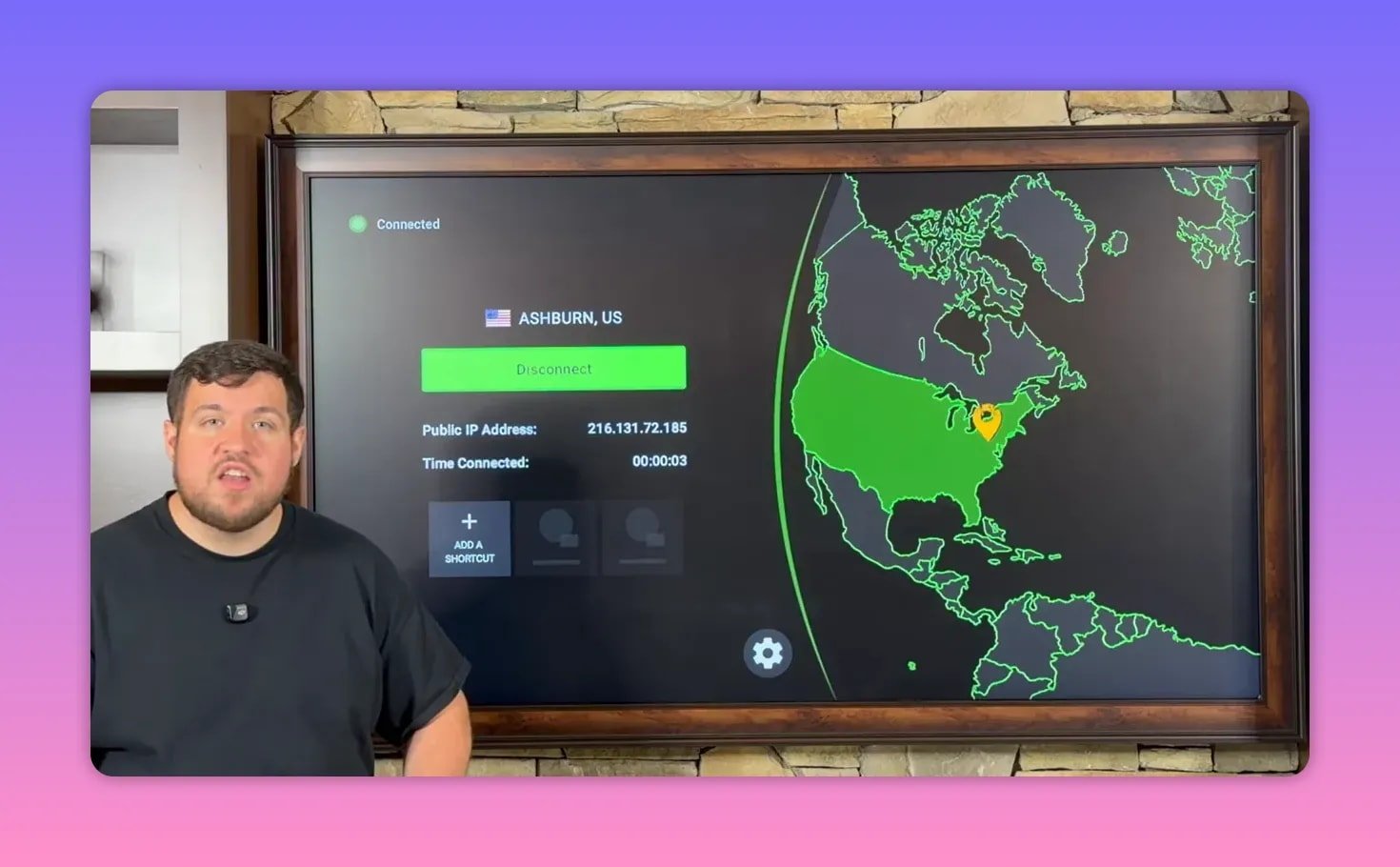
Once the country indicator is highlighted in green, you are connected. From there, you can also:
- Open the gear icon to adjust settings
- Change server locations if needed
- Check how long the VPN has been connected
The connection stays active until you manually disconnect or turn the device off.
✅ A practical FireStick setup that keeps you covered
If you want the shortest path to a better setup, this is the formula:
- Install Downloader
- Enable Developer Options and unknown app installs
- Install Unlinked
- Use a library with multiple maintained apps
- Install a VPN first
- Add at least 2 to 3 replacement streaming apps
- Move everything to the front row of your home screen
- Turn the VPN on before opening third-party apps
That setup gives you privacy, convenience, and backups when the next app shutdown inevitably happens.
❓FAQ
Why do FireStick apps suddenly stop working?
Usually because the developer stopped maintaining the app, legal pressure forced changes, or the servers behind the app were shut down. In many cases, the app itself is no longer being supported.
What is the first app I need to install to get replacement APKs on FireStick?
You need the Downloader app first. It is used to access URLs and install APK files that are not in the Amazon Appstore.
Do I need to enable Developer Options on FireStick?
Yes. You need Developer Options to turn on ADB Debugging and allow apps like Downloader and Unlinked to install third-party APKs.
Which replacement apps were recommended?
The featured replacement apps were Cinema HQ, Flicksoid, and Stream Flick. Cinema HQ was highlighted as an all-in-one option, while Flicksoid and Stream Flick were emphasized for movies and TV shows.
Why use a VPN with FireStick streaming apps?
A VPN helps keep your connection private, can reduce ISP throttling, may fix buffering caused by provider restrictions, and helps you stay more secure while using third-party apps.
What does “Move to front” do on FireStick?
It places your most-used apps on the main home screen so you do not have to scroll through the full app list every time you want to open them.
Should I install just one replacement app?
No. It is smarter to install multiple options. If one app starts failing, another can still work. That flexibility is one of the best ways to avoid interruptions.
🚀 Final takeaway
When FireStick apps die, it is frustrating, but it is never the end of the road.
The real move is to stay ready with a better setup: a clean sideloading method, a reliable VPN, and a few strong replacement apps instead of putting all your trust in one.
That is how you keep your FireStick useful even when apps start dropping left and right.