If you are tired of stuffing your Fire Stick, ONN box, Nvidia Shield, or Android TV device with a pile of random apps, this is the simpler way to do it.
The whole idea here is easy: use just two main streaming apps to cover the big stuff most people want, which is:
- Brand new movies
- TV shows
- Sports
- Live TV
Instead of installing ten different APKs and hoping half of them still work next week, you can set up a cleaner system with NoroFire and StreamFlix, plus a couple of helper tools to install and manage everything properly.
If you are still getting your device set up from scratch, it also helps to check a broader Fire Prodigy Media resource hub for related Fire Stick and Android TV guidance.
Table of Contents
- 🔧 What you’ll install
- 🔍 Step 1: Install Downloader from the app search
- ⚙️ Step 2: Turn on Developer Options and unknown app installs
- 📥 Step 3: Use Downloader to install Unlinked
- 🧩 Step 4: Allow Unlinked to install apps too
- 🏬 Step 5: Open Unlinked and add the app library
- 🔐 Why the VPN is treated as a must-have
- 📺 The two apps that do the heavy lifting
- ⬇️ Step 6: Install IPVanish, NoroFire, and StreamFlix
- 🛠️ Important extra setting for NoroFire
- 📌 Move your new apps to the front
- 🌐 How to sign in and connect to IPVanish
- 🎬 What each app is best for
- ❓FAQ
- 🔥 Final setup checklist
🔧 What you’ll install
There are really four apps involved in the full setup, but only two of them are your actual entertainment apps.
- Downloader to fetch apps that are not in the Amazon Appstore
- Unlinked to access a curated app library
- NoroFire for SportsFire and StreamFire
- StreamFlix for movies and TV shows
There is also one more recommendation that the setup treats as essential: IPVanish VPN. It is presented as the app to turn on before using third-party streaming apps.
🔍 Step 1: Install Downloader from the app search
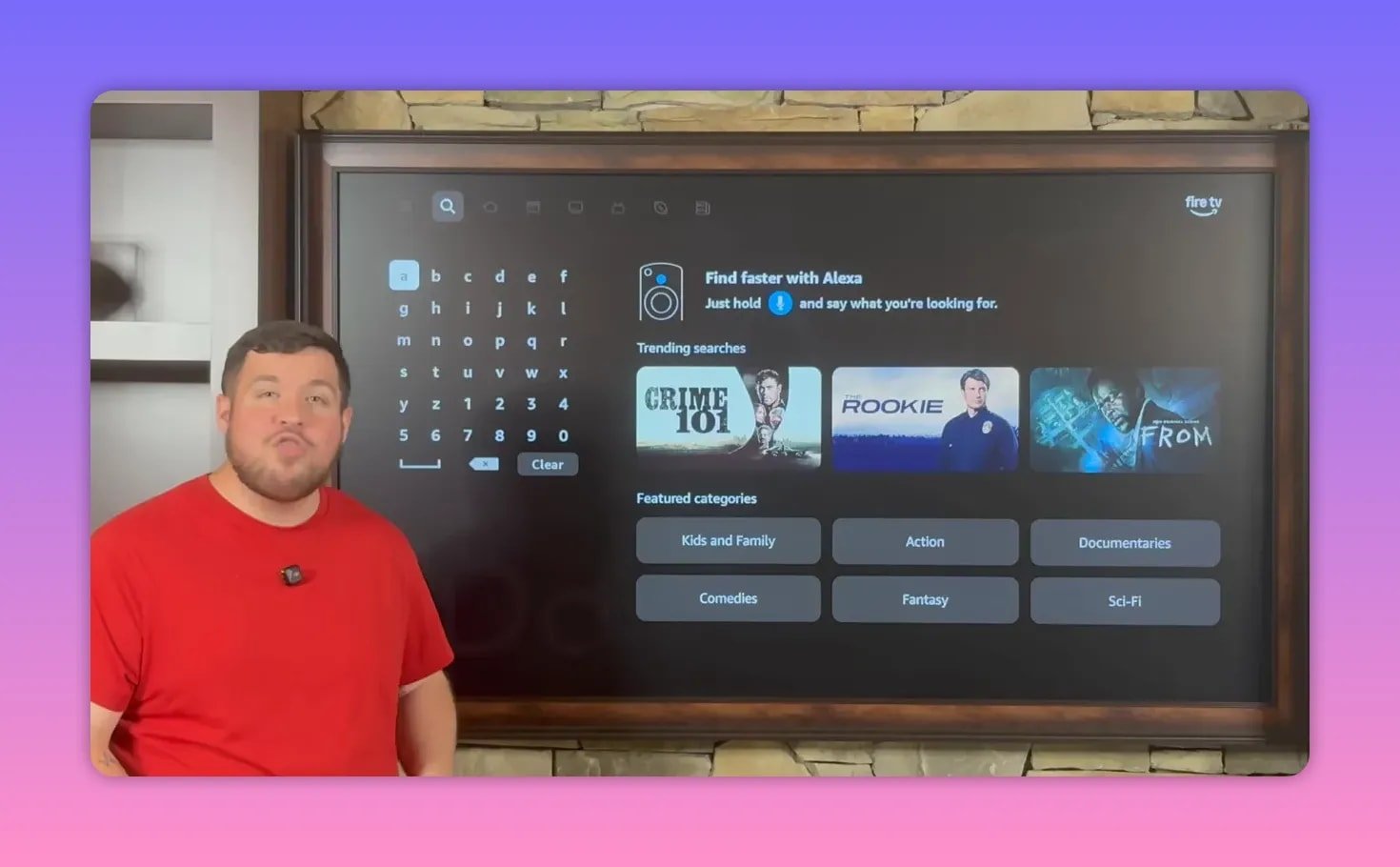
Start from the search icon on your Fire TV or compatible Android TV device and search for Downloader.
When it appears, select the orange Downloader app and install it. You do not need to type the whole name if the search fills it in automatically after the first few letters.
Once Downloader finishes installing, do not jump straight into using it. First, the device needs to be prepared to allow app installs from outside the official store.
⚙️ Step 2: Turn on Developer Options and unknown app installs
Go to:
- Settings
- My Fire TV or My Device depending on software version
If Developer Options is already visible, great. Open it and continue.
If it is missing, here is the trick:
- Open About
- Highlight your device name
- Press the center/select button several times
- Keep going until developer mode is enabled
After that, back out and open Developer Options.
Now enable these:
- ADB Debugging to On
- Install Unknown Apps for Downloader to On
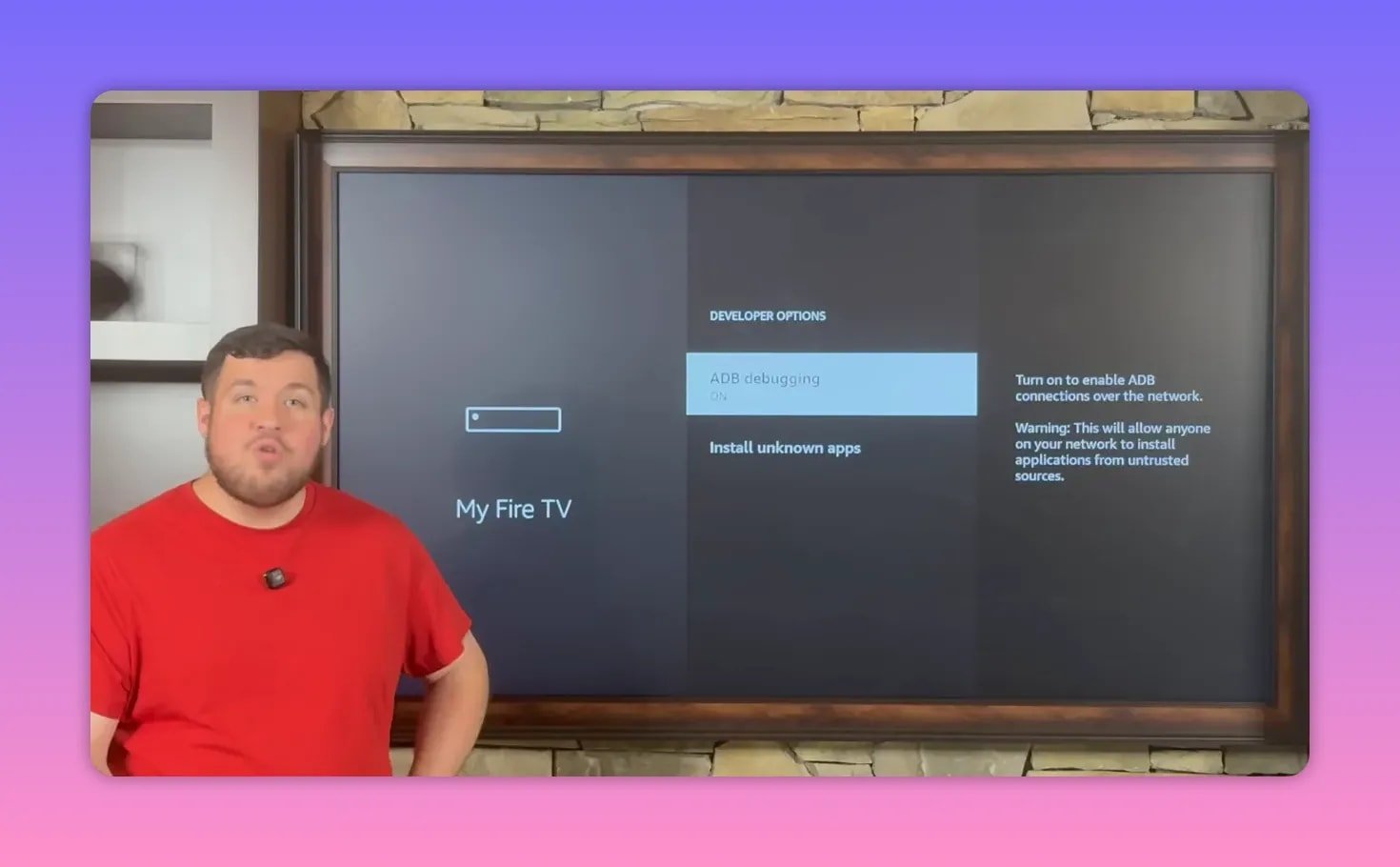
This is the key step that lets Downloader actually install the apps you want.
📥 Step 3: Use Downloader to install Unlinked
Open Downloader from your apps list. On many devices, newly installed apps appear at the end of the apps row, although Downloader itself may show up somewhere in the middle.
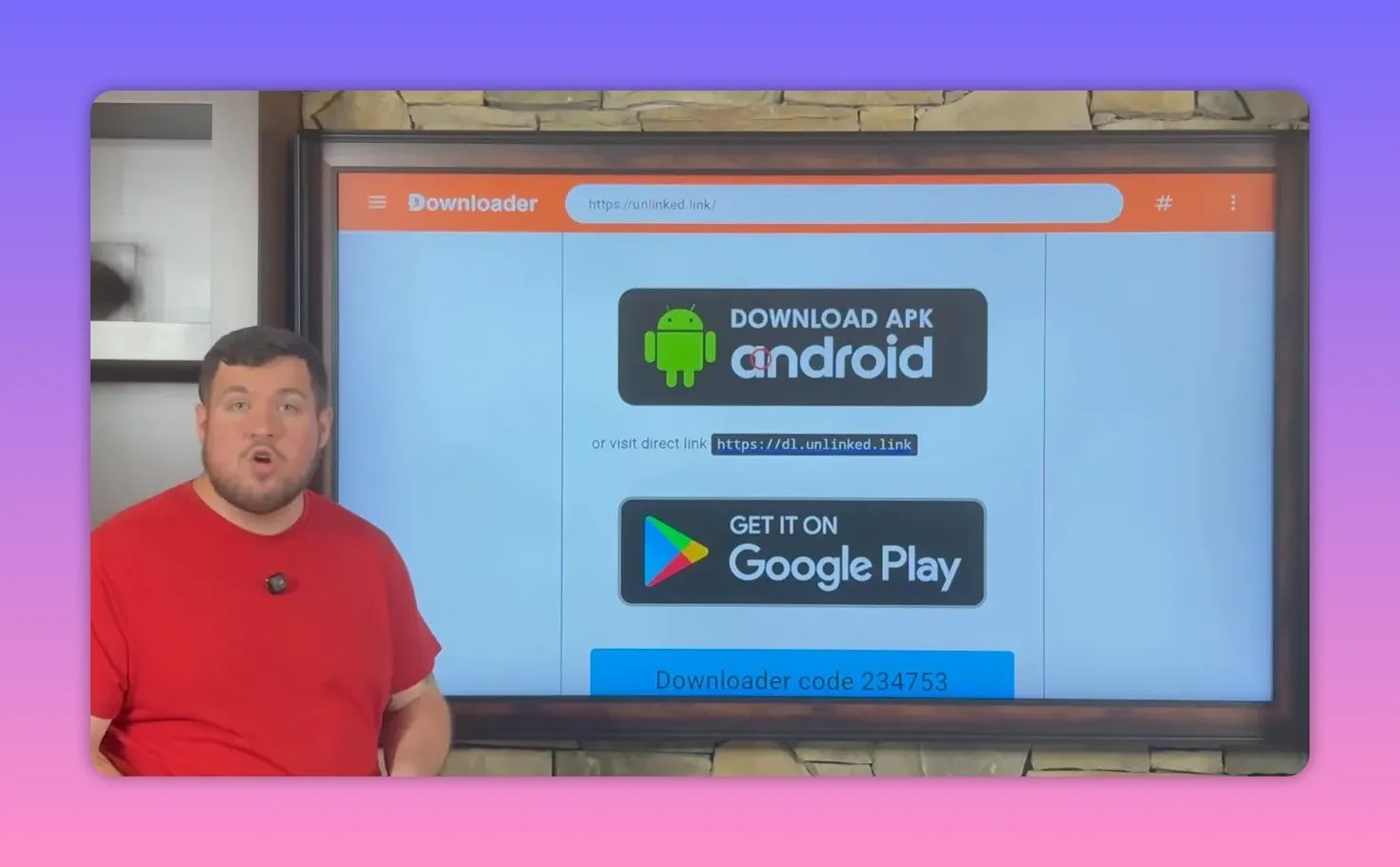
Inside Downloader, use the built-in browser field and enter the address shown during the setup. After the page loads, move down carefully until you find the button labeled Download APK Android, then select it.
After the APK downloads:
- Select Install
- When prompted, choose Done instead of opening it immediately
- Delete the leftover installation file
- Confirm delete again
That cleanup step helps keep your device from filling up with APK files you no longer need.
🧩 Step 4: Allow Unlinked to install apps too
Now go back to:
- Settings
- My Fire TV or My Device
- Developer Options
- Install Unknown Apps
Find Unlinked in the list and switch it to On.
This matters because Unlinked is going to act like your mini app store for installing the two main apps.
🏬 Step 5: Open Unlinked and add the app library
Launch Unlinked. It will ask you to add a new library. This means entering a code for a specific store.
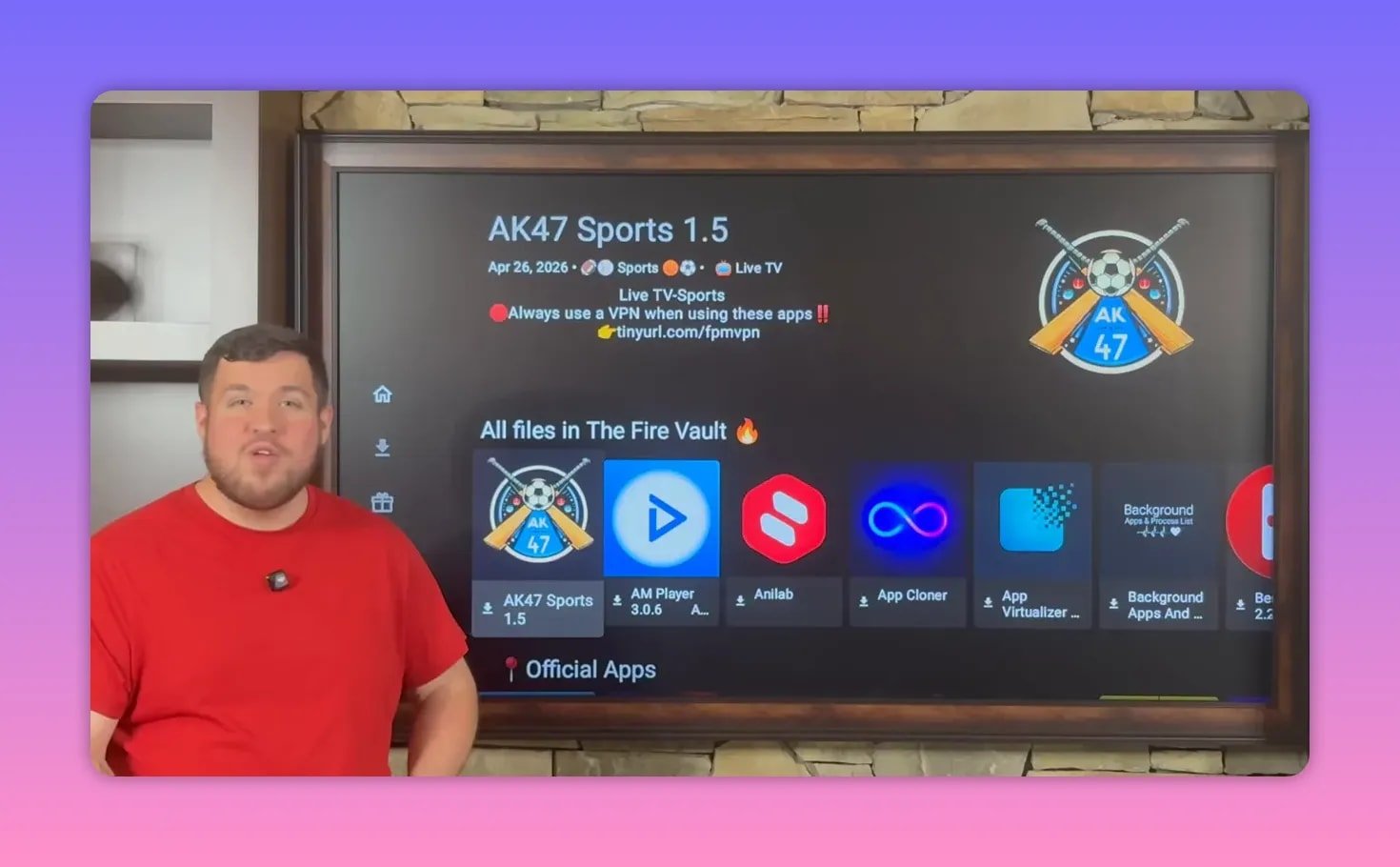
Once the code is entered, you will land inside a curated app library called the Fire Vault. The apps there are arranged alphabetically and also grouped by category, which makes it easier to find what fits what you want.
The store includes a lot more than the two featured apps, with categories for:
- Movies
- TV shows
- Sports
- Live TV
- Pay-per-view
If you want direct download-related resources, the download page is also a relevant place to check for supporting materials.
🔐 Why the VPN is treated as a must-have
Before grabbing the streaming apps, there is a clear warning attached to using third-party apps: use a VPN.
The reasoning given is straightforward. A VPN helps with:
- Staying safe and anonymous
- Avoiding ISP restrictions
- Reducing throttling from internet providers
- Accessing apps that may otherwise be limited
The setup specifically recommends IPVanish, and it is described as the most important app to install first from the library because many streaming issues get solved simply by turning the VPN on.
If apps buffer, fail to install correctly, or behave inconsistently, the explanation given is often ISP throttling or restrictions. In many cases, connecting through the VPN fixes that.
📺 The two apps that do the heavy lifting
Here is the whole point of the setup.
NoroFire and StreamFlix are presented as the two main apps you need for a complete free streaming setup.
NoroFire
NoroFire is a little different because it is basically one app with two apps inside it:
- SportsFire for sports and live events
- StreamFire for live TV, with sports included as well
If your priority is live channels, games, and real-time events, this is where that side of your setup comes from.
StreamFlix
StreamFlix covers the on-demand side:
- New movies
- Older movies
- TV series
- Episodes you want to catch up on
The pitch is simple. If there is a movie you want, whether it came out recently or years ago, or a show you want to binge, StreamFlix is the app built for that.
⬇️ Step 6: Install IPVanish, NoroFire, and StreamFlix
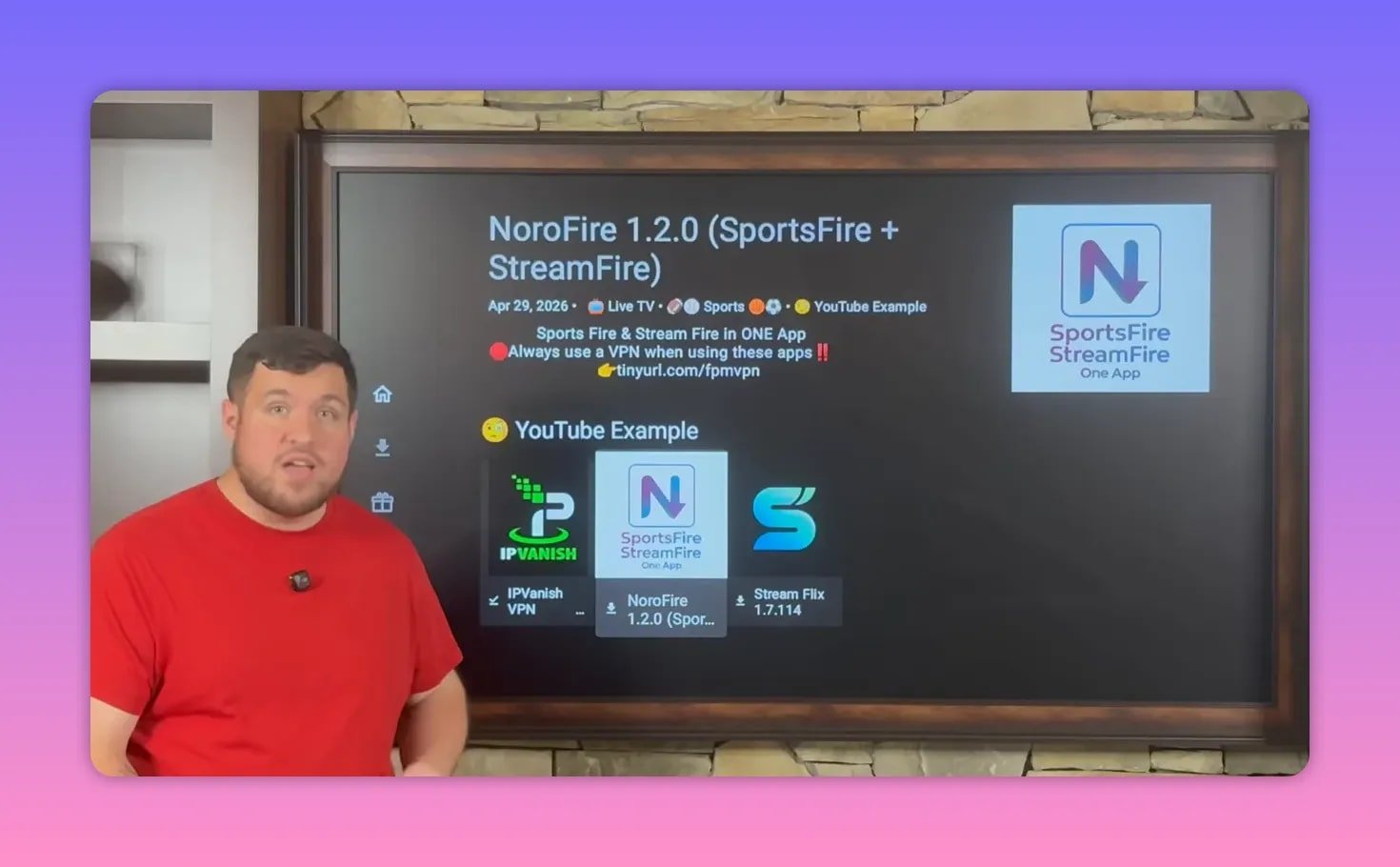
Inside the library, install the apps one at a time.
For each one, the process is:
- Select the app
- Choose Download
- Choose Install App
- Select Install
The order used here is:
- IPVanish VPN
- NoroFire
- StreamFlix
One useful note: the sample section in the library may change over time. If NoroFire and StreamFlix are no longer grouped in a special example section, look for them in their natural categories instead:
- NoroFire under Live TV or Sports
- StreamFlix under Movies and TV Shows
🛠️ Important extra setting for NoroFire
This is one of the easiest details to miss.
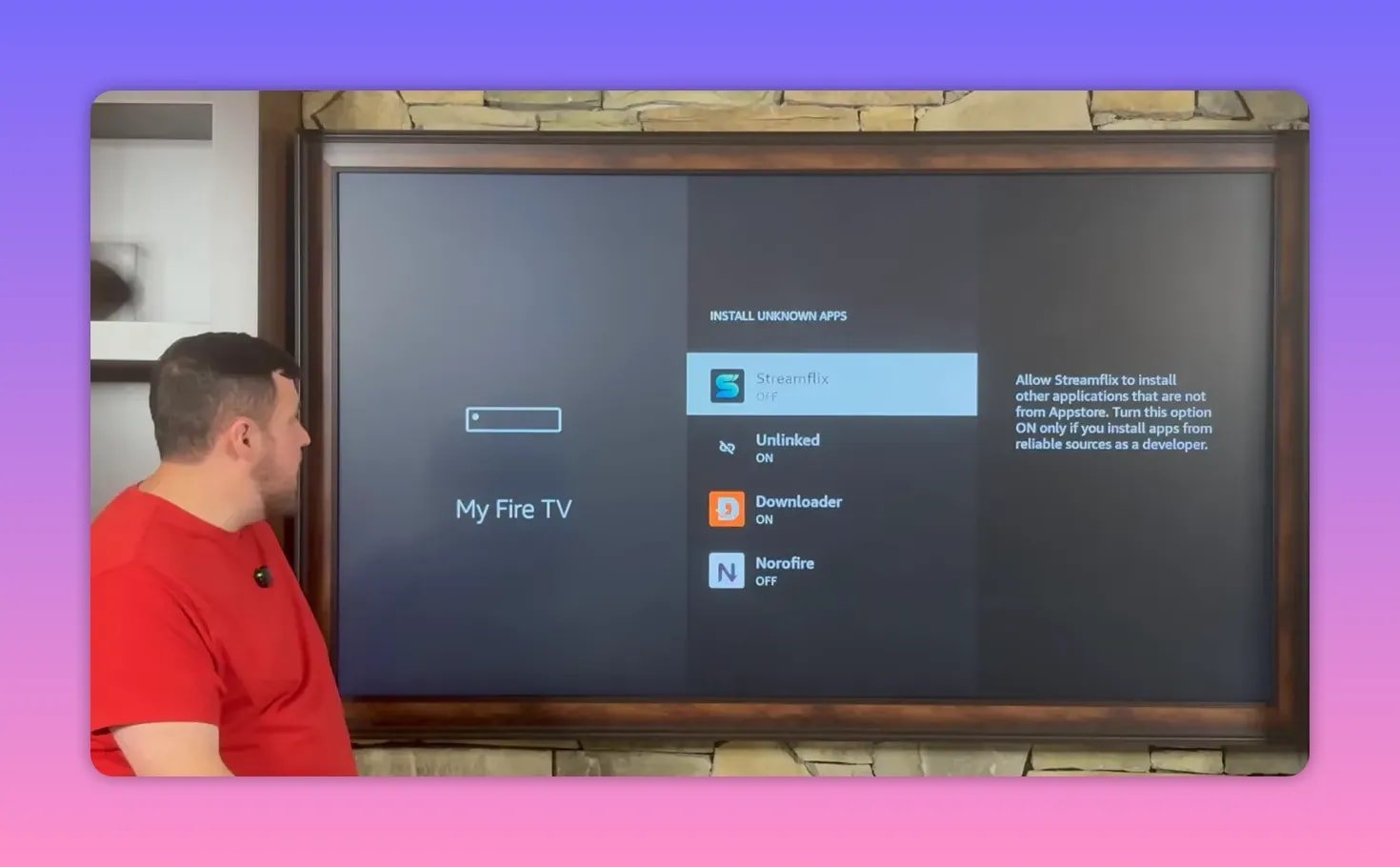
After installing NoroFire, go back again to:
- Settings
- My Fire TV
- Developer Options
- Install Unknown Apps
Find NoroFire and switch it to On.
Why? Because NoroFire needs permission to install the apps inside it, which are SportsFire and StreamFire. Most apps you install will not require this extra step, but NoroFire does.
📌 Move your new apps to the front
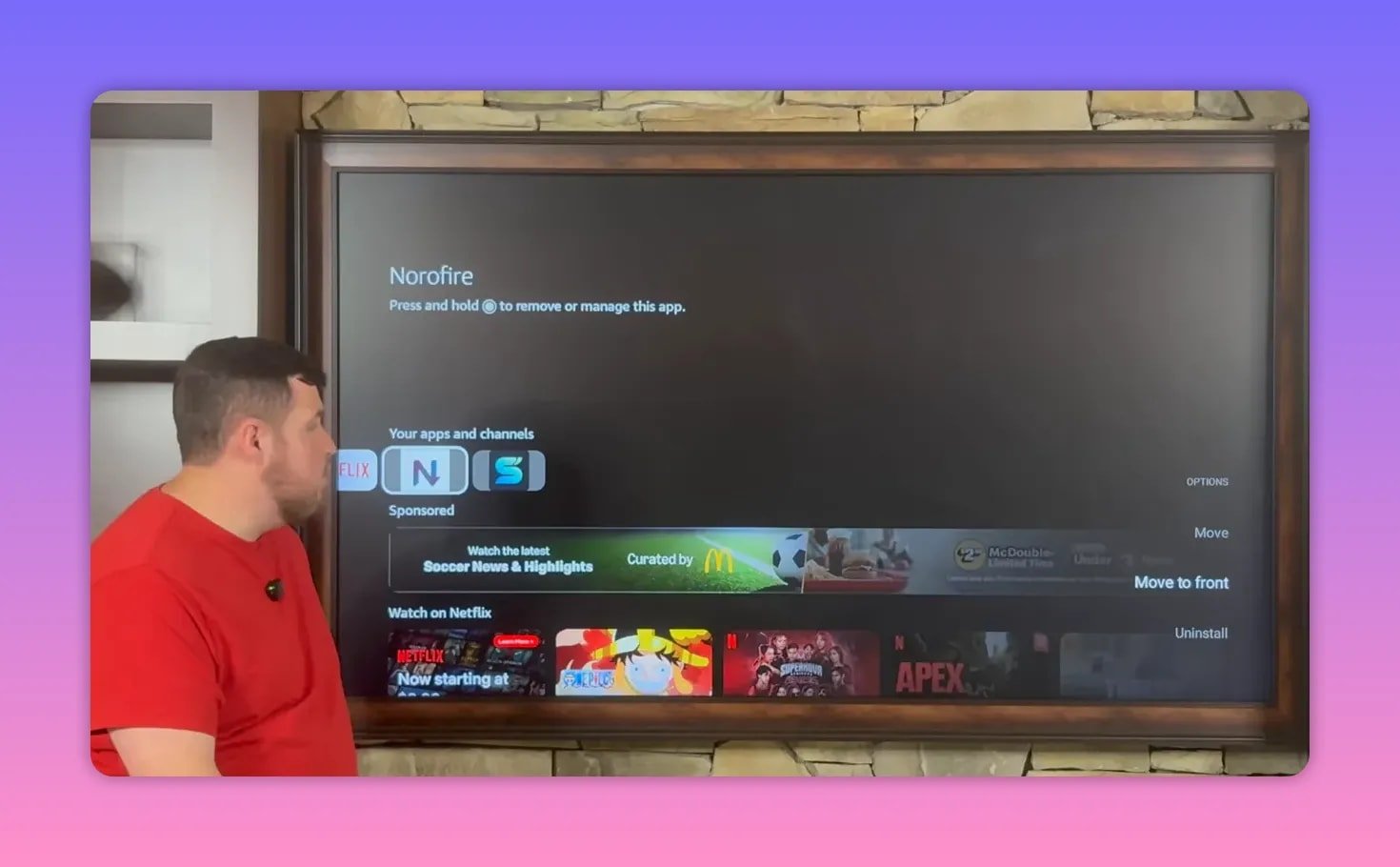
Once everything is installed, your apps will usually sit all the way at the end of your app list. That gets old fast.
There is a quick fix:
- Highlight the app
- Hold down the center/select button
- Choose Move to front
Do this for:
- Unlinked
- IPVanish
- NoroFire
- StreamFlix
After that, the apps stay front and center on the home screen instead of buried at the end of the apps row.
🌐 How to sign in and connect to IPVanish
Before opening any third-party streaming app, turn on the VPN first.
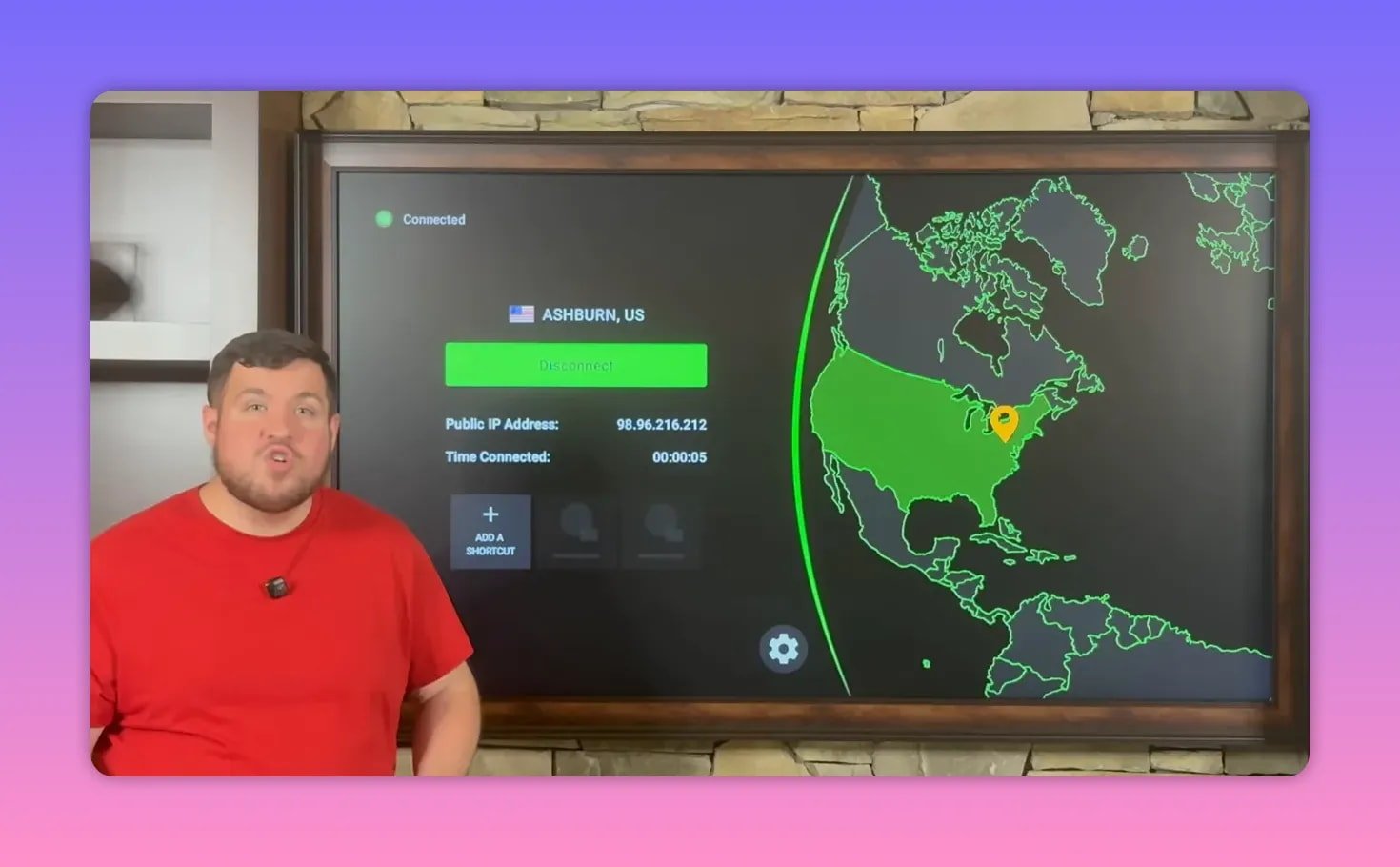
Open IPVanish and sign in. If you do not have an account yet, the setup points to a sign-up page and QR code, along with plan selection and confirmation email steps.
Once signed in, connecting is easy:
- Select the green Connect button
- If a permission pop-up appears, choose OK
- Wait for your country or connection status to highlight green
When that happens, you are connected.
You can also:
- Use the gear icon to adjust VPN settings
- Change your server location if needed
- Check the time connected counter
The VPN stays connected unless you manually disconnect it or turn off the device.
🎬 What each app is best for
Here is the cleanest way to think about the setup:
- NoroFire = sports and live TV
- StreamFlix = movies and TV shows
That is why this setup is pitched as the only free app combination you need right now. Instead of bouncing across a bunch of separate APKs, you split your streaming into two jobs:
- Live content on one side
- On-demand content on the other
Simple, clean, and much easier to manage.
❓FAQ
Do I only need two apps for streaming content?
For the actual entertainment side, the setup focuses on two main apps: NoroFire and StreamFlix. NoroFire covers sports and live TV through SportsFire and StreamFire, while StreamFlix handles movies and TV shows. You will still use Downloader and Unlinked to install them.
Why do I need Downloader first?
Downloader is the tool used to access and install apps outside the official app store. It acts like a lightweight browser and APK installer, which makes it the first piece of the setup.
What is Unlinked used for?
Unlinked works like a private app library. After entering a library code, you can browse a curated collection of apps and install the ones you want directly from that store.
Why does NoroFire need an extra permission?
NoroFire contains additional apps inside it, specifically SportsFire and StreamFire. Because of that, it needs permission under Install Unknown Apps so it can install those internal components.
Is a VPN really necessary?
The setup strongly recommends it. The reason given is that a VPN helps avoid ISP throttling, improves privacy, and can solve common issues like buffering or installation problems caused by restrictions from your internet provider.
What devices does this kind of setup work on?
The process is aimed at Fire Stick, Fire TV, ONN box, Nvidia Shield, Android TV boxes, and similar Android-based streaming devices.
How do I keep the apps from getting buried at the end of the app list?
Highlight the app, hold the center/select button, and choose Move to front. That puts your most-used apps at the beginning of the row so you can get to them quickly.
🔥 Final setup checklist
If you want the whole process condensed into one clean checklist, here it is:
- Install Downloader
- Enable Developer Options
- Turn on ADB Debugging
- Allow Downloader under Install Unknown Apps
- Use Downloader to install Unlinked
- Allow Unlinked under Install Unknown Apps
- Open Unlinked and access the app library
- Install IPVanish, NoroFire, and StreamFlix
- Allow NoroFire under Install Unknown Apps
- Move your key apps to the front
- Sign in to IPVanish and connect
- Use NoroFire for sports and live TV
- Use StreamFlix for movies and TV shows
That is the whole play. Fewer apps, less clutter, and a much easier Fire Stick or Android TV setup.
