If you want one place to grab a huge collection of FireStick apps for movies, TV shows, sports, live TV, pay-per-view, and more, this setup is exactly that. Instead of hunting around for individual APKs one by one, you can install a custom app library and browse over 50 apps from a single store.
The whole process comes down to three parts:
- Install Downloader
- Use Downloader to install Unlinked
- Enter the private library code to open the Fire Vault
Once that is done, you can install streaming apps directly from the store and move your favorites to the front of your FireStick home screen so they are always easy to find.
Table of Contents
- 🔍 What this FireStick app store actually is
- 🛠️ Step 1: Install Downloader on FireStick
- ⚙️ Step 2: Turn on Developer Options and unknown app installs
- 📥 Step 3: Use Downloader to install Unlinked
- 🔓 Step 4: Allow Unlinked to install apps
- 🏪 Step 5: Open the secret store and add the library code
- 📚 How the Fire Vault is organized
- 🎬 Four example apps from the store
- ⬇️ How to install apps from the store
- 🧭 Where newly installed FireStick apps go
- 🚀 Move your favorite apps to the front
- 🔐 Why a VPN matters with third-party FireStick apps
- 🌍 How to connect to IPVanish on FireStick
- ✅ Best way to use this setup day to day
- ❓FAQ
🔍 What this FireStick app store actually is
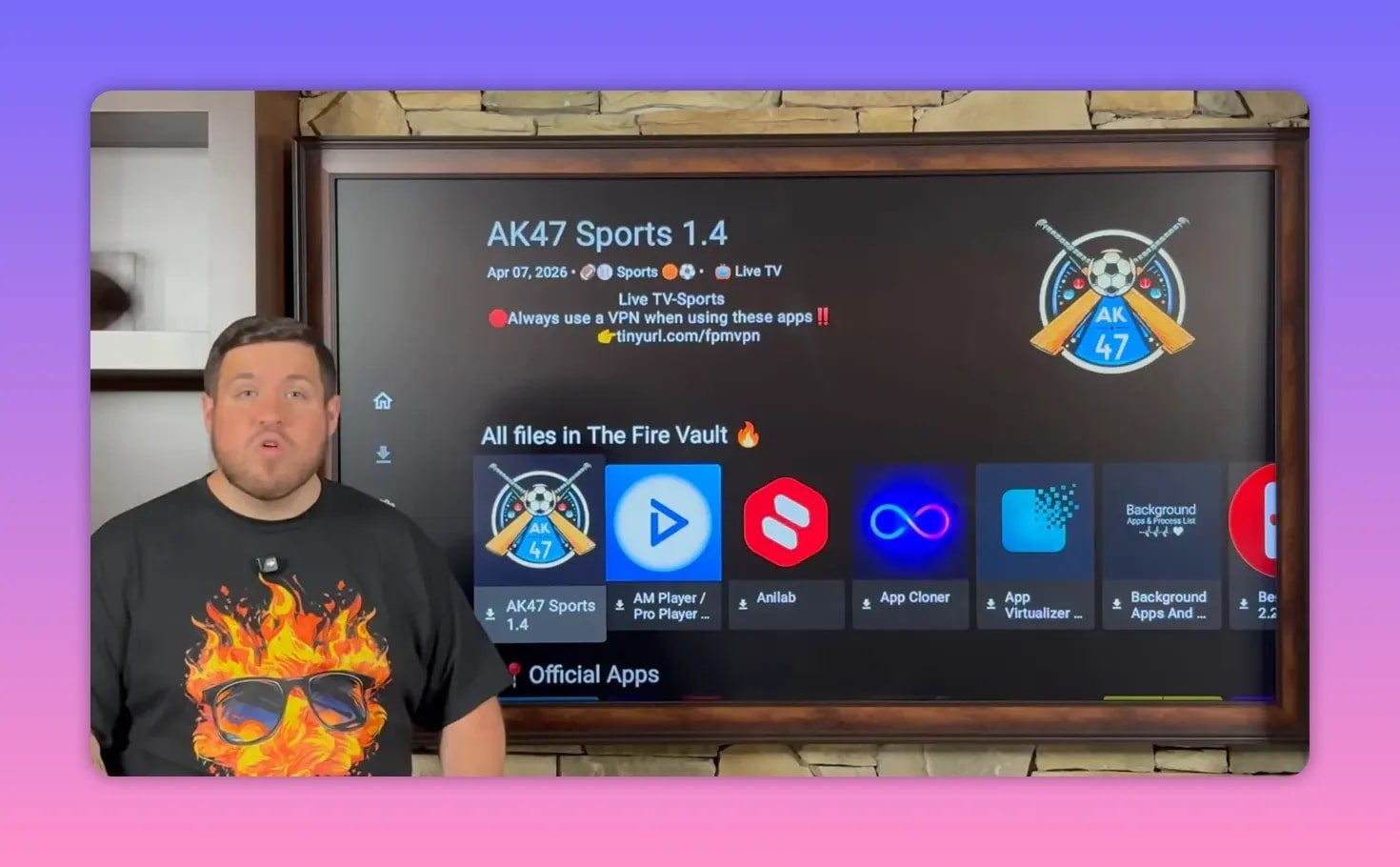
This is a private Unlinked library stocked with more than 50 third-party apps. These are not pulled from the Amazon Appstore. The goal is convenience. Instead of manually tracking down separate installer links, everything is organized inside one storefront.
The library is called the Fire Vault, and the apps inside are arranged alphabetically and by category. That makes it easier to browse when you want something specific, whether that is a movie app, a live TV app, or a sports option.
If you want general Fire Stick help beyond this setup, there are also more resources available through Fire Prodigy Media’s broader Fire Stick and Android TV guides.
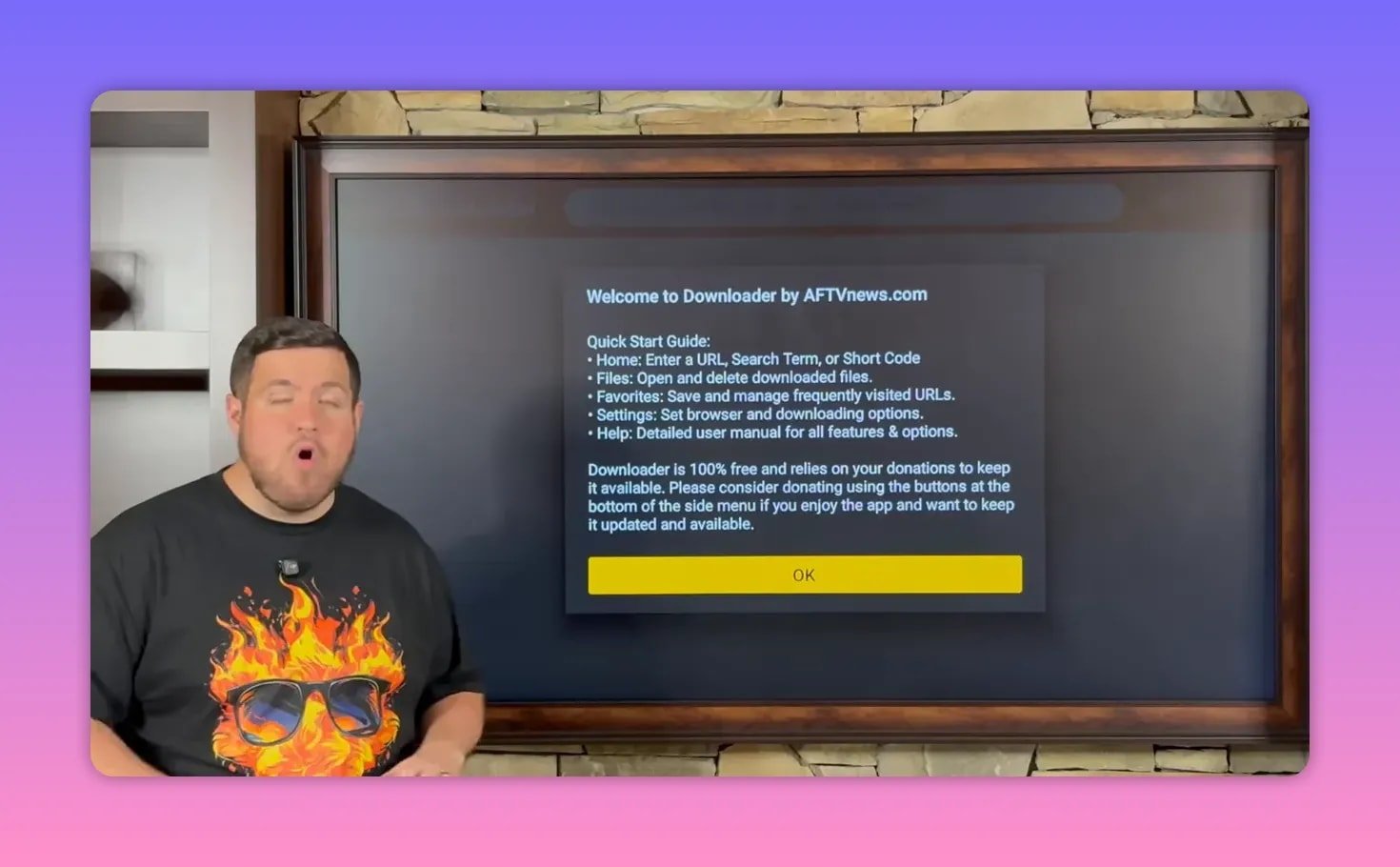
🛠️ Step 1: Install Downloader on FireStick
Start from the Fire TV home screen and use the search icon, the little magnifying glass at the top.
- Search for Downloader
- Select the orange Downloader app
- Install it
After it installs, do not worry about opening it right away. There is one important FireStick setting that needs to be enabled first or the device will block sideloaded apps.
⚙️ Step 2: Turn on Developer Options and unknown app installs
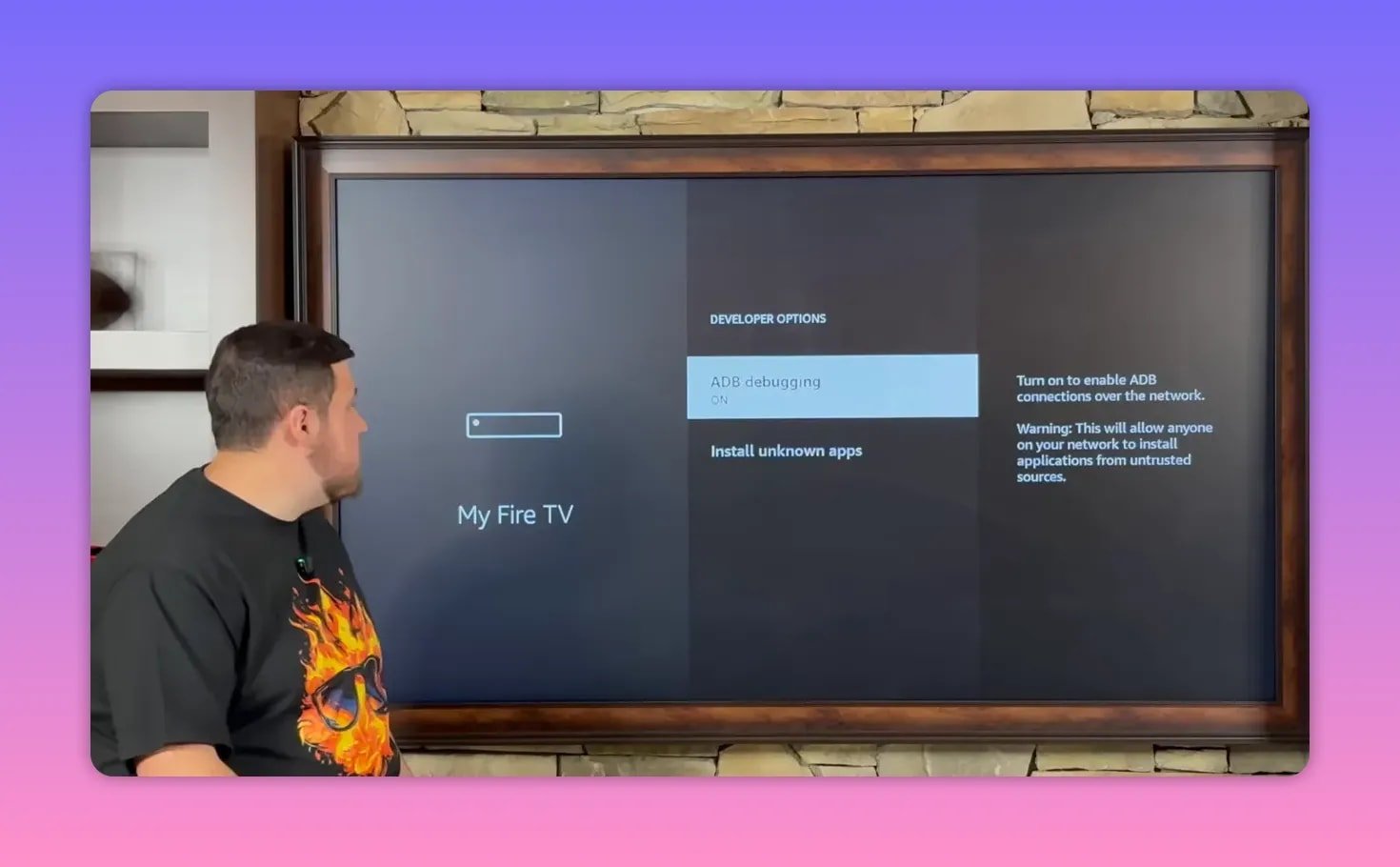
Go to your Fire TV settings and open My Fire TV. On some devices this may show up as My Device or appear in a slightly different spot, but the process is the same.
If Developer Options is already visible, great. If it is missing, you can unlock it quickly:
- Open About
- Highlight your device name
- Press the center button on your remote several times
- Wait for the message confirming you are now a developer
Then go back and open Developer Options.
Enable these two settings:
- ADB Debugging to On
- Install Unknown Apps for Downloader to On
That gives Downloader permission to install apps that do not come from Amazon’s official store.
📥 Step 3: Use Downloader to install Unlinked
Now go back to your apps list and open Downloader.
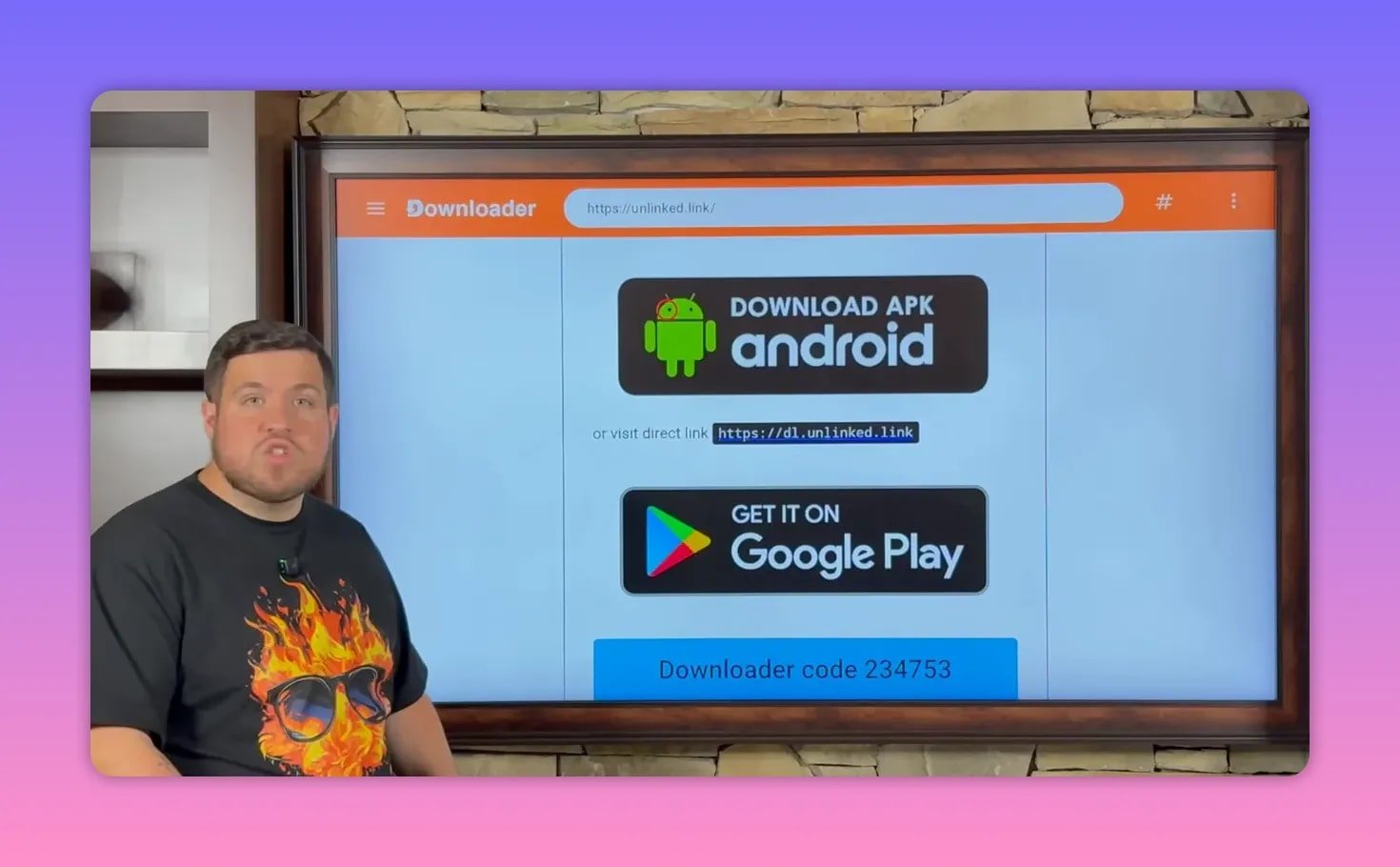
Inside Downloader, move the red cursor to the URL box, click it, and enter the web address shown in the original setup. Downloader works like a lightweight browser, so this is where you load the Unlinked installer page.
After the page opens:
- Scroll down until you find Download APK Android
- Select it
- Choose Install
- When prompted, choose Done instead of Open
- Delete the leftover installation file
That last cleanup step is worth doing. FireStick storage fills up faster than most people expect, so deleting installer files you no longer need is a good habit.
🔓 Step 4: Allow Unlinked to install apps
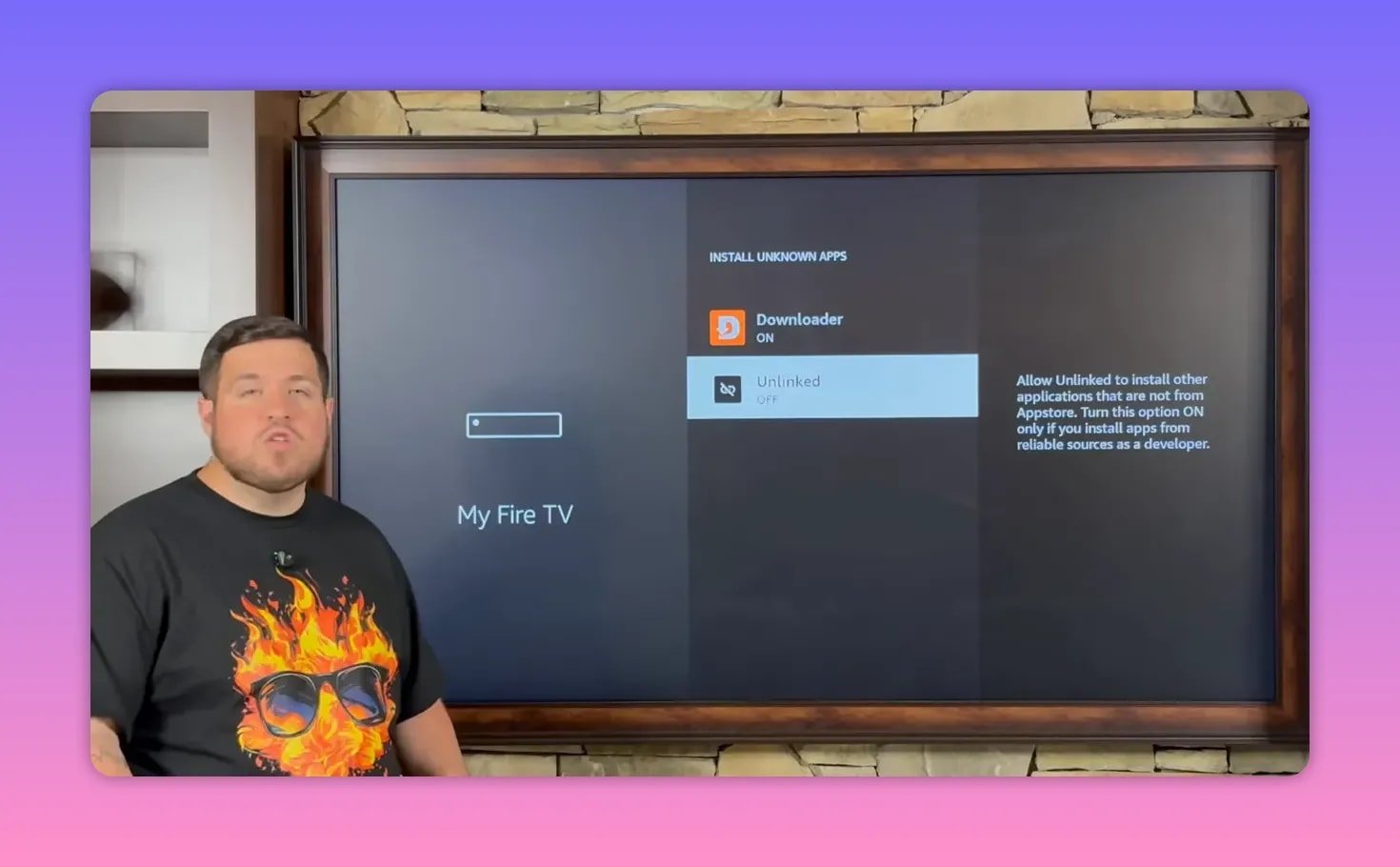
Before Unlinked can install anything from the store, it also needs permission under the unknown apps setting.
Go back to:
Settings > My Fire TV > Developer Options > Install Unknown Apps
Find Unlinked in the list and switch it to On.
Then return to your apps list. Since it is newly installed, Unlinked should be near the end of the list, often all the way at the bottom.
🏪 Step 5: Open the secret store and add the library code
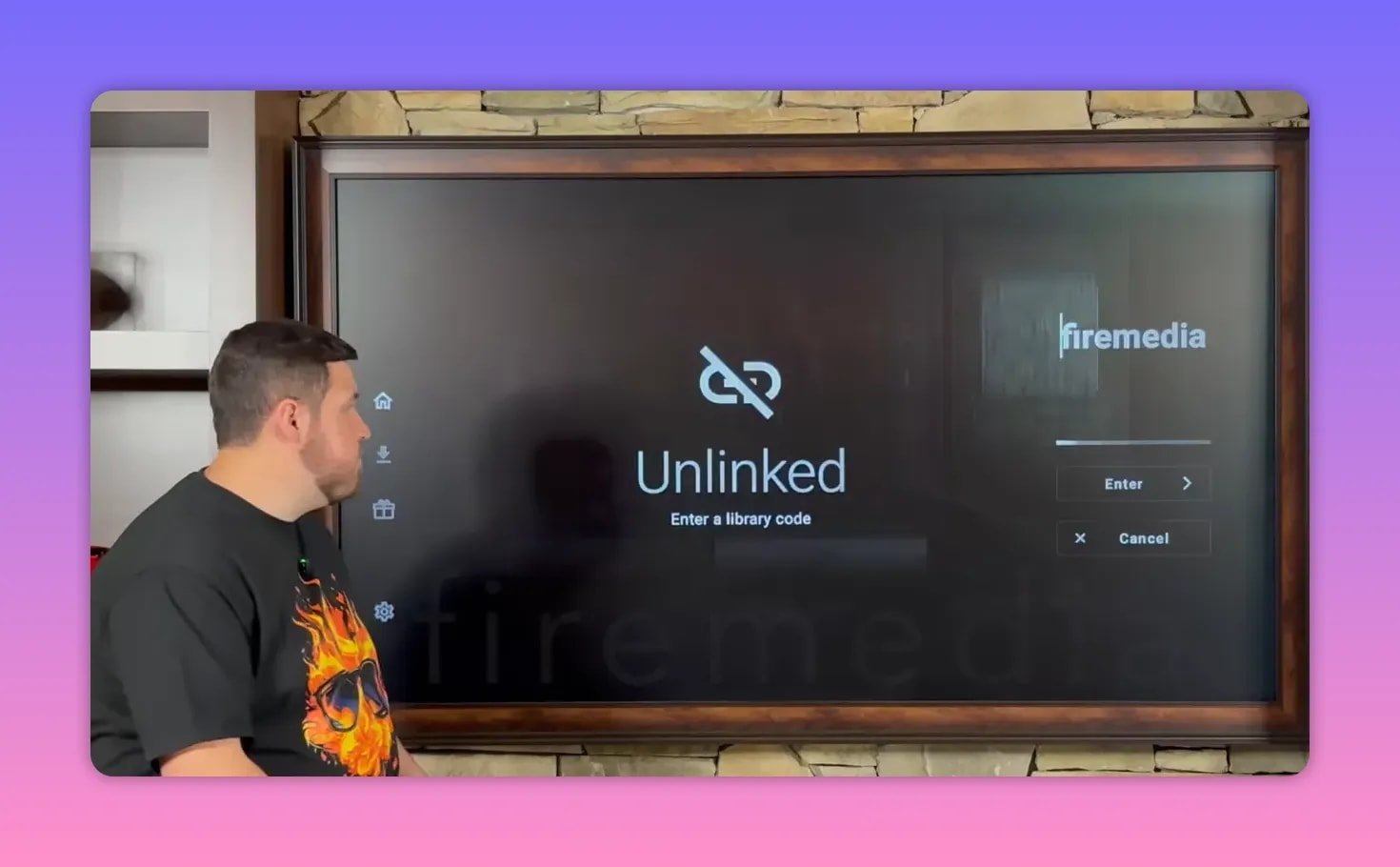
Launch Unlinked and choose Add a new library. That is where you enter the private code for the Fire Vault store.
After entering the code and continuing, Unlinked displays a message explaining why a VPN should be used with third-party apps. That is not just filler. It is a key part of the setup.
Once you accept that message, select the arrow, open the file, and the store loads.
At that point, you are inside the Fire Vault with 50+ apps ready to browse and install.
📚 How the Fire Vault is organized
The store is designed to be easy to navigate. Apps are:
- Listed alphabetically
- Grouped into categories
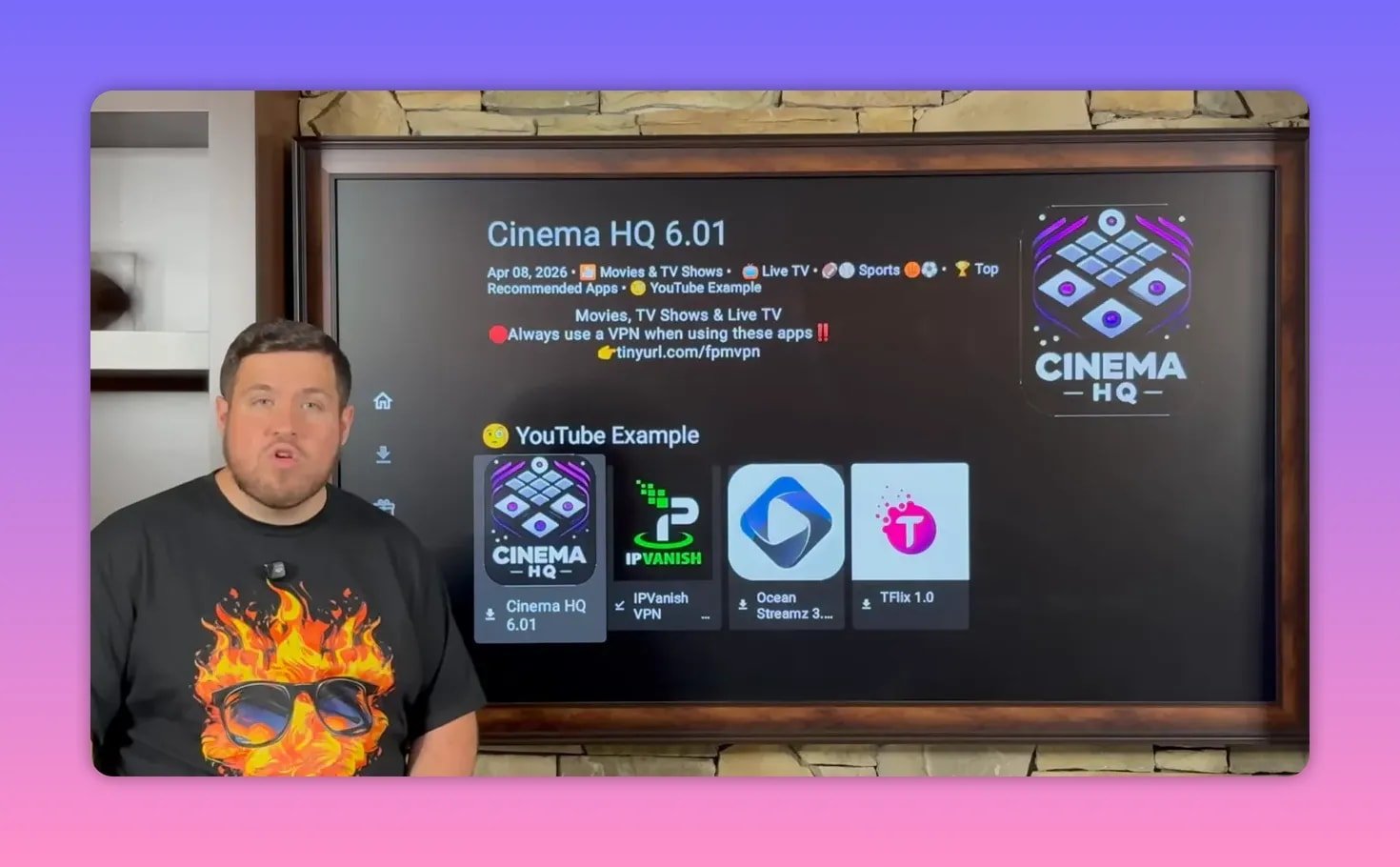
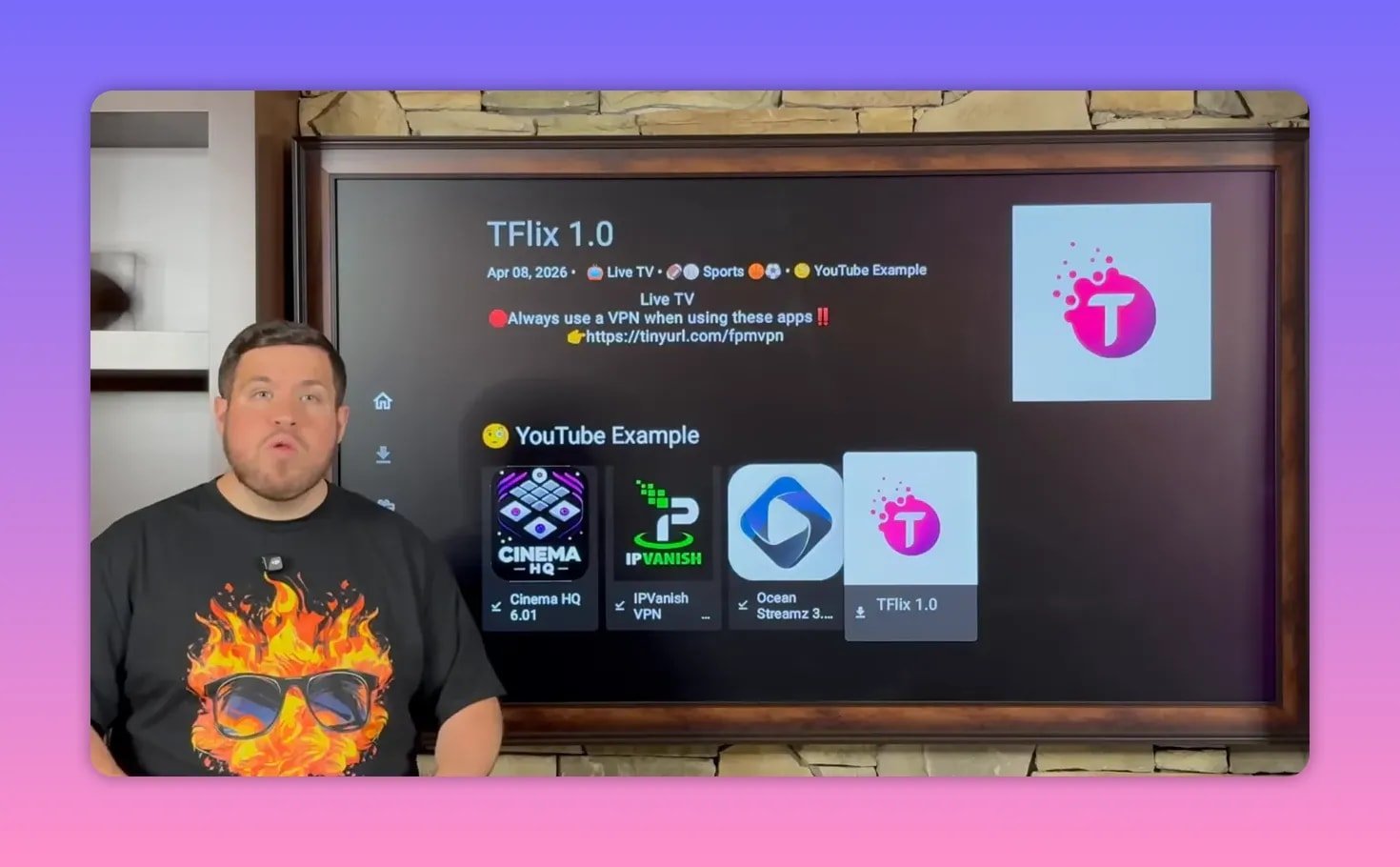
- Sometimes highlighted in a temporary section such as a YouTube example row
That example section is basically a shortcut collection. Depending on when you open the store, those featured apps may or may not still be grouped there, but you can always find them either by category or by scrolling alphabetically.
If you need a place for APK-related downloads and FireStick install resources, you may also want to check this download page.
🎬 Four example apps from the store
To show what the library offers, four apps were highlighted as starter picks. Together, they cover privacy, movies, TV shows, sports, and live channels.
IPVanish VPN
This is the first recommended install, and for good reason. A VPN helps unlock third-party apps, adds privacy, and can help work around ISP throttling or regional restrictions.
The pitch here is simple: if you are using third-party streaming apps, turn on your VPN first.
Cinema HQ
Cinema HQ is positioned as a strong all-around movie and TV show app. Whether you want something brand new or something that has been out for years, this one is presented as a reliable choice for on-demand entertainment.
Ocean Streams
Ocean Streams adds another broad entertainment option with movies, shows, live TV, and sports. If you like having multiple apps that overlap a bit, that is actually useful. Some apps work better for certain content, and having backups matters.
TeaFlix
TeaFlix stands out for live TV and sports. One useful detail is that it highlights sports events happening that day, so it is easy to jump into live action. It also includes a strong live TV section if you spend a lot of time browsing channels.
⬇️ How to install apps from the store
Installing from the Fire Vault is straightforward. For any app you want:
- Select the app
- Choose Download
- Select Install App
- Confirm with Install
After installation, Unlinked drops you right back into the store. That makes it easy to grab multiple apps in a row without repeating the whole process.
You are not limited to the four starter apps. Browse around. If something else fits your setup better, install that too.
🧭 Where newly installed FireStick apps go
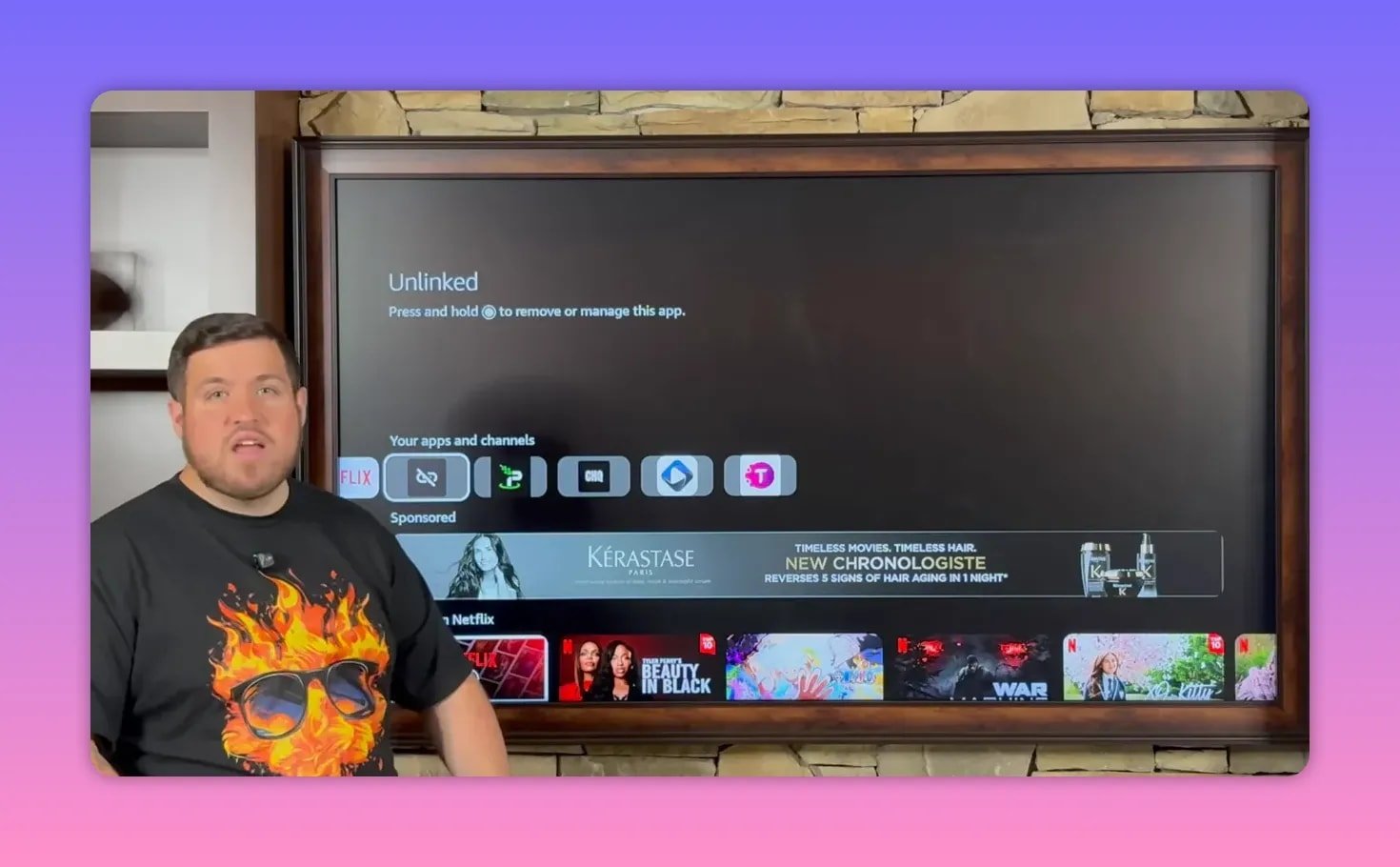
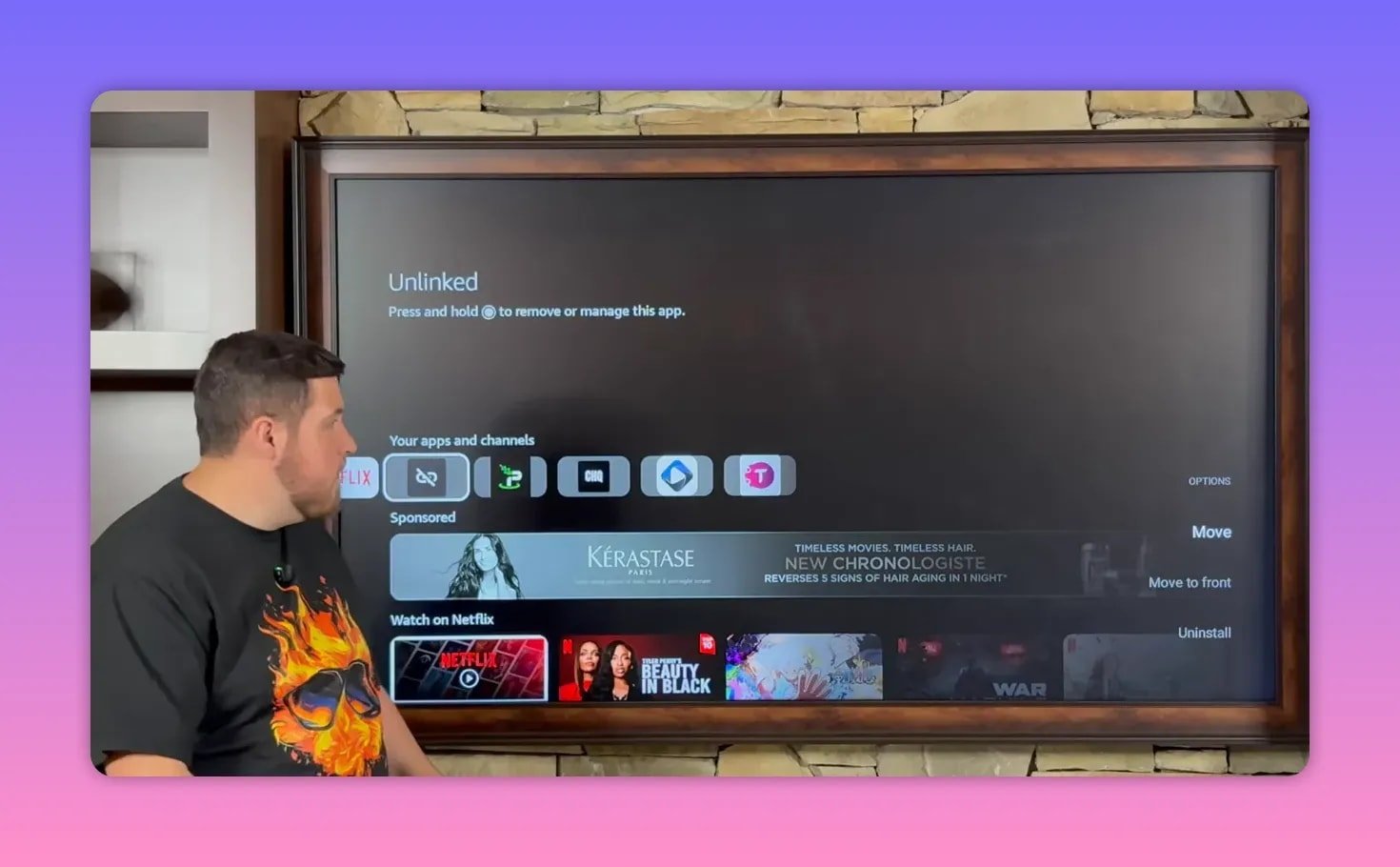
Once apps are installed, press the Home button and go to your full apps list. Newly added apps usually appear at the end of the row or near the bottom of the list.
That is normal on FireStick, but it is also annoying. Nobody wants to scroll through a huge line of apps every single time just to launch the same five tools.
🚀 Move your favorite apps to the front
Here is one of the handiest FireStick tricks in the whole setup.
Highlight the app you want to reposition, then:
- Hold down the center button on the remote
- Choose Move to Front
Repeat that for the apps you use most, such as:
- Unlinked
- IPVanish
- Cinema HQ
- Ocean Streams
- TeaFlix
After that, your core streaming apps sit front and center on the home screen instead of being buried at the very end.
🔐 Why a VPN matters with third-party FireStick apps
The setup puts a lot of emphasis on using a VPN, and the reason is practical. Third-party apps often trigger issues that a VPN can help reduce, including:
- ISP throttling
- Regional restrictions
- Privacy concerns
- General connection problems inside some apps
The recommendation here is IPVanish. The claim is that many common complaints, things like apps not installing properly or streams buffering badly, improve after the VPN is switched on.
Whether the issue is restriction, throttling, or app behavior, the routine is the same: turn on the VPN before opening your streaming apps.
🌍 How to connect to IPVanish on FireStick
Open IPVanish and sign in. If you do not already have an account, you will need to create one and choose a plan first.
Once signed in:
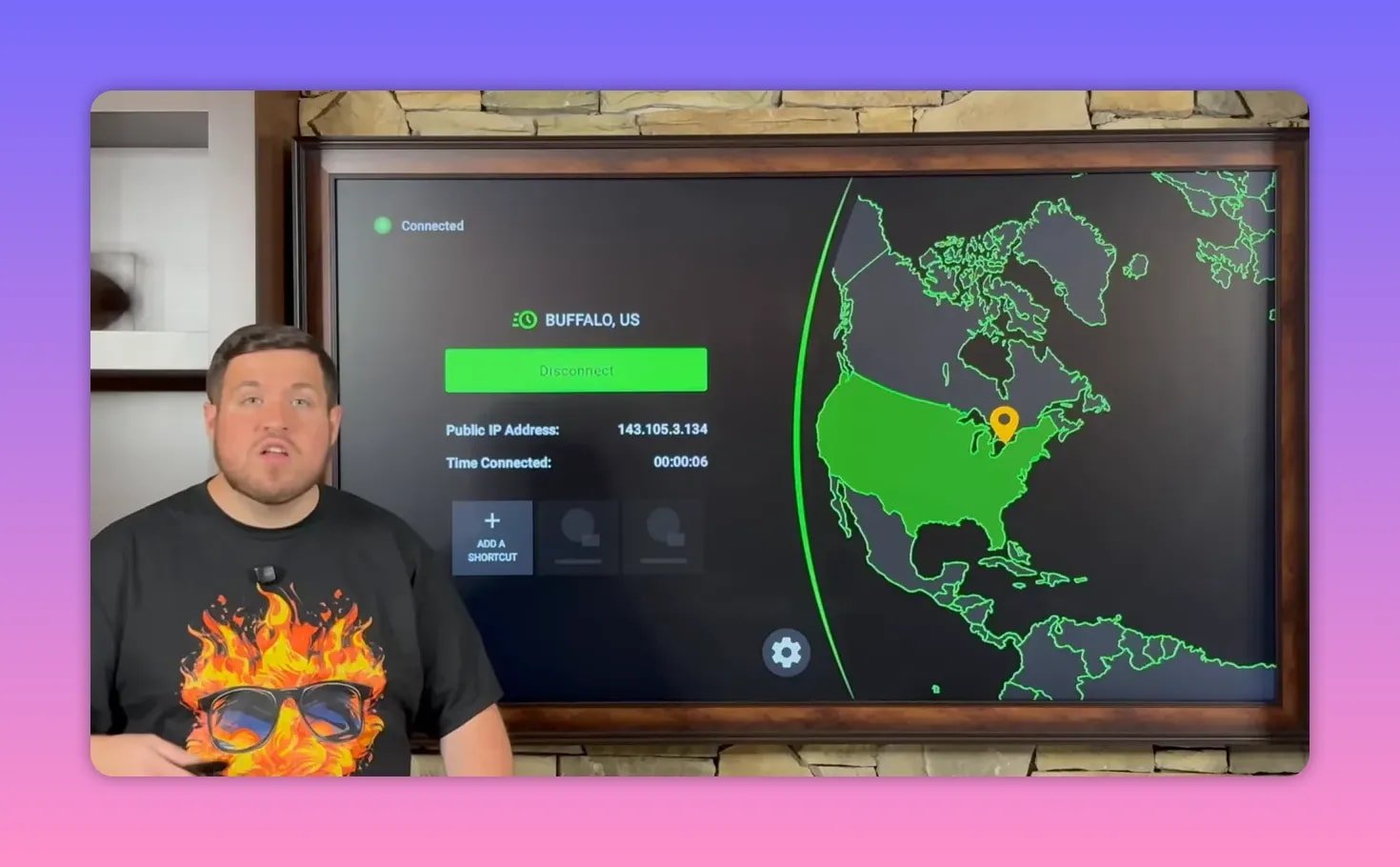
- Select the green Connect button
- If a pop-up appears, choose OK
- Wait until your country highlights green
When the country indicator turns green, you are connected.
From there you can:
- Use the gear icon to change VPN settings
- Use the location icon to switch server locations
- Check the time connected counter to confirm the session is active
The VPN remains on until you disconnect or power off the device.
✅ Best way to use this setup day to day
If you want the smoothest routine, keep it simple:
- Power on the FireStick
- Open IPVanish first and connect
- Launch your preferred app, like Cinema HQ, Ocean Streams, or TeaFlix
- Use Unlinked any time you want to add more apps from the Fire Vault
That gives you quick access, keeps your favorite tools on the front row, and avoids the usual mess of searching for random APK sources every time you want to expand your setup.
❓FAQ
What app is used to access the secret FireStick store?
The store is accessed through Unlinked, which is first installed using the Downloader app.
Why do I need to enable Developer Options on FireStick?
Developer Options allows your FireStick to install apps from outside the Amazon Appstore. You need it to permit Downloader and Unlinked to sideload APKs.
Where do newly installed apps appear on FireStick?
They usually appear near the end or at the bottom of your apps list. You can hold the center button on an app and select Move to Front to bring it to the home screen.
What kind of apps are in the Fire Vault store?
The store includes over 50 apps covering movies, TV shows, sports, live TV, pay-per-view, and related tools like VPN apps.
Why is IPVanish recommended before opening streaming apps?
It is recommended for privacy, security, and to help avoid ISP throttling or region-based restrictions that can affect third-party apps.
What are the example apps highlighted from the store?
The featured examples are IPVanish VPN, Cinema HQ, Ocean Streams, and TeaFlix.
Can I install more than just the featured apps?
Yes. The four apps shown are only starter suggestions. The full store contains many more apps that can be browsed alphabetically or by category.