If you want a free streaming app that keeps things simple, this is the setup worth knowing about. The big selling point here is not just free movies and TV shows. It is that the app is a one-click app. No digging through source lists. No trying link after link. No guessing which stream might actually work. You pick what you want, click it, and it plays.
This guide walks through the full process of getting everything installed on a Fire Stick, ONN Box, Nvidia Shield, or other Android box. That includes the tools needed to sideload apps, how to enable the right settings, how to install the app store used in this setup, why a VPN matters, and how to organize everything so your new apps are easy to find.
Table of Contents
- 🔍 What makes this app different?
- 🛠️ What you need before installing anything
- 📥 Install Downloader first
- ⚙️ Enable Developer Options and unknown apps
- 🌐 Use Downloader to install Unlinked
- 🔓 Give Unlinked permission to install apps
- 🏬 Add the Fire Vault library in Unlinked
- 🔐 Why the VPN matters before using third-party apps
- 🎬 Install Mobiflix, the featured one-click movie app
- 📂 Move your new apps to the front
- 🔌 Sign in to IPVanish and connect
- 📺 What else is inside Fire Vault?
- ✅ Final setup checklist
- ❓FAQ
🔍 What makes this app different?
A lot of free streaming apps work, but they come with friction. You click a movie, then get a wall of links. Some are fine. Some fail. Some buffer. Some leave you hoping one of them works.
The app highlighted here is Mobiflix, and the reason it stands out is simple: it is built for one-click playback. Instead of making you bounce through a bunch of sources, it goes straight to the content.
That is why it gets called the number one free app in this setup. If your priority is ease of use, that one detail matters a lot.
🛠️ What you need before installing anything
This method works on:
- Amazon Fire Stick
- Fire TV devices
- ONN Box
- Nvidia Shield
- Android TV boxes and similar Android-based streaming devices
You will need to install a few things in order:
- Downloader, which is used to fetch files from the web
- Unlinked, which acts like an app library or store for third-party apps
- IPVanish VPN, which is recommended before using third-party apps
- Mobiflix, the featured movie and TV show app
If you are still setting up your device in general, Fire Prodigy Media also keeps additional resources available at https://jobice.org.
📥 Install Downloader first
The first app to grab is Downloader. On Fire TV devices, use the search icon and type Downloader. You are looking for the orange app.
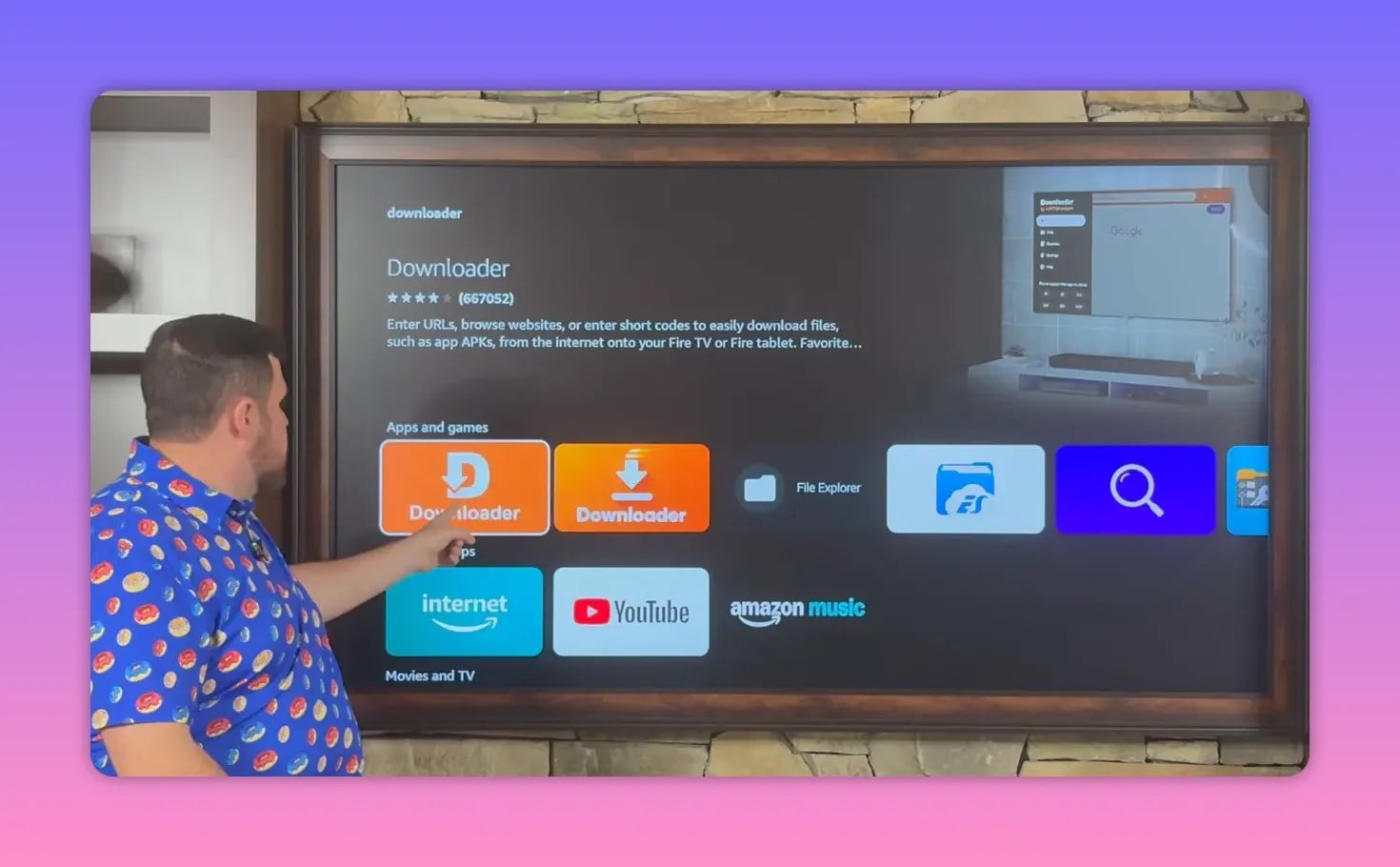
Download and install it, but do not start using it just yet. Before Downloader can install anything from outside the Amazon Appstore, your device settings need a quick adjustment.
⚙️ Enable Developer Options and unknown apps
Head into:
- Settings
- My Fire TV or My Device
Some devices already show Developer Options. If yours does not, you can unlock it easily:
- Open About
- Highlight your device name
- Click the center button on the remote several times
If Developer Options was hidden, this reveals it.
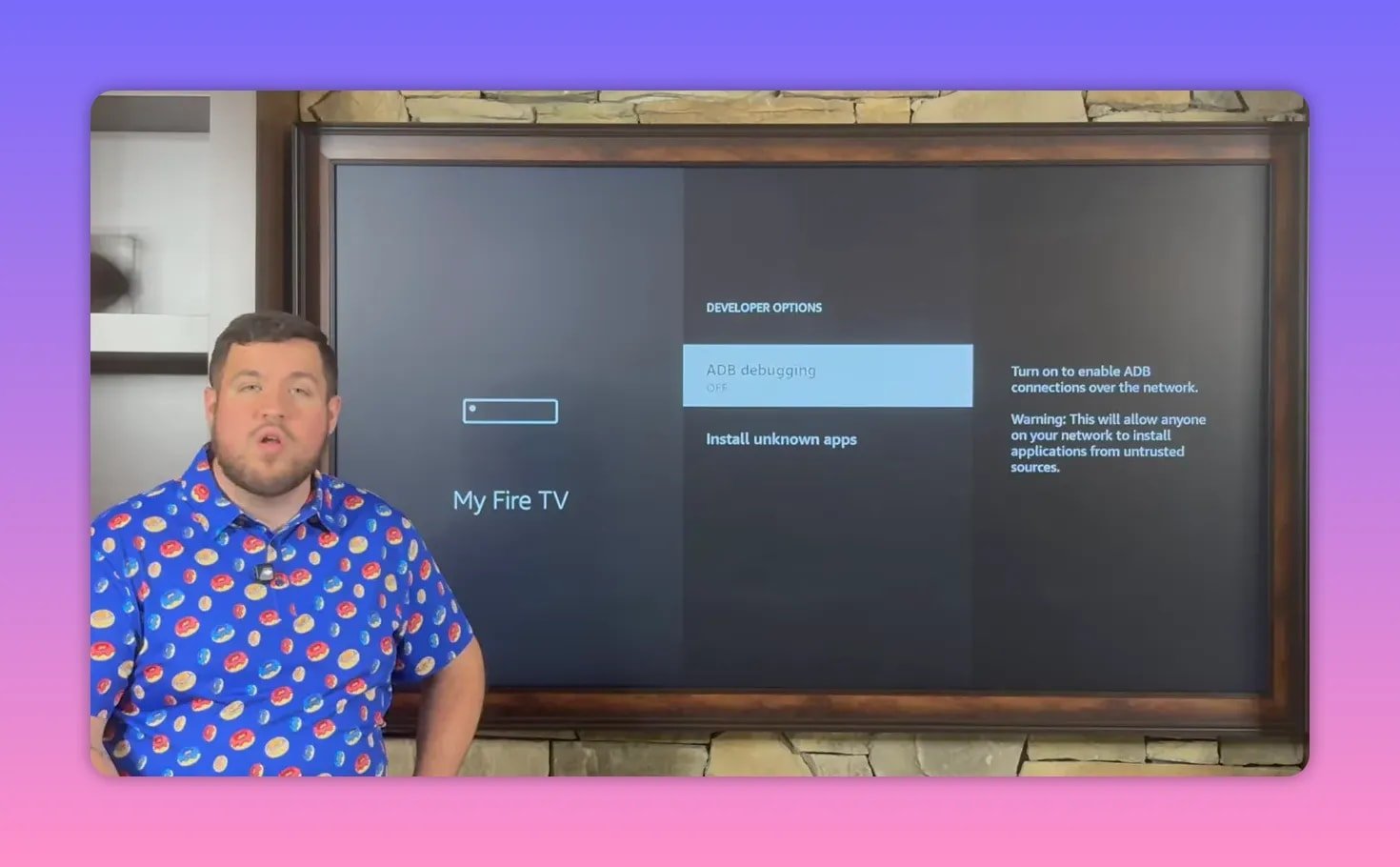
Once Developer Options is visible, make two changes:
- Turn ADB Debugging on
- Open Install Unknown Apps and turn Downloader on
That gives Downloader permission to install apps that do not come from the official app store.
🌐 Use Downloader to install Unlinked
Now open Downloader. In its address field, enter the web address shown during the setup and go to it. Downloader works like a simple browser here.
After the page loads, scroll carefully until you find the button labeled Download APK Android. Select it and install the Unlinked app.
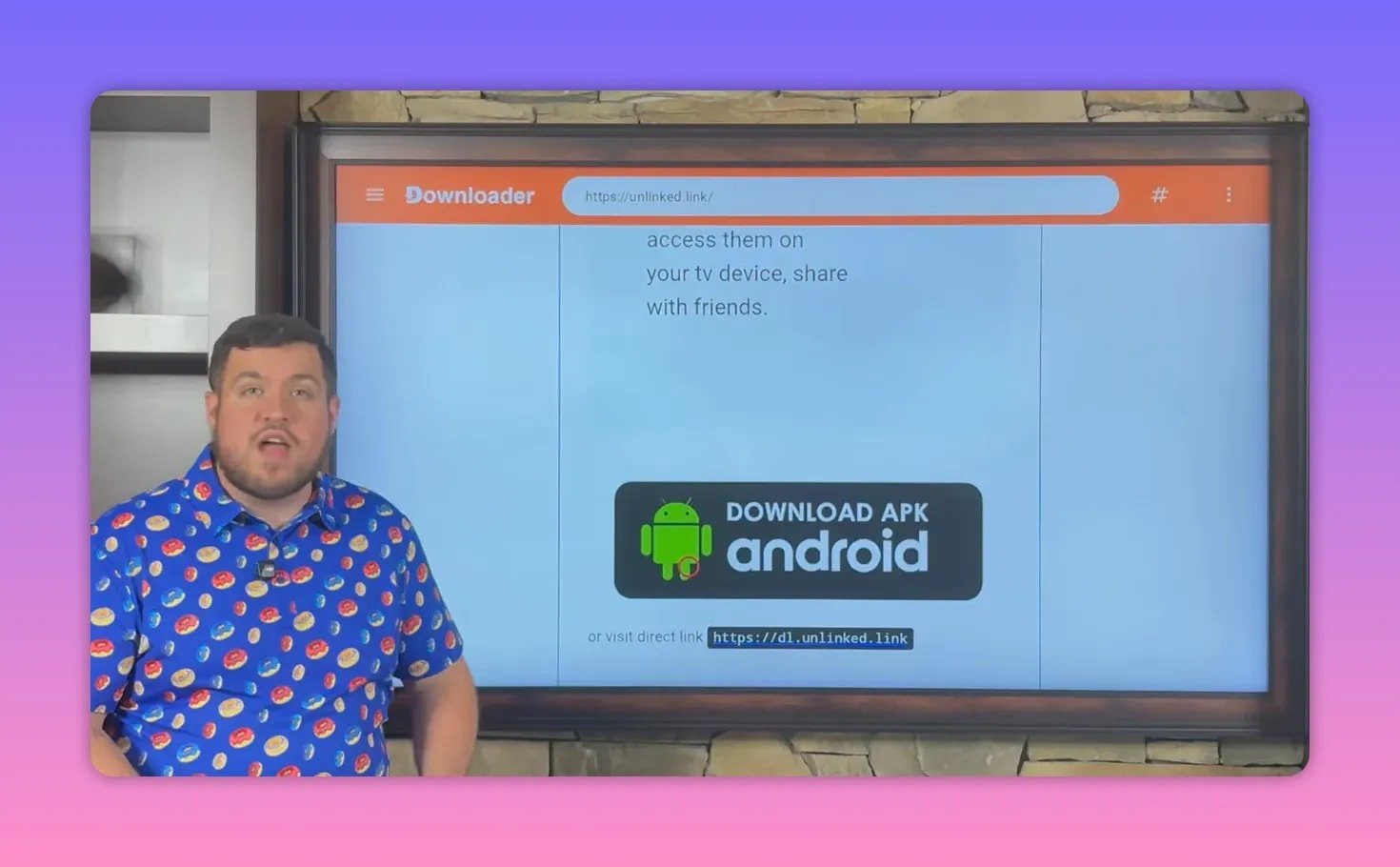
Once installation finishes, choose Done instead of opening it right away. Then delete the leftover installation file to keep your device cleaner.
That extra cleanup step is small, but it is a good habit. APK files are only needed for installation, so once the app is installed, the file itself can go.
🔓 Give Unlinked permission to install apps
Before Unlinked can install anything, it needs the same permission Downloader needed.
Go back to:
- Settings
- My Fire TV
- Developer Options
- Install Unknown Apps
Find Unlinked in the list and turn it on.
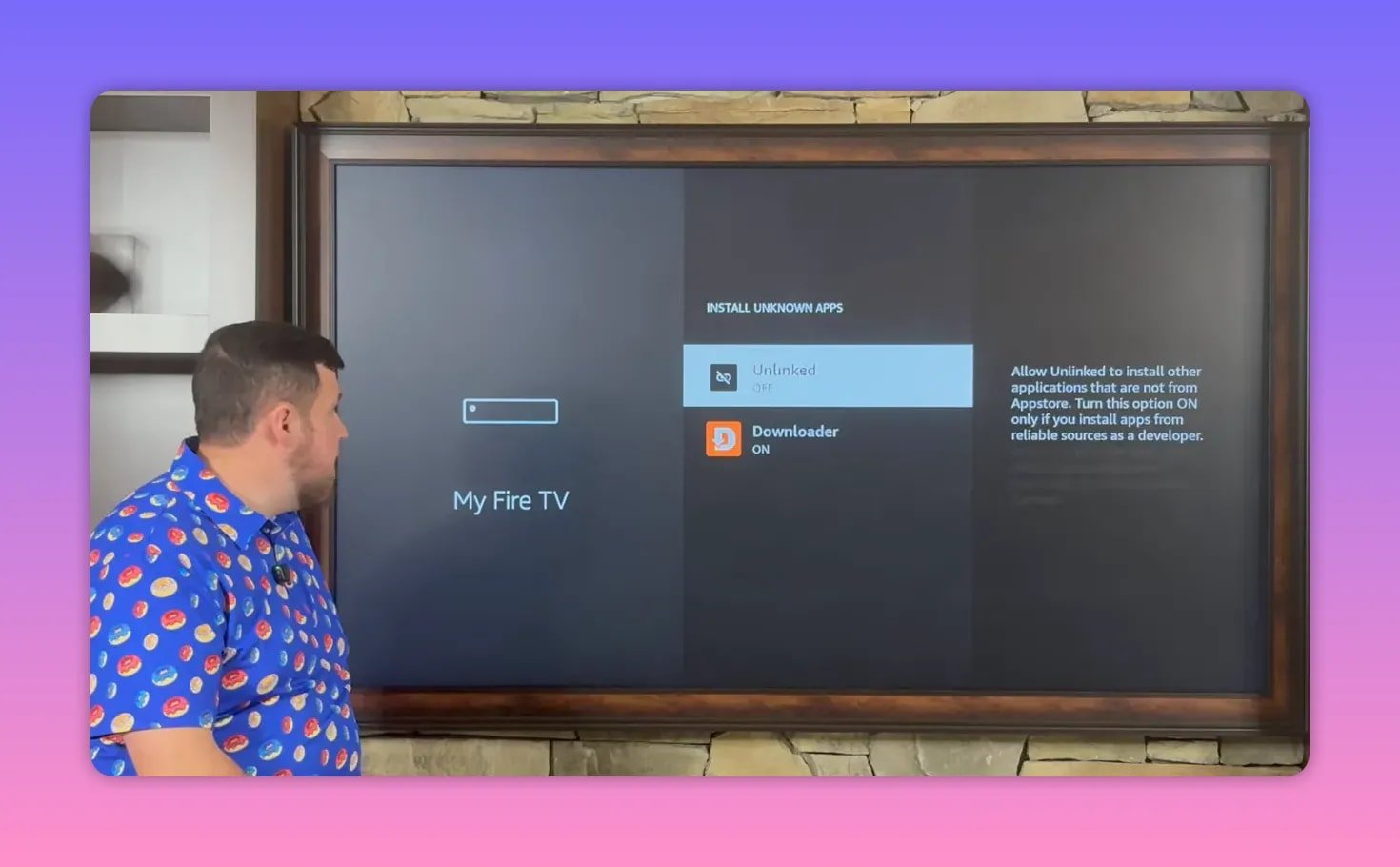
Now Unlinked is ready to use as your app library.
🏬 Add the Fire Vault library in Unlinked
Open Unlinked and choose the option to add a new library. Unlinked uses codes to access app collections. In this setup, the code used is for the creator’s own store called Fire Vault.
Once entered, Unlinked opens into a library that includes more than 50 apps across categories like:
- Movies
- TV shows
- Sports
- Live TV
- Pay-per-view
- Other entertainment apps
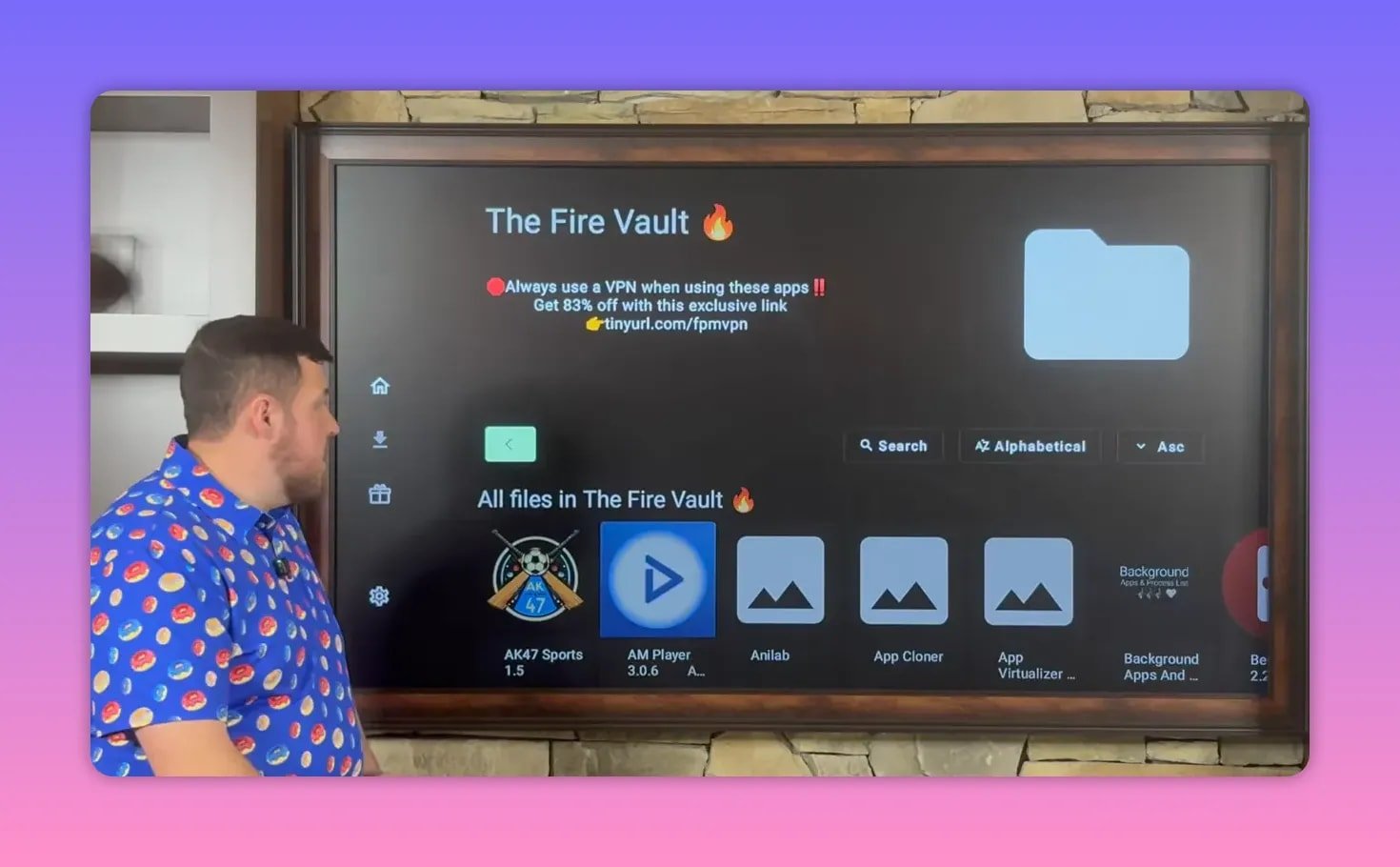
The apps are listed alphabetically and also grouped by category, which makes it easier to browse if you want more than just the featured movie app.
If you want another place to check for downloads and related resources, there is also https://jobice.org/download.
🔐 Why the VPN matters before using third-party apps
Before installing or opening third-party streaming apps, a VPN is strongly recommended in this setup. The app chosen here is IPVanish.
The reasons given are straightforward:
- It helps keep your activity private
- It can help unlock access where providers or regions limit certain services
- It may help with ISP throttling
- It helps keep you safer and more anonymous while using apps outside official stores
There is also a practical point that comes up often: when apps fail to install properly, buffer badly, or throw errors, turning on the VPN solves the issue surprisingly often.
Inside Fire Vault, IPVanish VPN is treated as the most important install of the whole process. Install it first, then move on to Mobiflix.
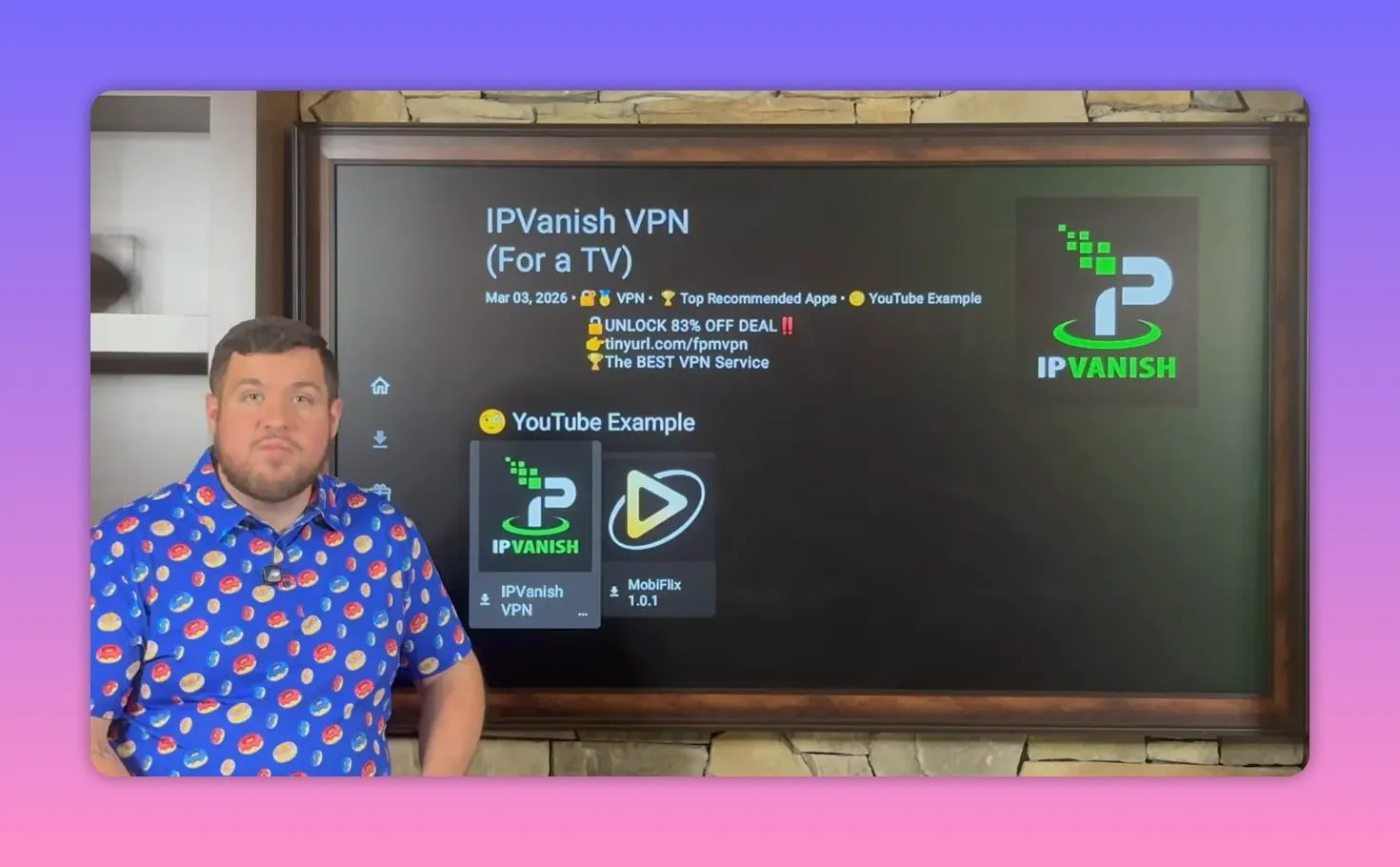
🎬 Install Mobiflix, the featured one-click movie app
After IPVanish is installed, return to the store and select Mobiflix.
This is the app being promoted as the number one free app for brand new movies and favorite TV shows. The main reason is ease of use. Instead of presenting a stack of links and asking you to pick one, Mobiflix is designed so that you click what you want and it starts playing.
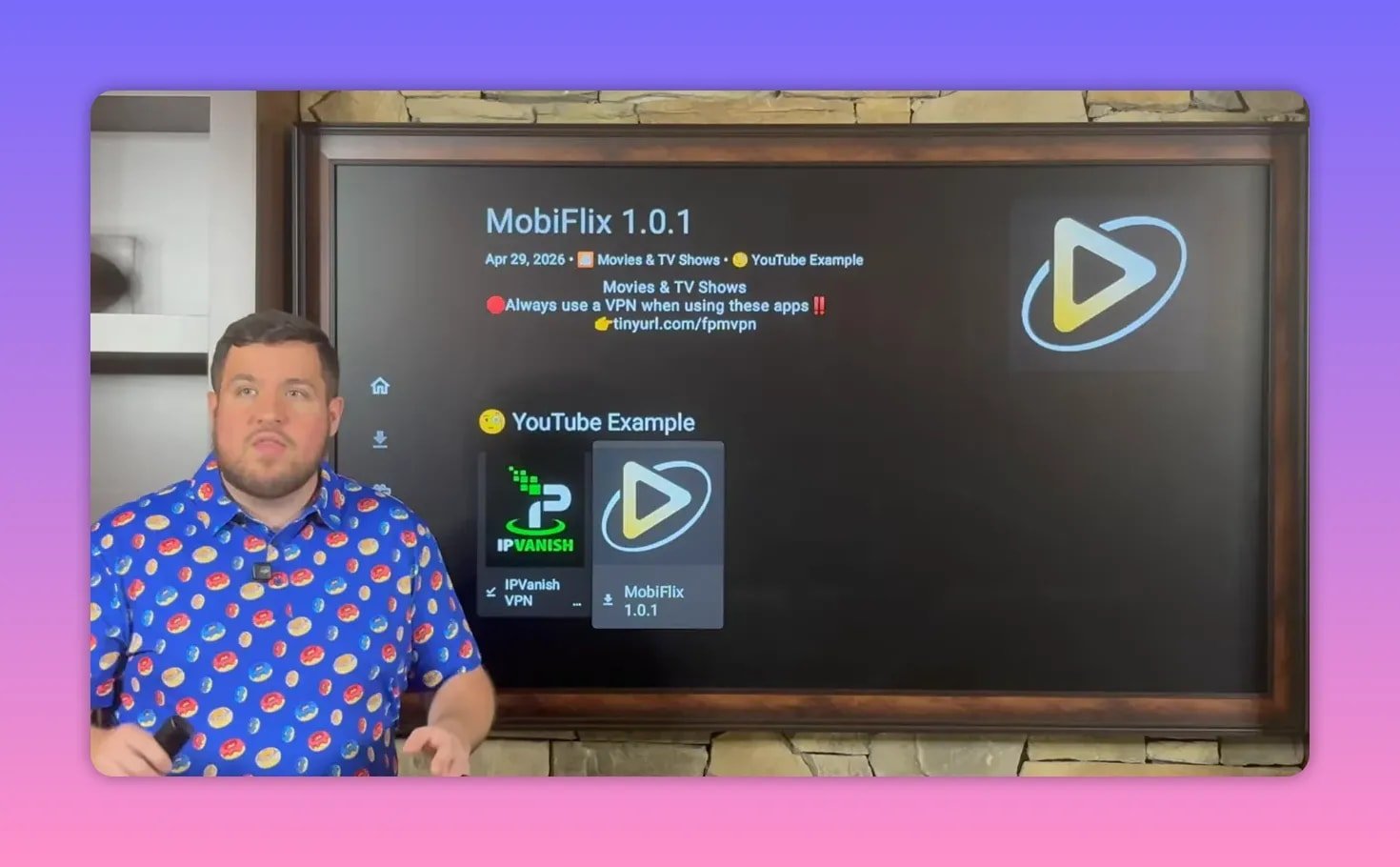
Install it the same way:
- Select the app
- Choose Download
- Choose Install App
- Confirm with Install
Once that finishes, you have the full setup in place.
📂 Move your new apps to the front
One of the most useful little Fire TV tricks in this setup has nothing to do with streaming quality. It is just about convenience.
Newly installed apps often land at the far end of your app list. That means every time you want to open them, you are scrolling all the way across your installed apps.
You can fix that by moving them to the front:
- Highlight the app
- Hold the center button on the remote
- Select Move to Front
Do this for:
- Unlinked
- IPVanish
- Mobiflix
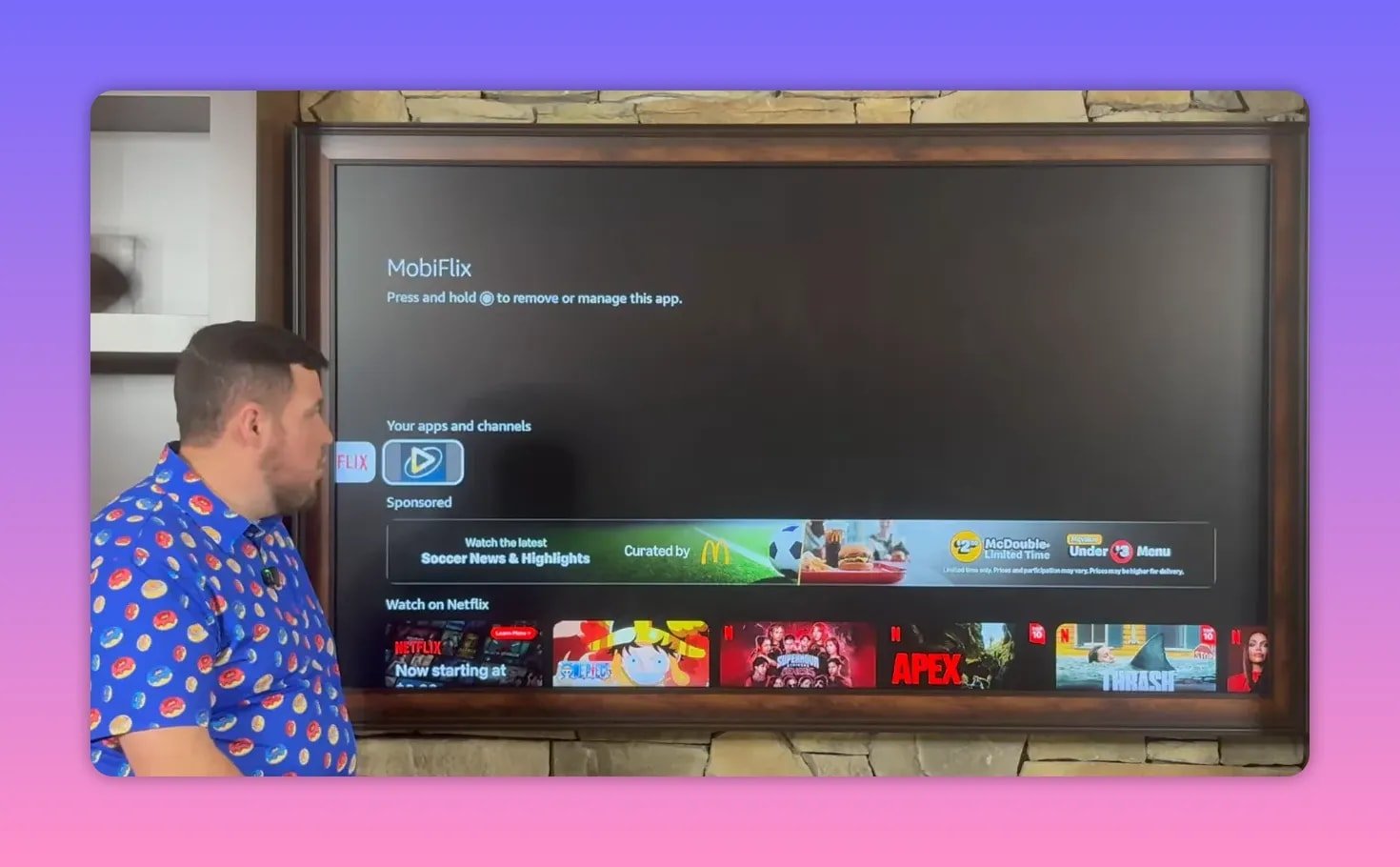
After that, your key apps stay front and center instead of buried at the end of the row.
🔌 Sign in to IPVanish and connect
Open IPVanish and sign in. If you do not already have an account, the setup points to the discount link listed in the description for creating one and choosing a plan.
Once signed in, connecting is simple:
- Select the green Connect button
- Accept the prompt if it appears
- Wait until your country is highlighted in green
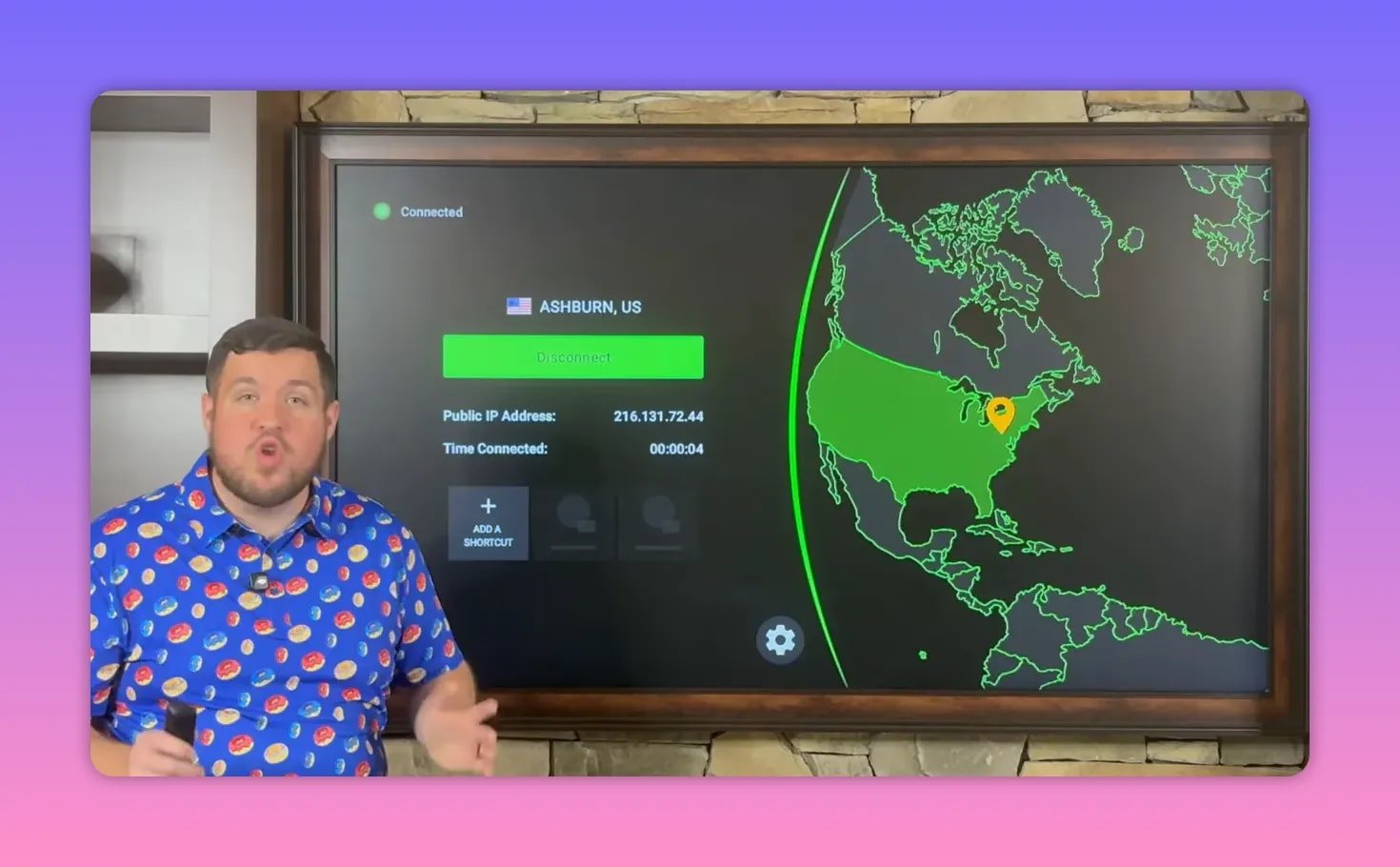
When that green connection status appears, the VPN is active. At that point, you are ready to open Mobiflix or any other third-party app from the store.
You can also use the icons inside IPVanish to:
- Open settings through the gear icon
- Change server location
- Check how long the session has been connected
The VPN remains connected until you manually disconnect it or turn off the device.
📺 What else is inside Fire Vault?
Even though Mobiflix is the featured pick, the store is built to be more than a one-app stop. Fire Vault includes a larger collection of apps for different streaming needs.
That means you can browse around and find options that fit what you want most, whether that is:
- Movies and series
- Sports coverage
- Live TV
- Special event content like pay-per-view
If Mobiflix is not sitting in the highlighted example section when you open the store, the app can still be found in its regular category under Movies and TV Shows.
✅ Final setup checklist
If you want the short version of the full process, here is the order:
- Search for and install Downloader
- Enable Developer Options if needed
- Turn on ADB Debugging
- Allow Downloader under Install Unknown Apps
- Use Downloader to install Unlinked
- Allow Unlinked under Install Unknown Apps
- Add the Fire Vault library in Unlinked
- Install IPVanish VPN
- Install Mobiflix
- Move your apps to the front for easier access
- Sign in to IPVanish and connect
- Open Mobiflix and start browsing movies and TV shows
❓FAQ
What is the main app featured in this setup?
The featured app is Mobiflix. It is promoted as a one-click app for movies and TV shows, meaning you select content and it plays without making you sort through a list of streaming links.
Do I need Downloader to install Mobiflix?
Yes. Downloader is used first to install Unlinked, and Unlinked is then used to access the Fire Vault library where Mobiflix is installed.
Why do I have to enable Developer Options?
Developer Options gives you access to the settings required to allow apps like Downloader and Unlinked to install software from outside the official Amazon Appstore.
What if Developer Options is missing on my Fire Stick?
Go to My Fire TV, open About, highlight your device name, and click the center button several times. That unlocks Developer Options if it is hidden.
Why is IPVanish installed before using Mobiflix?
IPVanish is recommended for privacy, security, and getting around internet restrictions or throttling. In this setup, it is treated as the most important app to install before opening third-party streaming apps.
Can this method work on devices besides Fire Stick?
Yes. The same basic approach is intended for ONN Box, Nvidia Shield, and other Android-based streaming boxes.
How do I make these apps easier to find later?
Highlight each app in your installed apps list, hold the center button on the remote, and choose Move to Front. That keeps Unlinked, IPVanish, and Mobiflix at the beginning of the list.