If you are tired of streaming bills creeping higher every year, you are not alone. Most people are stacking multiple subscriptions at once, and those monthly charges add up fast. The good news is that a FireStick or other Android-based streaming device gives you more flexibility than most people realize.
This guide walks through how to set up a FireStick for third-party apps, install the tools needed to access them, and grab three key apps that can open up movies, TV shows, live TV, sports, anime, and more. The setup shown here uses Downloader, Unlinked, IPVanish VPN, Flix Vision, and Net Fly.
The overall idea is simple: prepare the device, install the sideloading tools, connect to a VPN, and then install the streaming apps you actually want to use.
Table of Contents
- 🔥 Why so many people want to ditch paid streaming
- 🛠️ Step 1: Install Downloader on your FireStick
- ⚙️ Step 2: Turn on Developer Options and allow unknown apps
- 📥 Step 3: Use Downloader to install Unlinked
- 🔓 Step 4: Allow Unlinked to install apps too
- 🏬 Step 5: Add the app library inside Unlinked
- 🔐 Step 6: Install a VPN first
- 🎬 Step 7: Install Flix Vision
- 📺 Step 8: Install Net Fly
- 🧭 Browse the rest of the store if you want more than the featured apps
- 📌 Move your favorite apps to the front row
- 🧠 A few practical tips that make this setup work better
- ❓FAQ
- 🚀 Final setup checklist
🔥 Why so many people want to ditch paid streaming
Streaming was supposed to save money compared to cable. For a while, it did. Then every platform started raising prices, splitting content across multiple apps, adding ad-supported tiers, and charging more for premium access.
When the average person is paying for three or more streaming services, the total can get ridiculous. That is the frustration behind this whole setup. Instead of bouncing between expensive subscriptions, the goal is to build a FireStick setup that gives you access to more content from fewer apps.
If you want more FireStick resources and related setup help, you can also explore additional Fire Prodigy Media content here.
🛠️ Step 1: Install Downloader on your FireStick
The first app you need is Downloader. This is the tool that lets you install apps that are not available in the Amazon Appstore.
- Go to the FireStick search bar.
- Search for Downloader.
- Select the orange Downloader app.
- Download and install it.
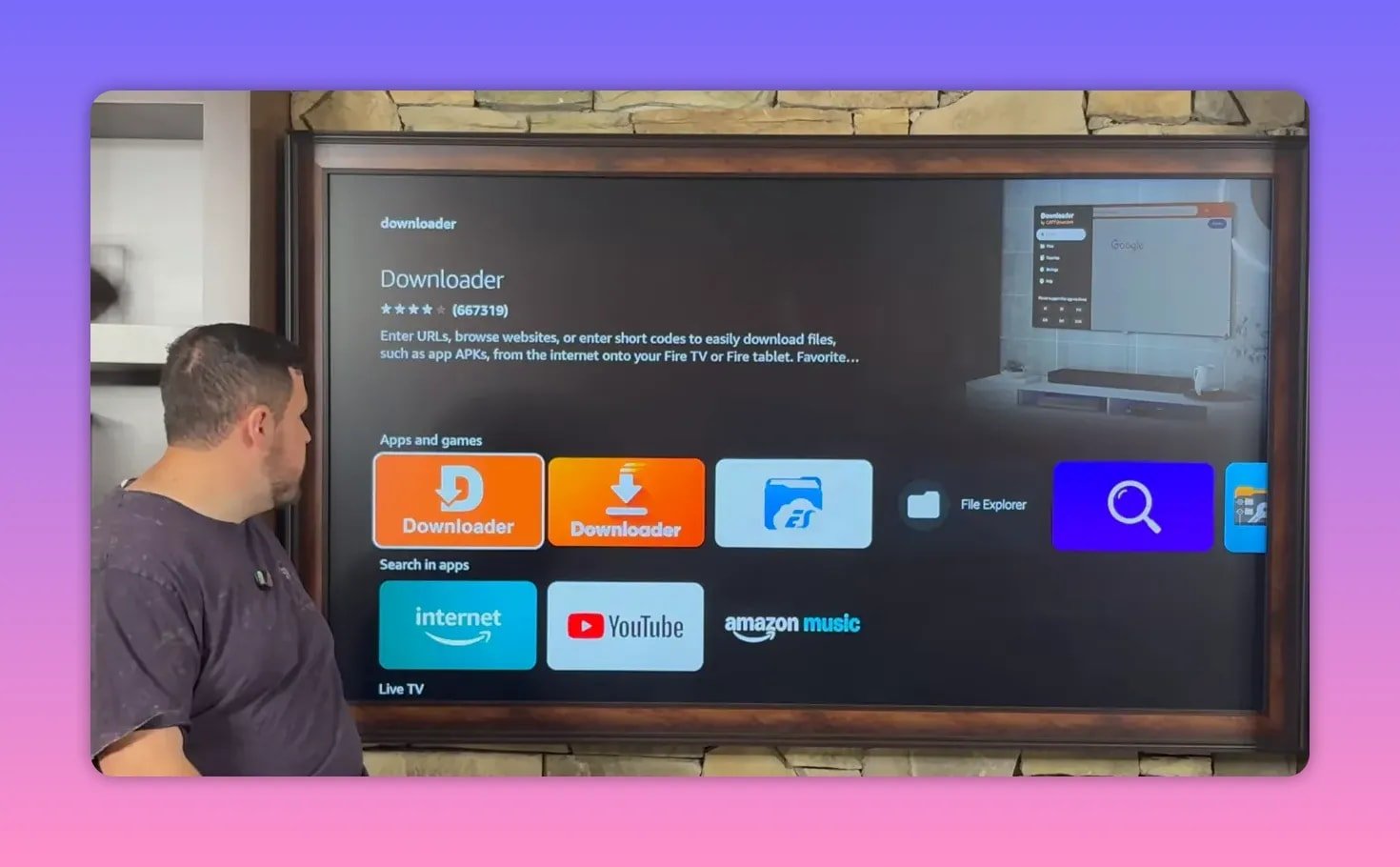
Once Downloader is installed, do not start using it just yet. FireStick needs one quick settings change first, or it will block third-party installations.
⚙️ Step 2: Turn on Developer Options and allow unknown apps
To sideload apps, FireStick needs permission to install from outside the official app store.
- Go to Settings.
- Open My Fire TV or My Device, depending on the version of your Fire OS.
- If Developer Options is missing, open About.
- Highlight your device name and click the center button several times until developer mode is enabled.
- Go back and open Developer Options.
- Turn ADB Debugging on.
- Open Install Unknown Apps.
- Enable Downloader.
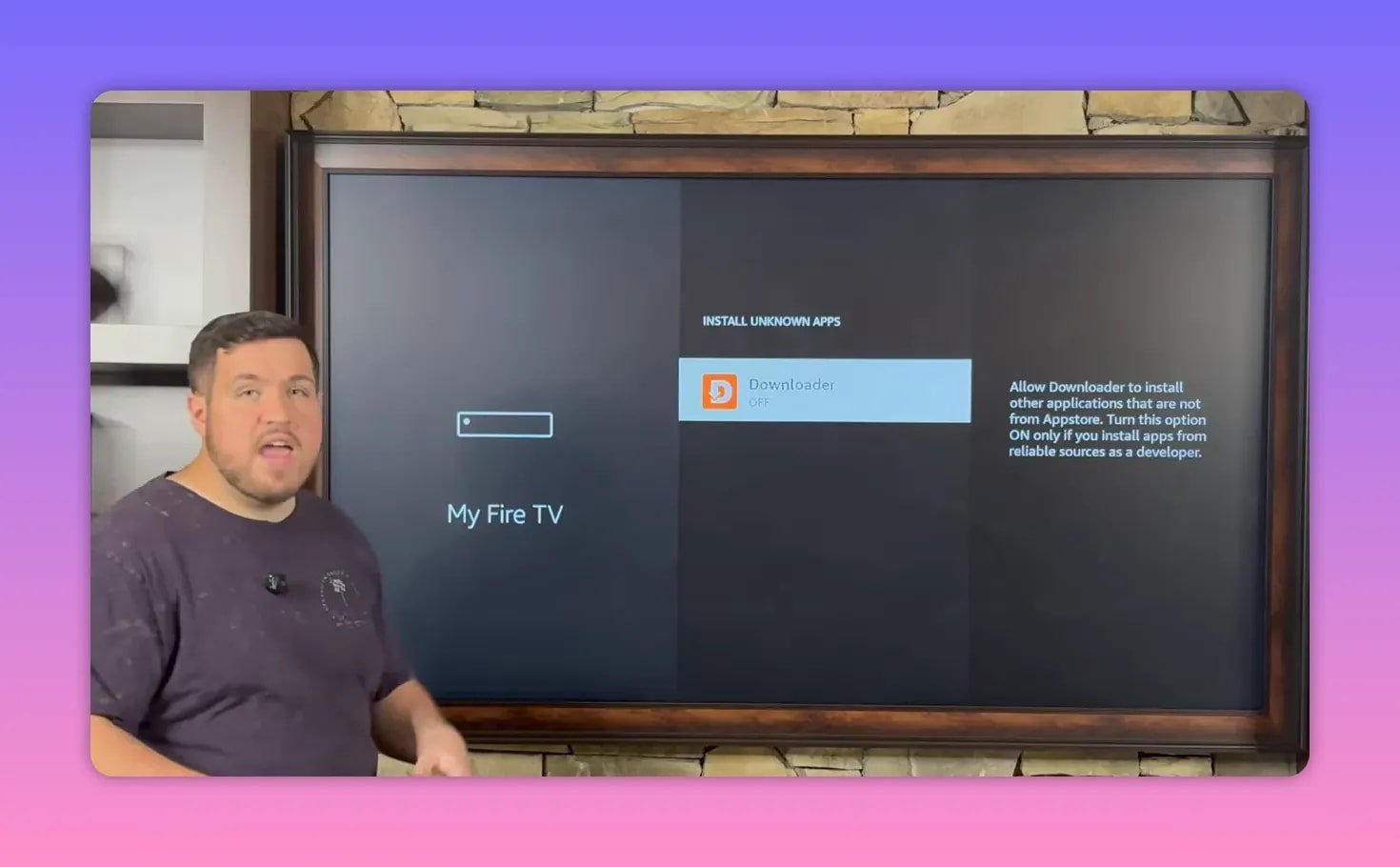
That is the key unlock. Once those settings are enabled, Downloader can install APKs directly to the device.
📥 Step 3: Use Downloader to install Unlinked
After that, open Downloader from your apps list. In Downloader, the search bar acts like a mini browser where you can enter a direct address for the file you want.
The setup shown here uses Downloader to install Unlinked, which works like a library or app store for APK collections.
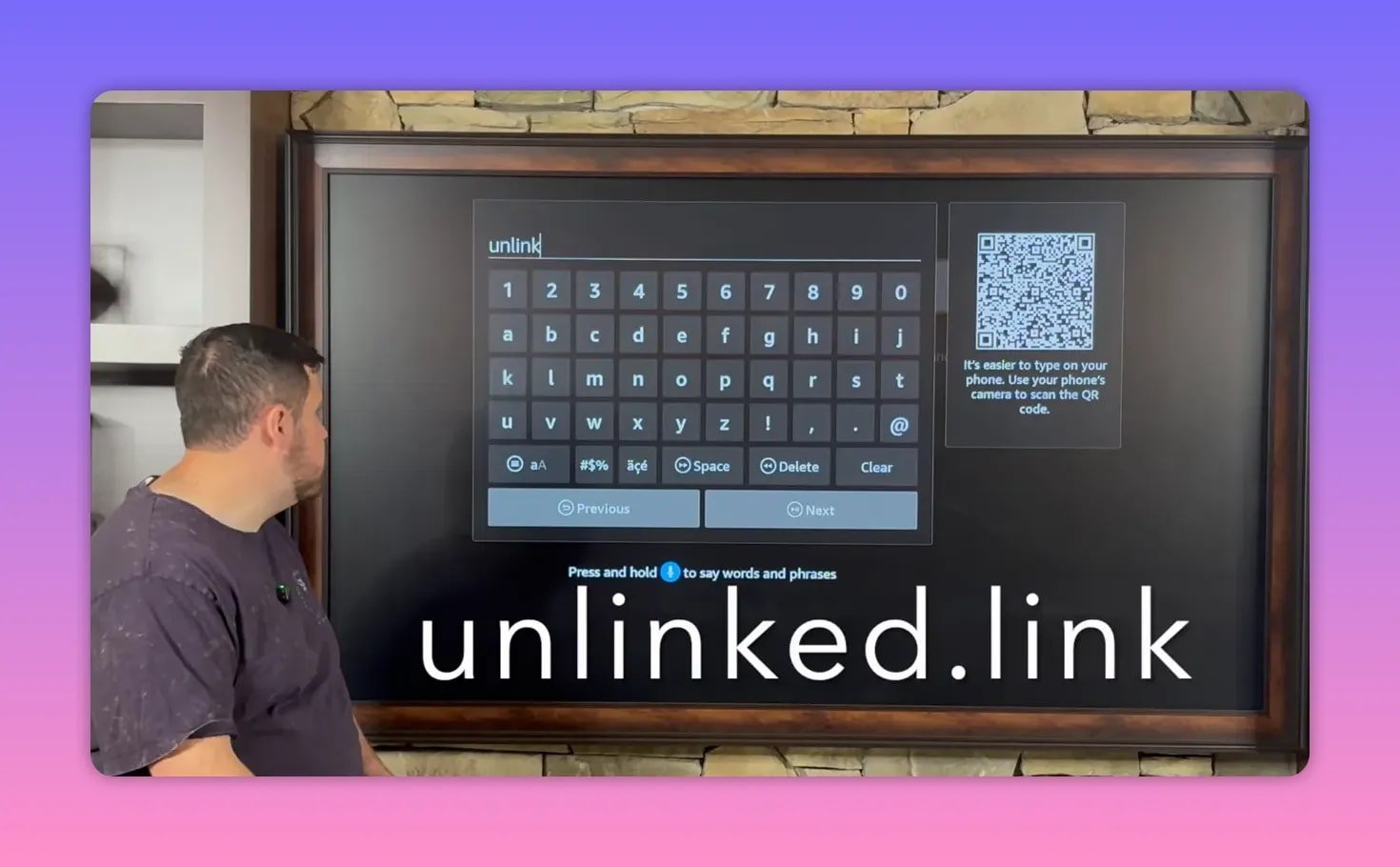
After entering the address in Downloader, follow the prompts to:
- Open the download page.
- Select the APK download option.
- Install the Unlinked app.
- Choose Done instead of opening it immediately.
- Delete the leftover installation file to save space.
Deleting the installer is a small step, but it keeps your FireStick cleaner and avoids unnecessary file clutter.
🔓 Step 4: Allow Unlinked to install apps too
Installing Unlinked is not the same thing as giving it permission to install apps. You still need to go back into settings and turn that on separately.
- Go back to Settings.
- Open My Fire TV.
- Open Developer Options.
- Go to Install Unknown Apps.
- Turn Unlinked on.
Once that is done, Unlinked is ready to use as your app library.
🏬 Step 5: Add the app library inside Unlinked
When you open Unlinked, it asks for a library code. That code connects you to a specific store containing curated APKs.
In this setup, the store is called the Fire Vault. It contains more than 50 apps organized both alphabetically and by category, including movies and TV, live TV, and other entertainment-focused tools.
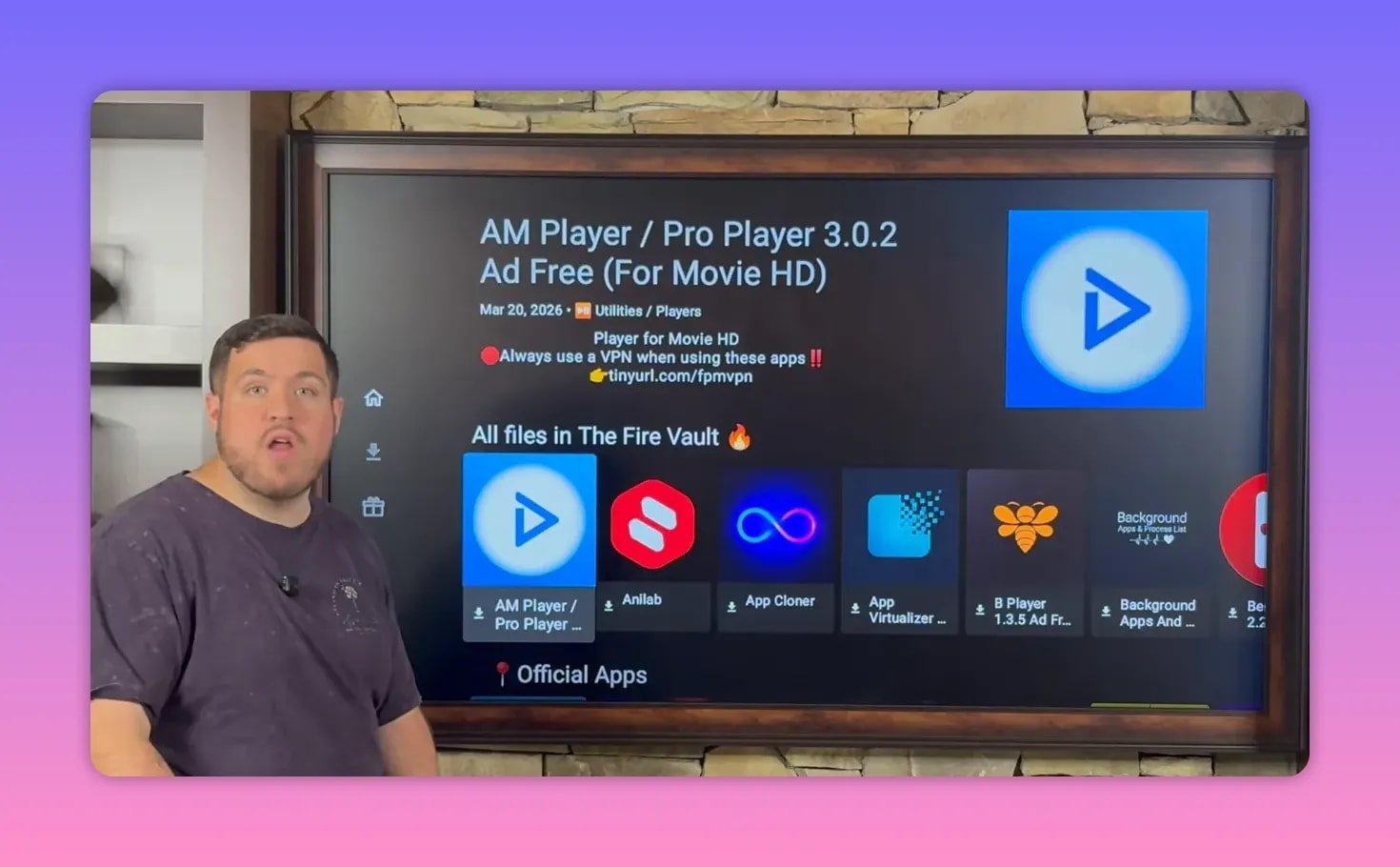
One useful detail here is that the library includes a temporary YouTube example section. That section highlights the apps being featured at the time, but if those apps move later, they can still be found in their regular categories or by browsing alphabetically.
If you need a related download page for Fire Prodigy Media resources, this may also be helpful: Download APK resources here.
🔐 Step 6: Install a VPN first
Before opening streaming apps, the most important install in the store is the IPVanish VPN.
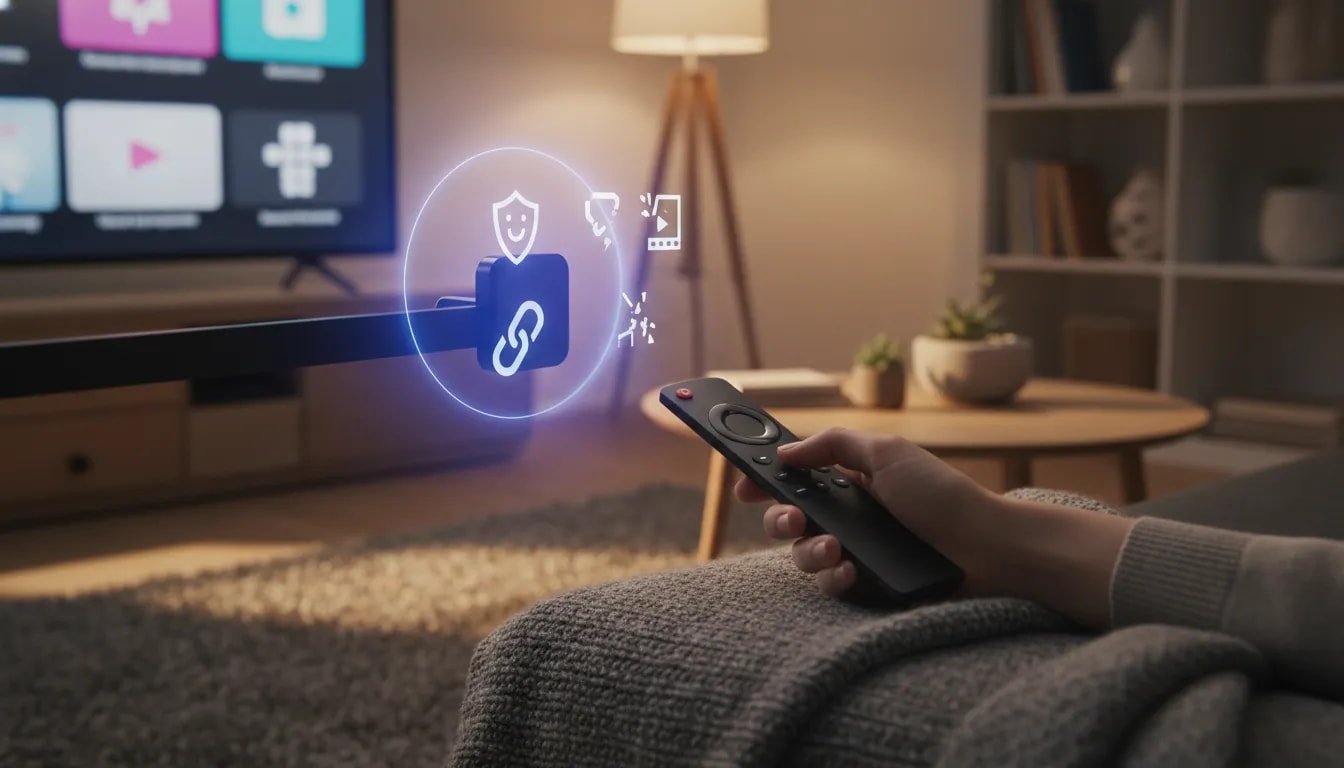
That is not treated like an optional extra here. It is positioned as the first app to install, and for good reason. A VPN helps with:
- Privacy
- Security
- Anonymity
- Bypassing ISP throttling
- Avoiding regional or network restrictions
Many third-party streaming apps even prompt users to connect to a VPN before use. If an app buffers badly, refuses to load, or acts unstable, one of the first fixes is often simply turning the VPN on.
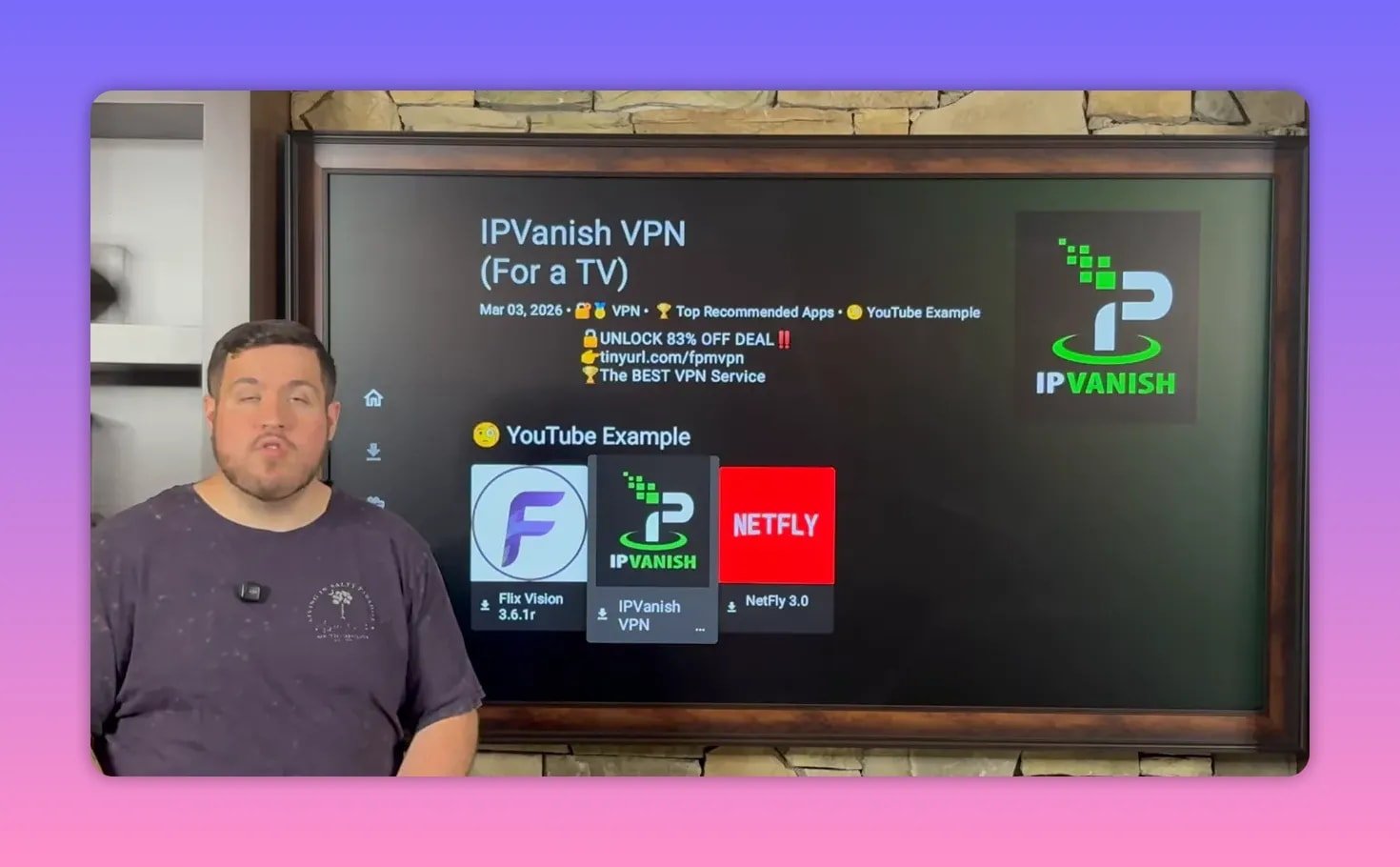
The setup steps are straightforward:
- Select IPVanish VPN in the store.
- Download and install it.
- Sign up for an account if needed.
- Log in.
- Click Connect.
Once connected, the selected country or server area is highlighted, and the connection timer starts running. There is also a settings gear for changing VPN preferences and a location section for switching server regions.
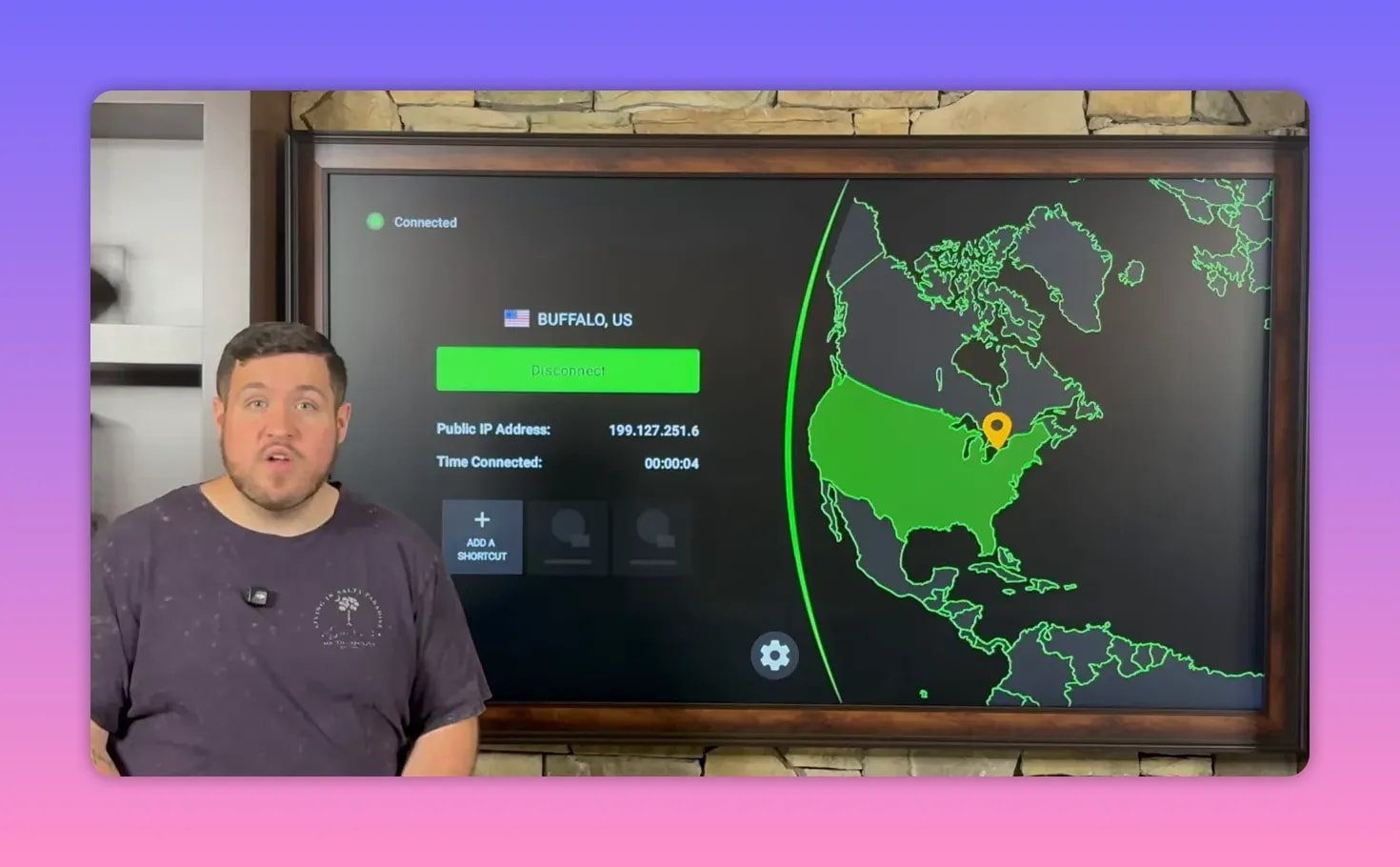
The basic rule here is simple: turn on the VPN before using the streaming apps.
🎬 Step 7: Install Flix Vision
The first featured streaming app is Flix Vision.
According to the setup shown, Flix Vision offers:
- Brand-new movies
- TV shows
- Live TV
- An anime section
- Additional entertainment content beyond the basics
Inside the Unlinked store, install it by selecting the app, choosing Download, then Install App, and finally confirming the install.
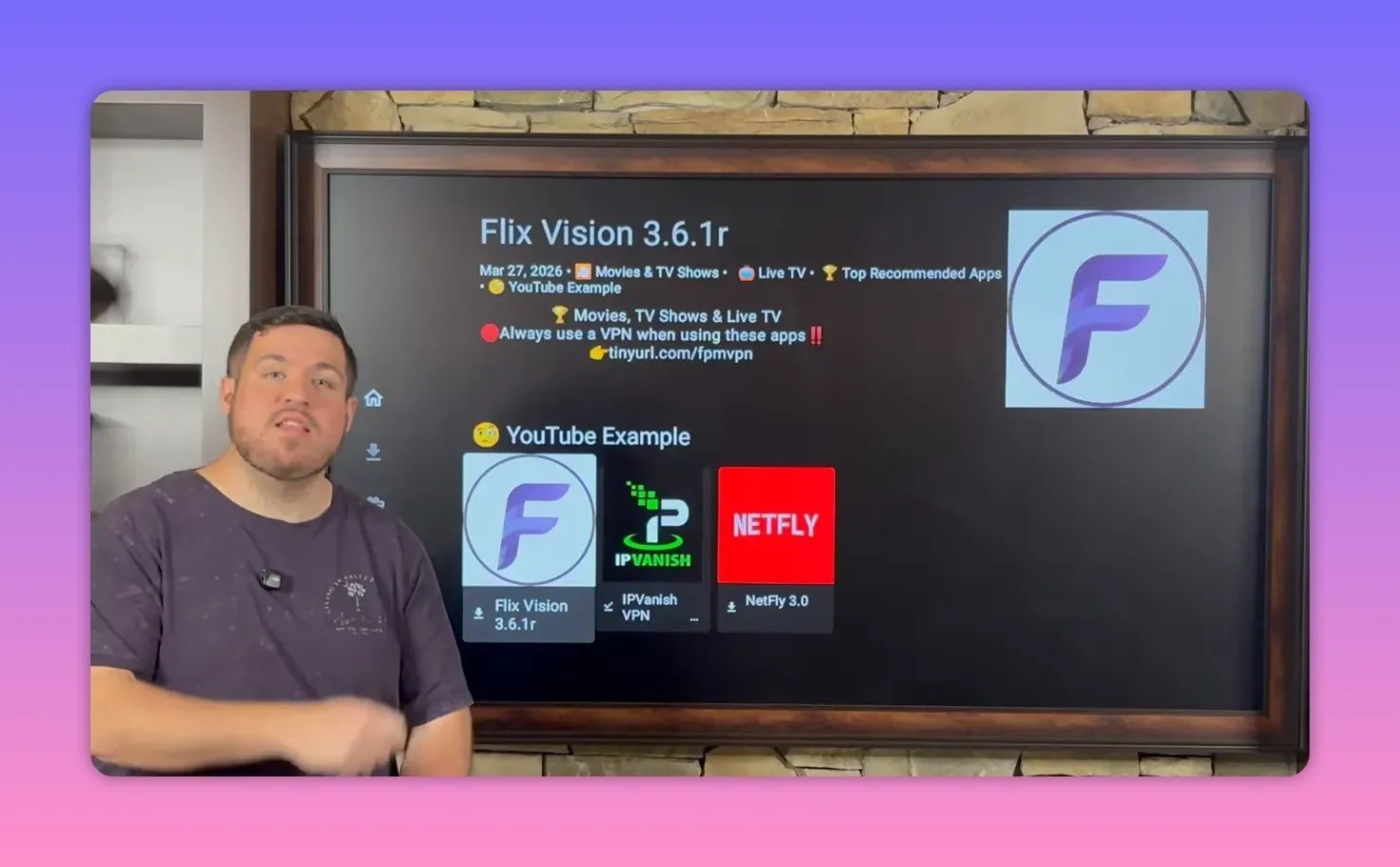
It is presented as one of the standout all-in-one choices in the store, especially for anyone who wants broad content coverage in a single app.
📺 Step 8: Install Net Fly
The second featured app is Net Fly.
Net Fly is described as another strong option for:
- Brand-new movies
- TV shows
- Series content
- Live TV
If you are the type who jumps between movies, binge-worthy series, and live channels, this app is meant to cover a lot of that ground.
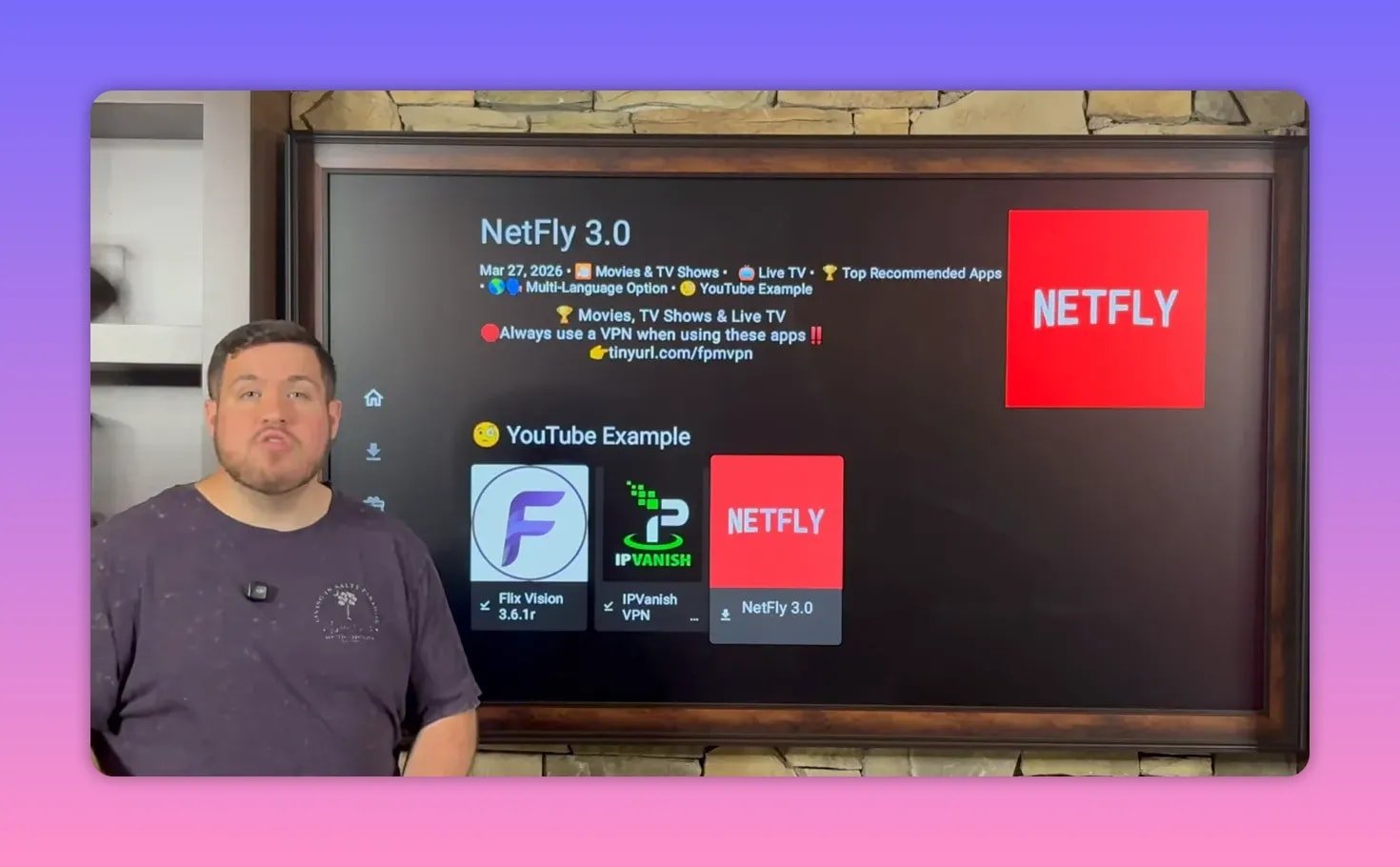
Just like Flix Vision, the install process is:
- Select the app.
- Choose Download.
- Choose Install App.
- Confirm installation.
Between Flix Vision and Net Fly, the promise here is pretty clear: once both are installed, it becomes obvious why so many people start rethinking paid streaming subscriptions.
🧭 Browse the rest of the store if you want more than the featured apps
Even though the focus is on IPVanish, Flix Vision, and Net Fly, the store itself is much bigger than those three apps.
The Fire Vault includes over 50 applications, and they are organized in two useful ways:
- Alphabetically for quick browsing by name
- By category for browsing by content type, such as movies and TV or live TV
That means if a featured app is no longer sitting inside the YouTube example section, it can still be found by scrolling to its category or locating it alphabetically.
📌 Move your favorite apps to the front row
By default, new FireStick apps usually get dumped at the end of your apps list. That gets old fast.
A handy FireStick trick is to move your most-used apps to the front:
- Go to your full apps list.
- Highlight the app you want to move.
- Hold down the center button on the remote.
- Select Move to Front.
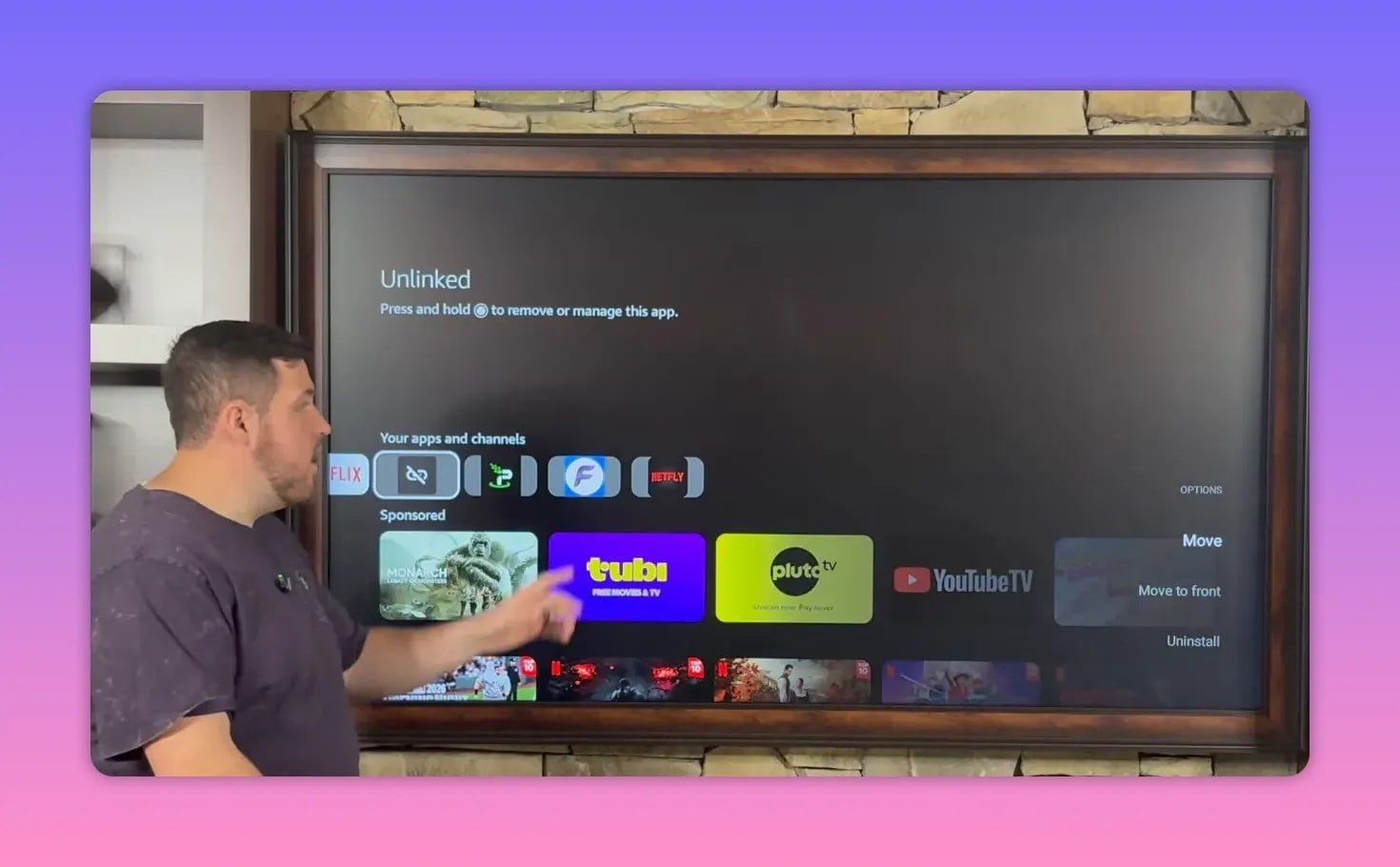
This was done for:
- Unlinked
- IPVanish
- Flix Vision
- Net Fly
That way, the apps you use most are front and center instead of buried at the far end of the row.
🧠 A few practical tips that make this setup work better
Always connect the VPN before opening your streaming apps
This is one of the biggest recurring points in the setup. If an app is acting up, buffering, or refusing to work properly, the VPN may solve it immediately.
Delete installation files after sideloading
Once an APK is installed, the installer file is no longer needed. Removing it saves storage and keeps the FireStick from filling up with junk.
Expect newly installed apps to appear at the end of the apps row
This is normal behavior on FireStick. Use the move-to-front trick to fix it.
Check categories if the featured section changes
Stores like this can be reorganized. If the exact section layout changes later, use the movie and TV category, live TV section, or alphabetical sorting to locate the same apps.
❓FAQ
Do I need Downloader to install these FireStick apps?
Yes. Downloader is the first tool used to sideload Unlinked, which then gives access to the app library containing IPVanish, Flix Vision, Net Fly, and other apps.
Why do I have to enable Developer Options on FireStick?
Developer Options allows the FireStick to install apps from outside the Amazon Appstore. Without it, Downloader and Unlinked cannot install third-party APKs properly.
What does Unlinked do?
Unlinked acts like a custom app library. After entering a library code, it gives access to a curated collection of APKs organized by category and alphabetically.
Why is IPVanish installed before the streaming apps?
It is treated as the most important install because it helps keep your connection private, secure, and anonymous while also reducing problems caused by ISP throttling or restrictions.
What content do Flix Vision and Net Fly offer?
Flix Vision is described as offering movies, TV shows, live TV, anime, and more. Net Fly is described as offering movies, TV shows, series content, and live TV.
Where do newly installed FireStick apps appear?
They usually appear at the end of the apps list. You can highlight any app, hold the center button, and choose Move to Front to place it at the beginning of the row.
What if the app I want is not in the featured section anymore?
Check the store categories such as movies and TV or live TV, or browse the apps alphabetically. The featured section may change, but the apps can still be listed elsewhere in the store.
🚀 Final setup checklist
If you want the quick version, here is the full process in order:
- Install Downloader from the Amazon Appstore.
- Enable Developer Options, ADB Debugging, and Install Unknown Apps for Downloader.
- Use Downloader to install Unlinked.
- Enable Install Unknown Apps for Unlinked.
- Open Unlinked and connect to the Fire Vault library.
- Install IPVanish VPN.
- Install Flix Vision.
- Install Net Fly.
- Move your key apps to the front.
- Connect to the VPN before opening your streaming apps.
That is the full play. Cleaner setup, fewer monthly bills, and a FireStick that actually feels useful.