If you want to load up your Amazon FireStick with free apps for movies and TV shows, you do not need to jailbreak anything. You just need the right setup, the right installer, and a couple of solid apps that actually get the job done.
The process is simple once you know where Amazon hides the settings. Even with the newer Fire TV home screen update, you can still install third-party apps, organize them, and get everything ready in just a few minutes.
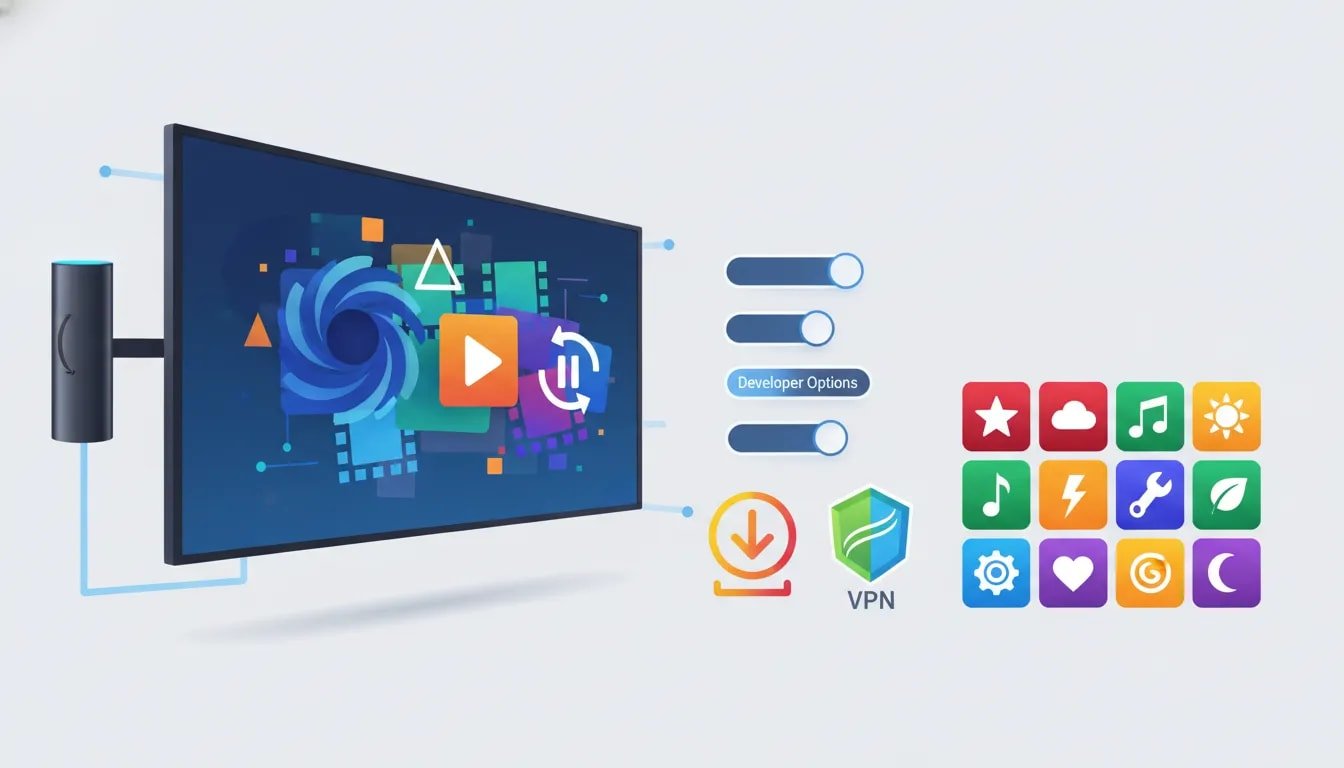
This guide walks through the full setup, including:
- Installing Downloader
- Enabling Developer Options
- Allowing unknown apps
- Installing Unlinked
- Using a private app library
- Adding a VPN
- Installing movie and TV show apps like Popcorn HD and Streamflix
Table of Contents
- 🔍 Start With Downloader
- ⚙️ Enable Developer Options on FireStick
- 📥 Use Downloader to Install Unlinked
- 🛠️ Allow Unlinked to Install Apps Too
- 🏪 Add the Unlinked Library and Browse the App Store
- 🔐 Why a VPN Comes First
- 🎬 Install the Free Movie and TV Show Apps
- 📱 Move Your New Apps to the Front
- 🌍 Sign In to IPVanish and Connect
- 🍿 Open Your Apps and Start Streaming
- ❓FAQ
🔍 Start With Downloader
The first app you need is Downloader. This is the tool that lets you grab APK files that are not available in the Amazon Appstore.
On the updated Fire TV interface, go to the magnifying glass search icon. If your device still has the older layout, the search icon may be positioned differently, but the idea is the same.
Search for Downloader and install the orange app.
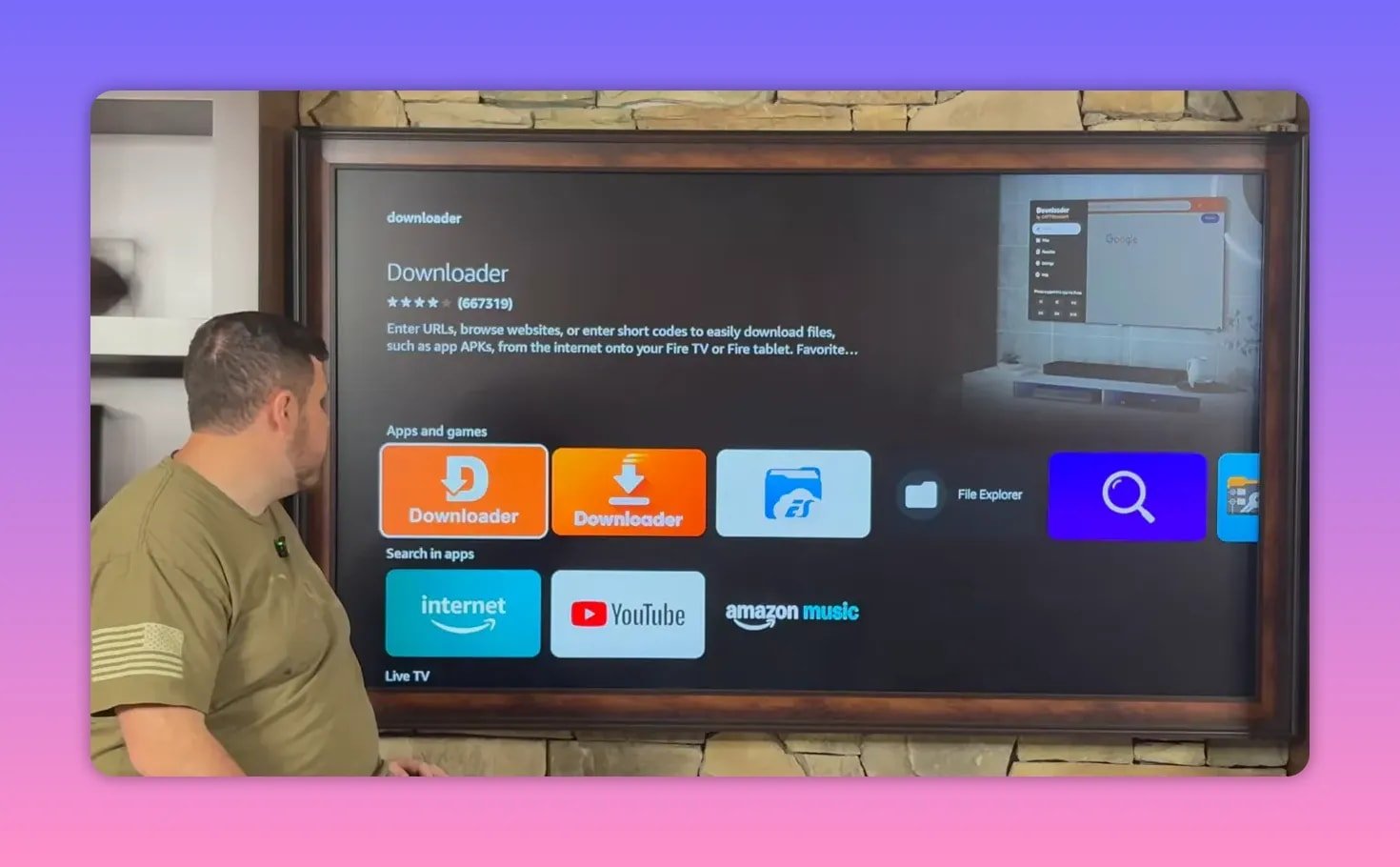
Once it finishes installing, do not open it just yet. Before it can be used to sideload apps, FireStick needs a couple of permissions enabled in settings.
⚙️ Enable Developer Options on FireStick
Amazon does not always make this setting obvious anymore, especially on newer software versions. Here is how to find it.
- Open Settings
- Select My Fire TV or My Device on older models
- If you already see Developer Options, open it
- If you do not see it, select About
- Highlight your device name and click the center button several times
If Developer Options was hidden, this unlocks it. On some devices, a message appears saying you are already a developer. On others, it will confirm that Developer Options has now been enabled.
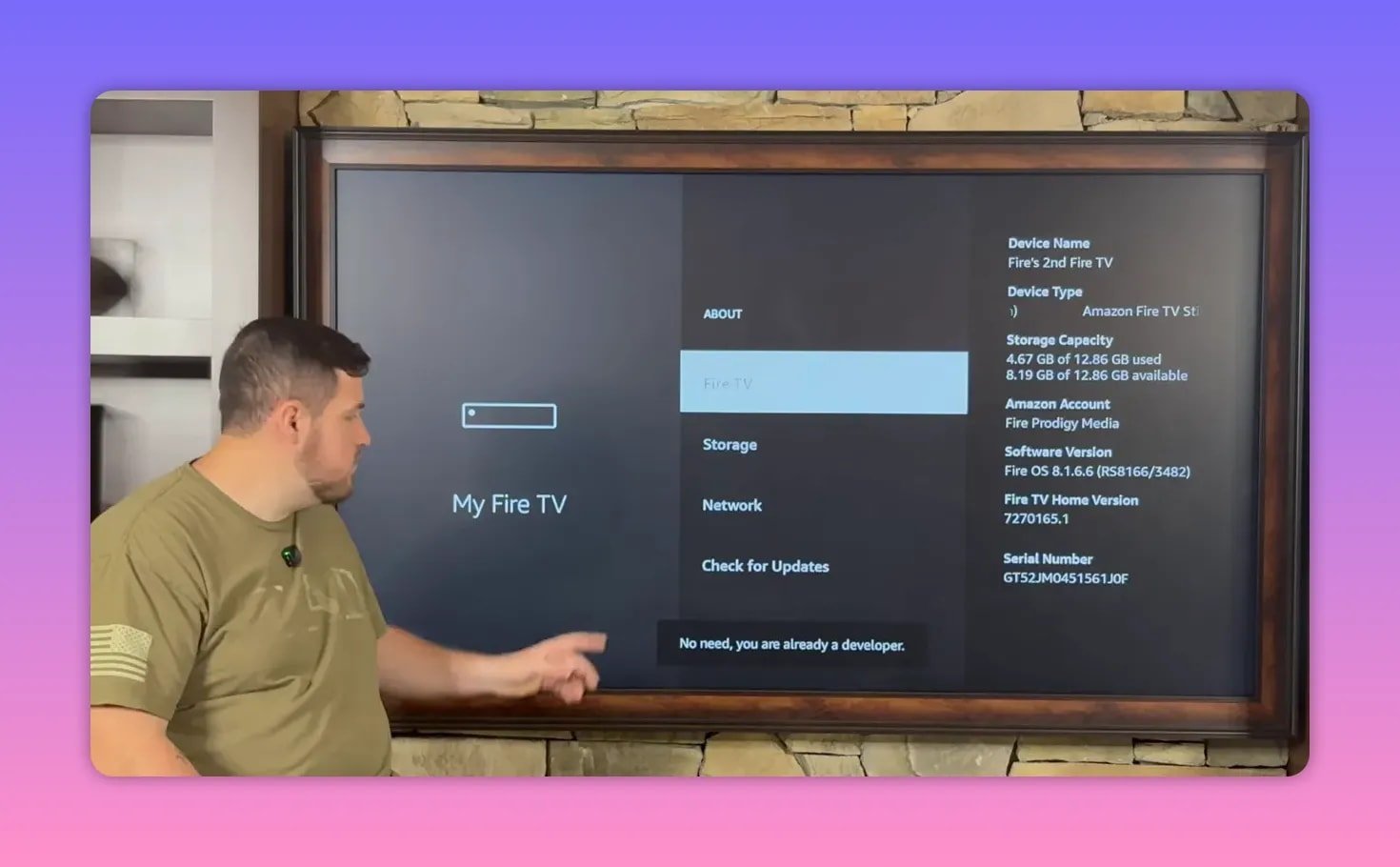
After that, back out one screen and open Developer Options.
You need to change two things:
- Turn ADB Debugging on
- Open Install Unknown Apps and turn Downloader on
That gives Downloader permission to install APKs from outside Amazon’s app store.
📥 Use Downloader to Install Unlinked
Now go back to your home screen and open Downloader. Newly installed apps usually appear toward the end of your app row, so if you do not see it immediately, keep scrolling.
Downloader has a newer interface now. Instead of dropping you directly into a URL field, it may show a screen with a red cursor. Move that cursor to the top search bar until it is highlighted in yellow, then click it to bring up the keyboard.
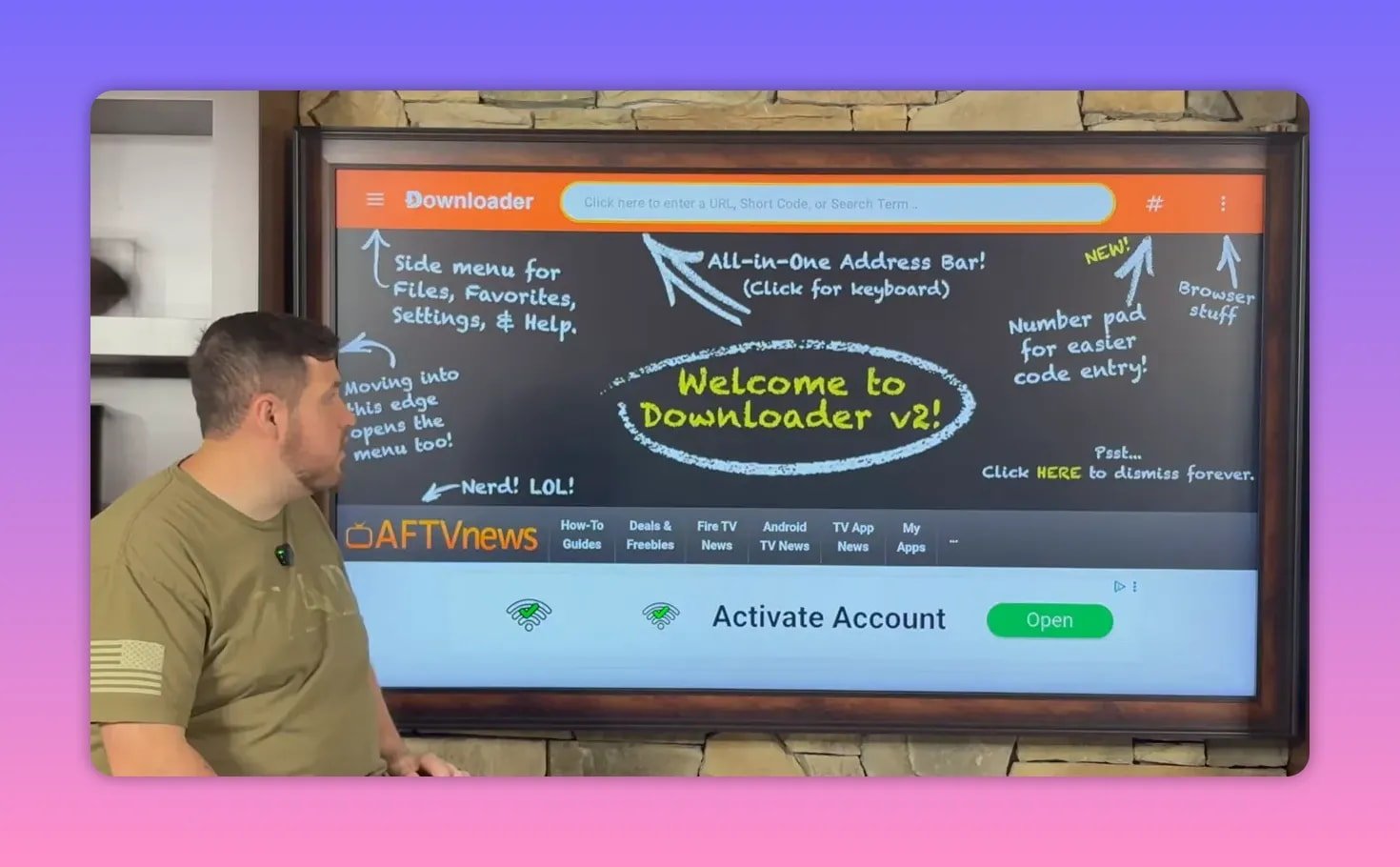
Type the URL for Unlinked and proceed to the download page. Once there, move the cursor down until you land on the box labeled Download APK Android, then select it.
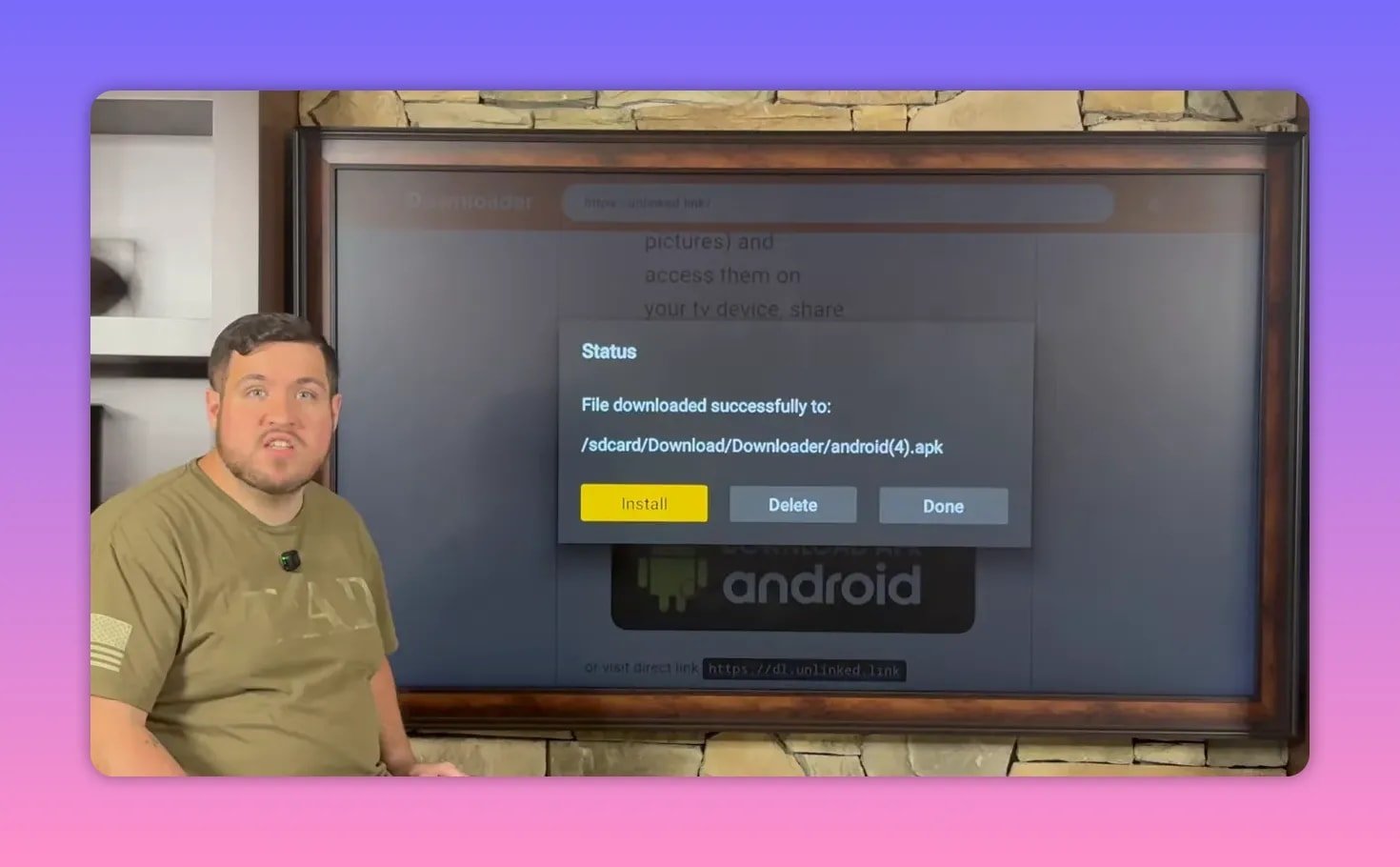
After the APK downloads:
- Choose Install
- Select Done instead of opening it immediately
- Delete the leftover installation file
That last step is worth doing. Those APK installer files are just clutter once the app is installed.
🛠️ Allow Unlinked to Install Apps Too
There is one more permission step that a lot of people miss.
Go back to:
- Settings
- My Fire TV
- Developer Options
- Install Unknown Apps
This time, find Unlinked in the list and turn it on.
Why? Because Unlinked acts like its own app library. If it is going to install anything for you, FireStick has to trust it first.
🏪 Add the Unlinked Library and Browse the App Store
Open Unlinked from your apps list. It will ask you to Add a new library. That means entering a code for a specific app store.
In this setup, the library used is a custom store called the Fire Vault, which contains more than 50 apps for:
- Movies
- TV shows
- Sports
- Live TV
- Pay-per-view
- Other streaming categories
After entering the library code and confirming the prompt, you will land inside the store. Apps are arranged alphabetically, and they are also grouped by category, which makes things easier if you already know what kind of content you want.
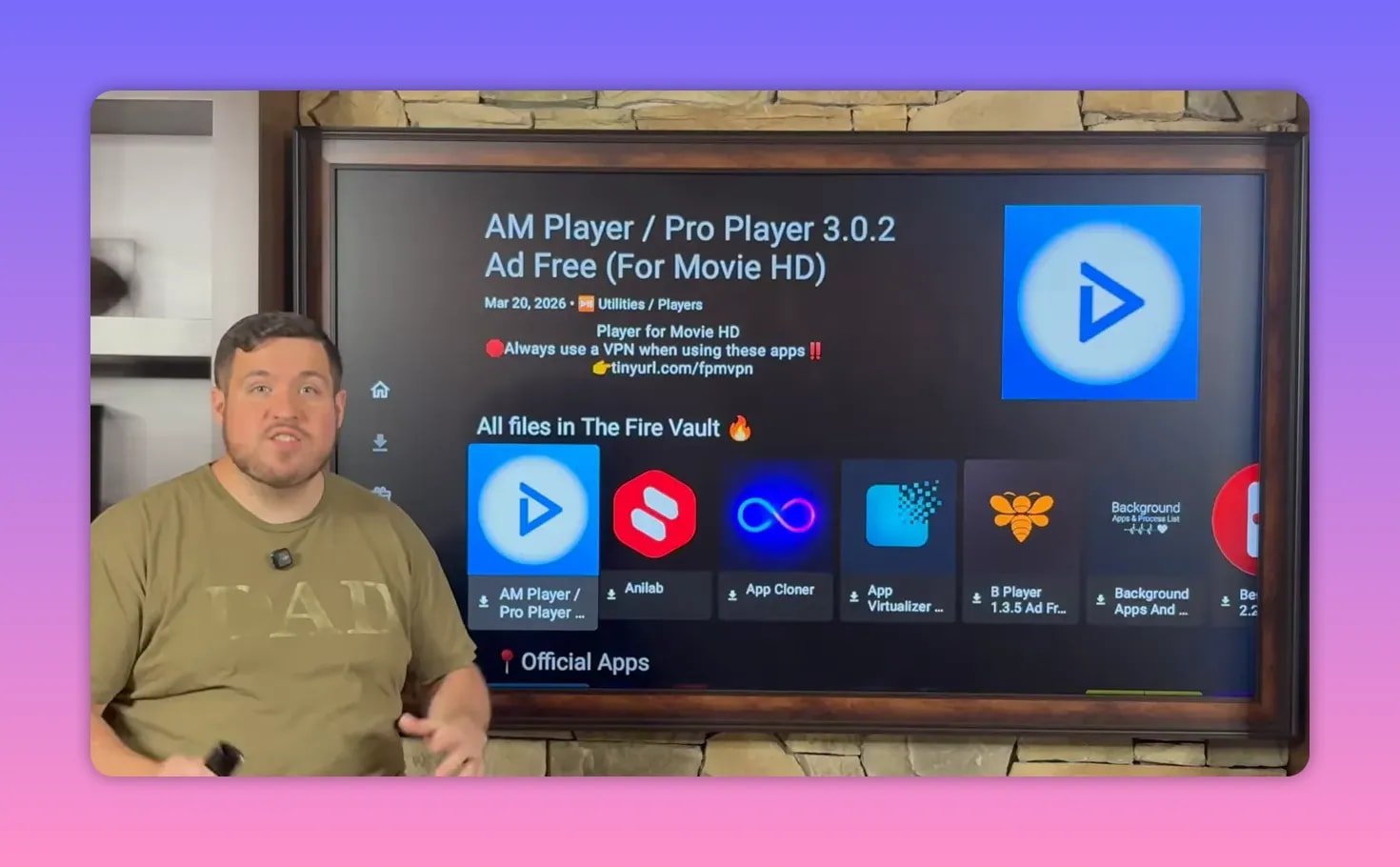
For the setup shown here, there is also a YouTube example section. That section is basically a quick shortcut for the apps being featured at that time. Even if those exact apps are moved around later, you can still find them in the relevant category or by scrolling alphabetically.
If you want more FireStick resources and related downloads, there is also a related page here: https://jobice.org/download.
🔐 Why a VPN Comes First
Before opening third-party streaming apps, a VPN is strongly recommended. In this setup, the suggested choice is IPVanish VPN.
The reason is straightforward. Some internet providers and some regions put restrictions on access, throttle speeds, or interfere with how these apps behave. A VPN helps by:
- Keeping your activity more private
- Reducing ISP throttling issues
- Helping bypass internet censorship
- Making some third-party apps work more reliably
A lot of streaming problems that look like app issues are really connection or restriction issues. The setup here makes a point of not opening movie apps until the VPN is connected first.
You can learn more through the Fire Prodigy Media resources here: https://jobice.org.
🎬 Install the Free Movie and TV Show Apps
Inside the library, three apps are highlighted for this setup.
IPVanish VPN
This is installed first for privacy and smoother access. Select the app, choose Download, then Install App, and complete the FireStick install prompt.
Popcorn HD
Popcorn HD is described as a strong option for hundreds of movies and hundreds of TV shows. It is one of the main apps featured for free entertainment on FireStick.
Streamflix
Streamflix is another featured app with the same general focus: a large selection of movies and TV shows, including newer content.
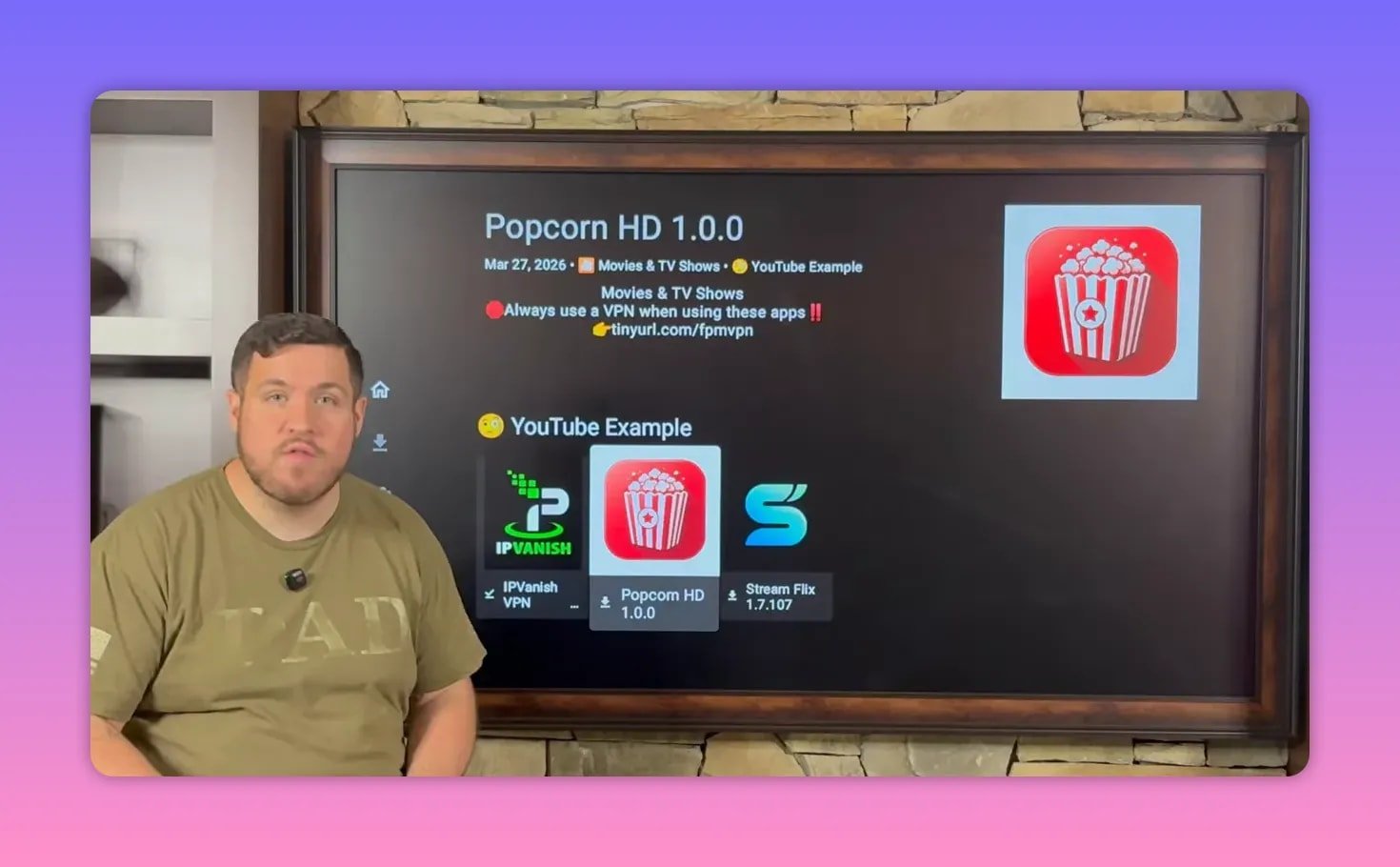
To install either app:
- Select the app inside Unlinked
- Click Download
- Choose Install App
- Confirm Install on FireStick
After each install, Unlinked sends you back to the store, which makes it easy to continue adding more apps.
If you want to explore further, browse the rest of the library. The store includes many other apps beyond the three featured here.
📱 Move Your New Apps to the Front
One of the handiest FireStick tricks in this setup is reorganizing your apps so you do not have to scroll all the way to the end every single time.
Once your apps are installed, head to the full apps list. Highlight any app you want to prioritize, then:
- Hold down the center button on the remote
- Choose Move to front
That is done for:
- Unlinked
- IPVanish
- Popcorn HD
- Streamflix
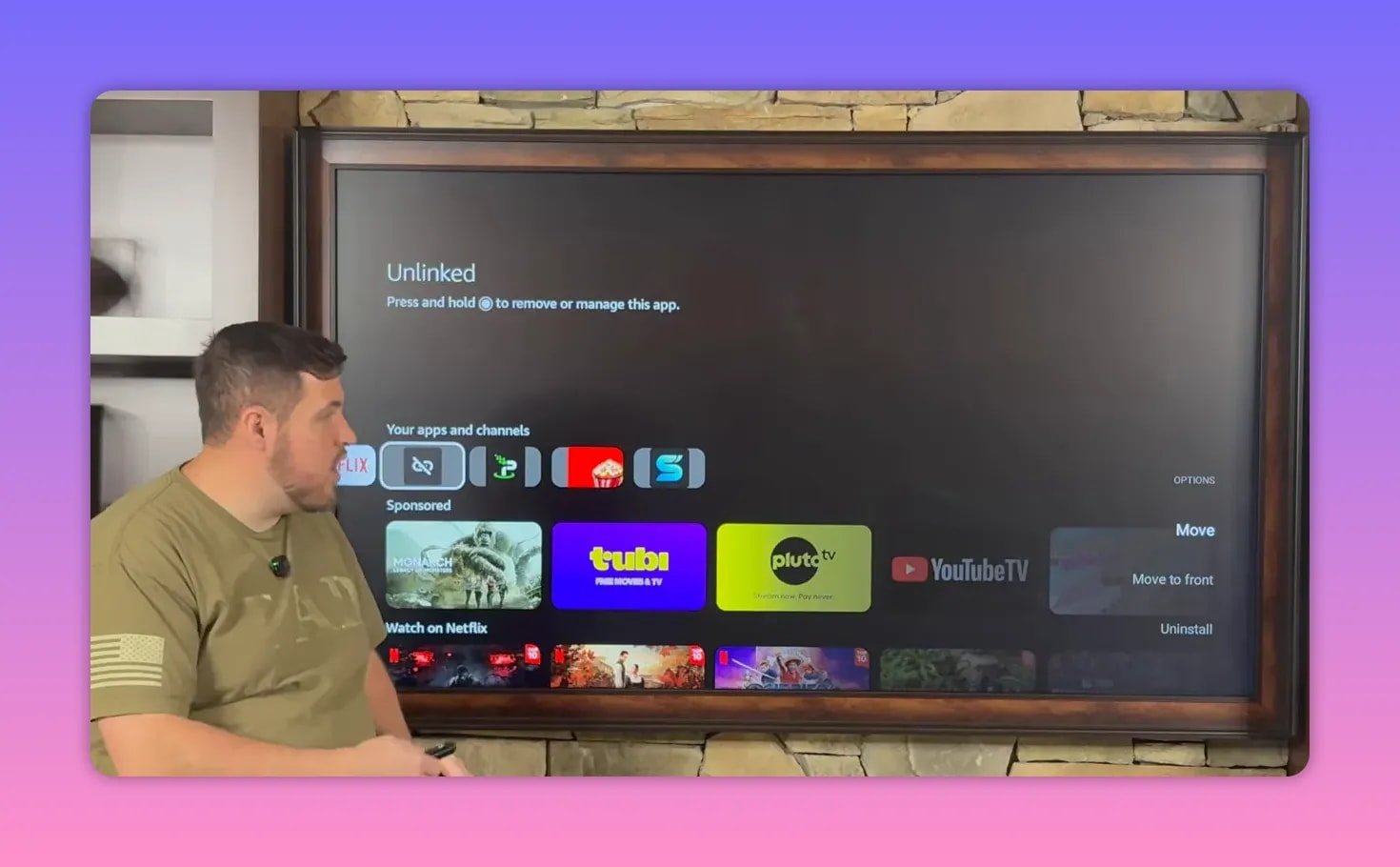
After that, the apps stay right at the beginning of your row, saving time every time you hit the home button.
🌍 Sign In to IPVanish and Connect
Once IPVanish is installed, open it and sign in. If you do not already have an account, you need to create one first through the VPN provider.
After signing in, connecting is simple:
- Open IPVanish
- Select the green Connect button
- If prompted, choose OK
When your country or selected location turns green, the VPN is active. At that point, you are connected and ready to use your streaming apps.
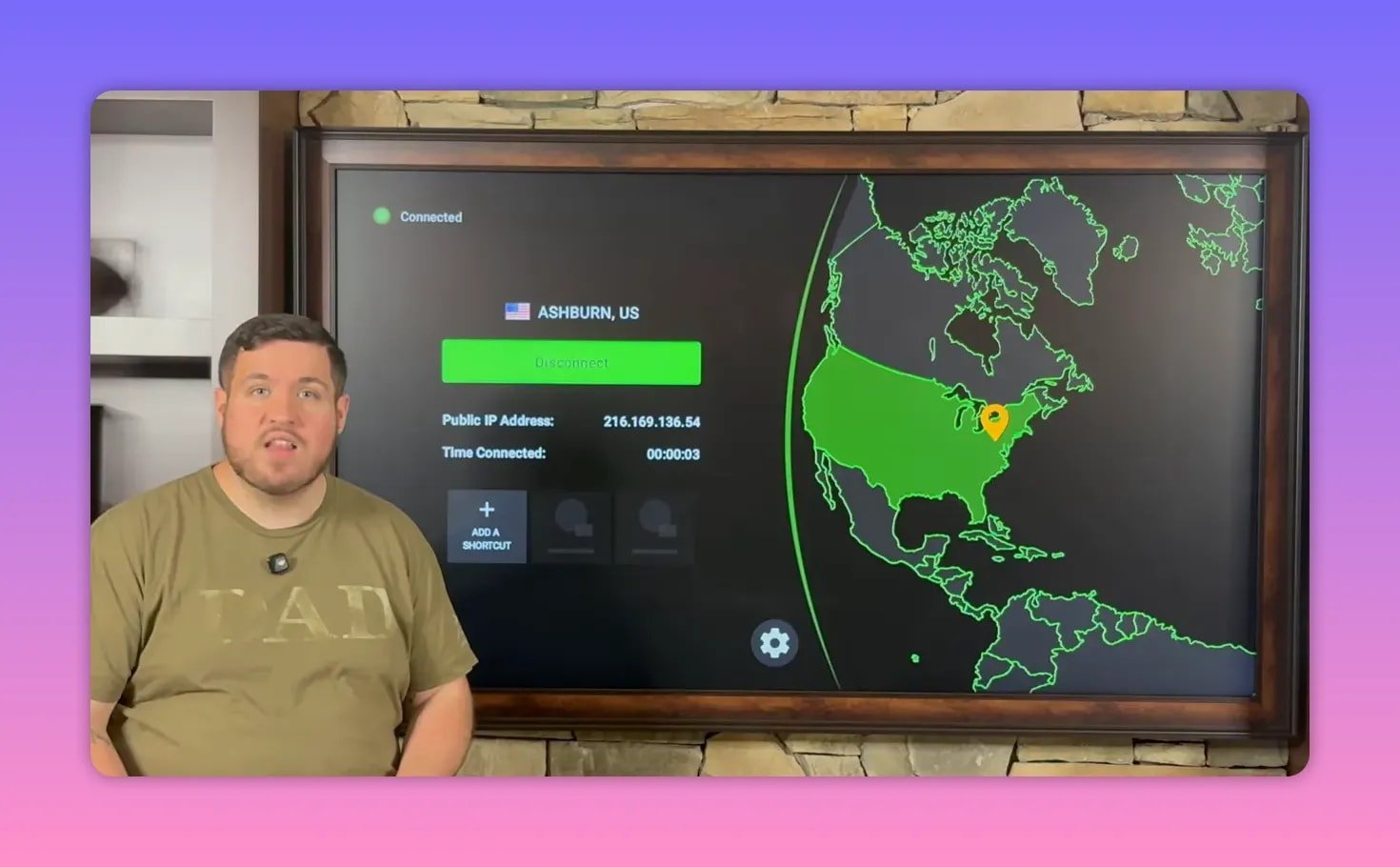
You can also:
- Use the gear icon to change VPN settings
- Use the server/location icon to switch regions
- Check the time connected display to confirm the session is active
The VPN stays connected unless you manually disconnect it or turn off your device.
🍿 Open Your Apps and Start Streaming
With the VPN connected and your apps moved to the front, everything is set up cleanly.
At this point, you can open Popcorn HD, Streamflix, or any other app installed from the library and start browsing for movies and TV shows.
The important takeaway is that this setup does not rely on jailbreaking. It is just a matter of enabling developer access, using Downloader correctly, adding a third-party library, and organizing the apps so they are easy to use every day.
❓FAQ
Do I need to jailbreak my FireStick to install these apps?
No. The entire process works without jailbreaking. You install Downloader, enable Developer Options, allow unknown apps, and then sideload the apps you want.
What is Downloader used for on FireStick?
Downloader lets you download APK files directly to your FireStick. It is one of the most common tools for installing apps that are not listed in the Amazon Appstore.
Why is Developer Options missing on my FireStick?
On some FireStick devices, Developer Options is hidden by default. You can reveal it by going to About, highlighting your device name, and pressing the center button several times until developer mode is enabled.
What does Unlinked do?
Unlinked is an app library tool. You enter a library code, and it gives you access to a curated store of apps that can be installed directly to your device.
Which apps were featured for free movies and TV shows?
The featured movie and TV show apps in this setup were Popcorn HD and Streamflix. A VPN app, IPVanish, was also installed first.
Why use a VPN before opening third-party FireStick apps?
A VPN can help protect your privacy, reduce throttling from your internet provider, and improve reliability when using third-party apps that may be restricted in some regions or networks.
How do I move installed apps to the front on FireStick?
Highlight the app, hold the center button on the remote, then choose Move to front. This places your most-used apps at the beginning of the row on the home screen.
Can I install more than just movie apps from the library?
Yes. The library described here includes more than 50 apps, covering movies, TV shows, sports, live TV, pay-per-view, and more.
That is the full setup. Clean, fast, and no nonsense. Get Downloader installed, unlock the right settings, add your library, connect your VPN, and bring your FireStick to life.