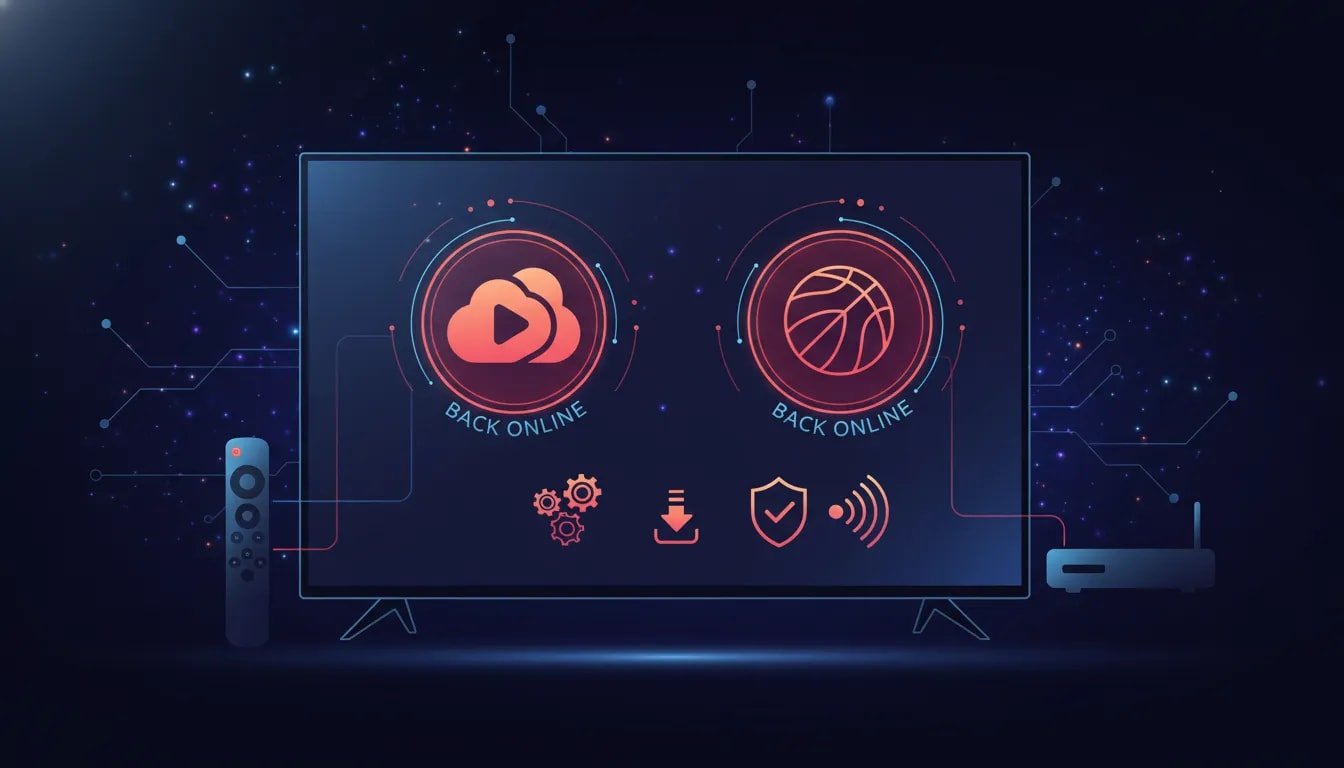
Good news, fire family. Stream Fire and Sports Fire are back, but the install process is a little different now.
If you have been trying to get these apps back on your Fire Stick, Fire TV, Fire Cube, Android box, or another Android TV device, the big change is this: you are no longer just grabbing a single APK and calling it a day. There are a few setup steps first, and if you miss one, the install will not go smoothly.
This guide walks through the full process from start to finish, including enabling Developer Options, installing Downloader, setting up Unlinked, accessing the app store, installing the combined app, and making sure your VPN is connected before opening anything.
Table of Contents
- 🔥 What’s different this time?
- 🔍 Step 1: Install Downloader
- ⚙️ Step 2: Turn on Developer Options and allow unknown apps
- 📥 Step 3: Use Downloader to install Unlinked
- 🛠️ Step 4: Give Unlinked permission to install apps
- 🏪 Step 5: Open Unlinked and add the app library
- 🔐 Step 6: Install the VPN first
- 📺 Step 7: Install Noro Fire, which includes Stream Fire and Sports Fire
- 🚨 Step 8: Enable Noro Fire in Install Unknown Apps
- 🧹 Step 9: Move your new apps to the front
- 🌍 Step 10: Connect IPVanish before opening third-party apps
- 📱 Final setup: Open Noro Fire and install Stream Fire and Sports Fire
- ✅ A few important reminders
- ❓FAQ
- 🔥 The bottom line
🔥 What’s different this time?
The main difference is that Sports Fire and Stream Fire now come through another app. In this setup, they are accessed through an app called Noro Fire, which packages both of them together.
That means you need to:
- Install Downloader
- Enable app installs from unknown sources
- Install Unlinked
- Use an Unlinked library code to access the app store
- Install Noro Fire
- Enable Noro Fire to install unknown apps too
That last step is the one a lot of people miss.
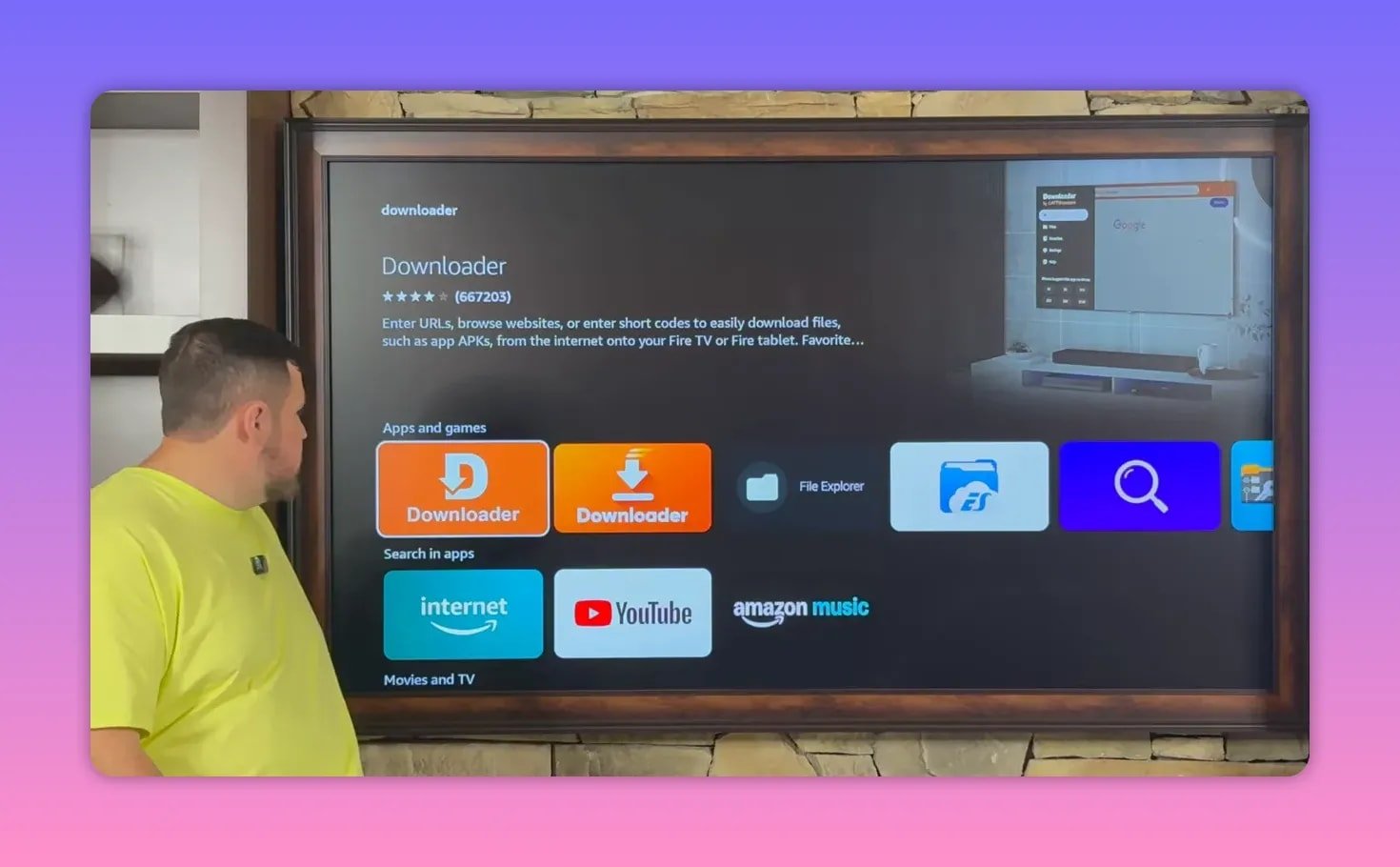
🔍 Step 1: Install Downloader
From the Fire TV home screen, go to the magnifying glass/search icon and search for Downloader.
You want the orange Downloader app. Install it, but do not worry about opening it right away. Before using it, you need to update a few system settings.
⚙️ Step 2: Turn on Developer Options and allow unknown apps
Go to:
- Settings
- My Fire TV or My Device
If you already see Developer Options, great. Open it. If you do not, it is easy to unlock:
- Open About
- Highlight your device name
- Press the center button on your remote several times
You should get a message confirming that you are now a developer.
Once Developer Options is available:
- Turn ADB Debugging to On
- Open Install Unknown Apps
- Find Downloader and switch it On
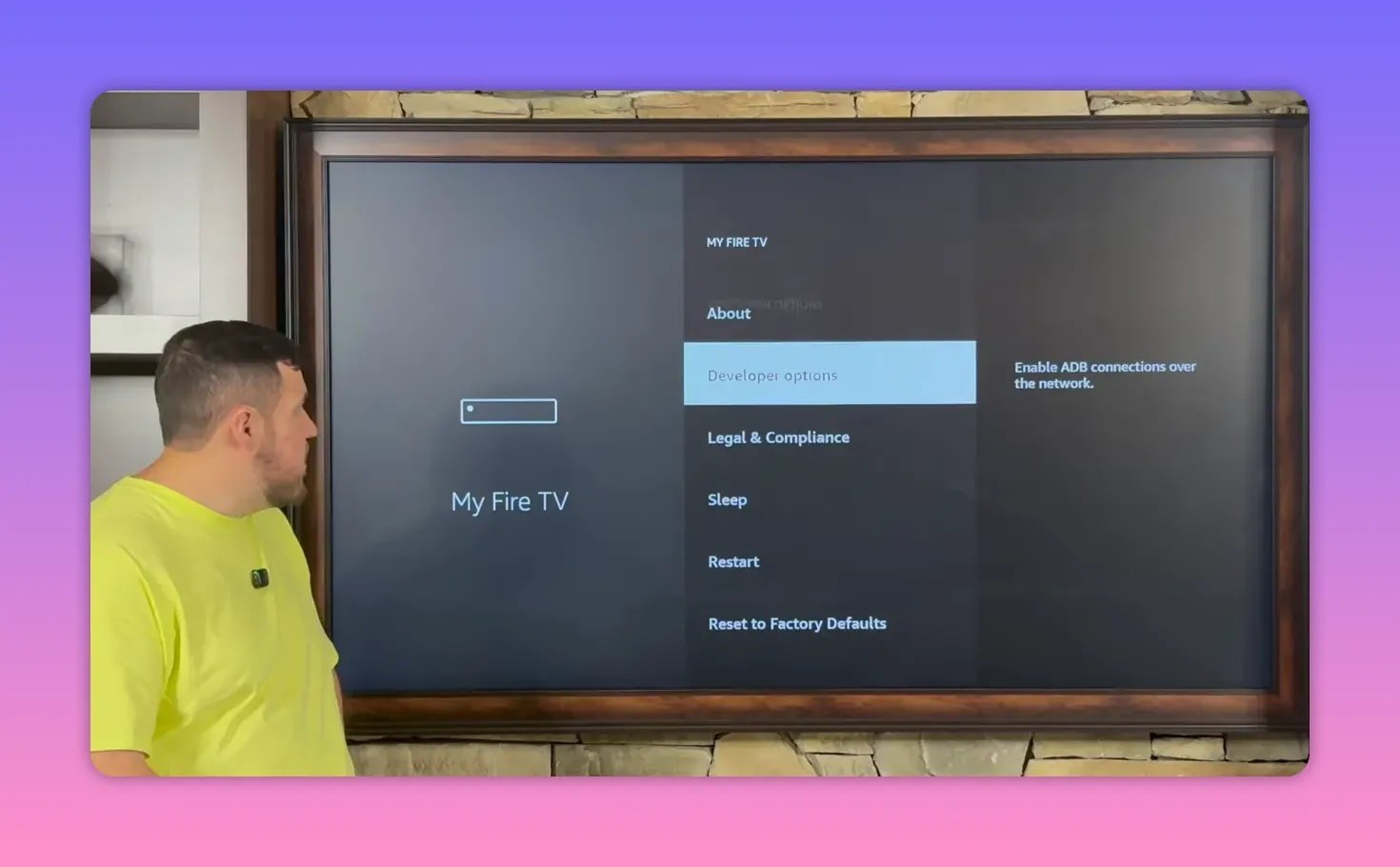
This gives Downloader permission to install APK files on your device.
📥 Step 3: Use Downloader to install Unlinked
Now go back to your apps list and open Downloader. If you cannot find it, check the middle of your app list. For whatever reason, Downloader does not always land at the end like most new apps.
Inside Downloader, move the cursor to the URL/search bar and enter the web address shown on screen in the tutorial. After the page loads, scroll down until you see the button labeled Download APK Android.
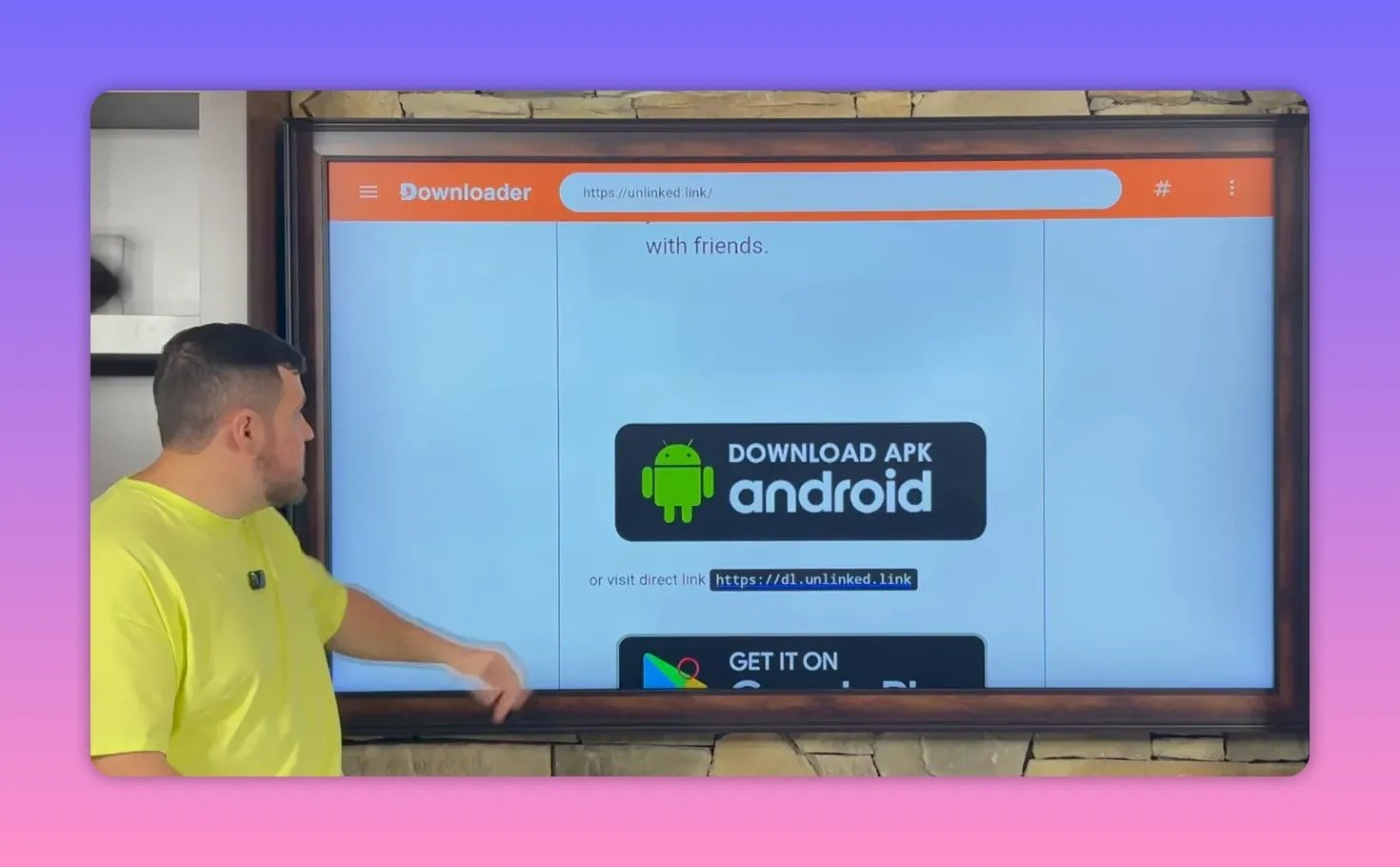
Select it, install the app, and when prompted, choose Done instead of Open.
After that, delete the leftover installation file. It is not needed once the app is installed, and cleaning those up helps keep your device tidy.
🛠️ Step 4: Give Unlinked permission to install apps
This is another required permissions step.
Go back to:
- Settings
- My Fire TV
- Developer Options
- Install Unknown Apps
Find Unlinked and turn it On.
Now both Downloader and Unlinked should be enabled.
🏪 Step 5: Open Unlinked and add the app library
Open Unlinked from your apps list. Since it is newly installed, it will usually be all the way at the end of the list.
When Unlinked opens, choose Add a new library. It will ask for a code that links to a specific app store.
In the video, the code leads to the creator’s personal app store called The Fire Vault, which contains more than 50 apps across categories like:
- Movies
- TV shows
- Sports
- Live TV
- Pay-per-view
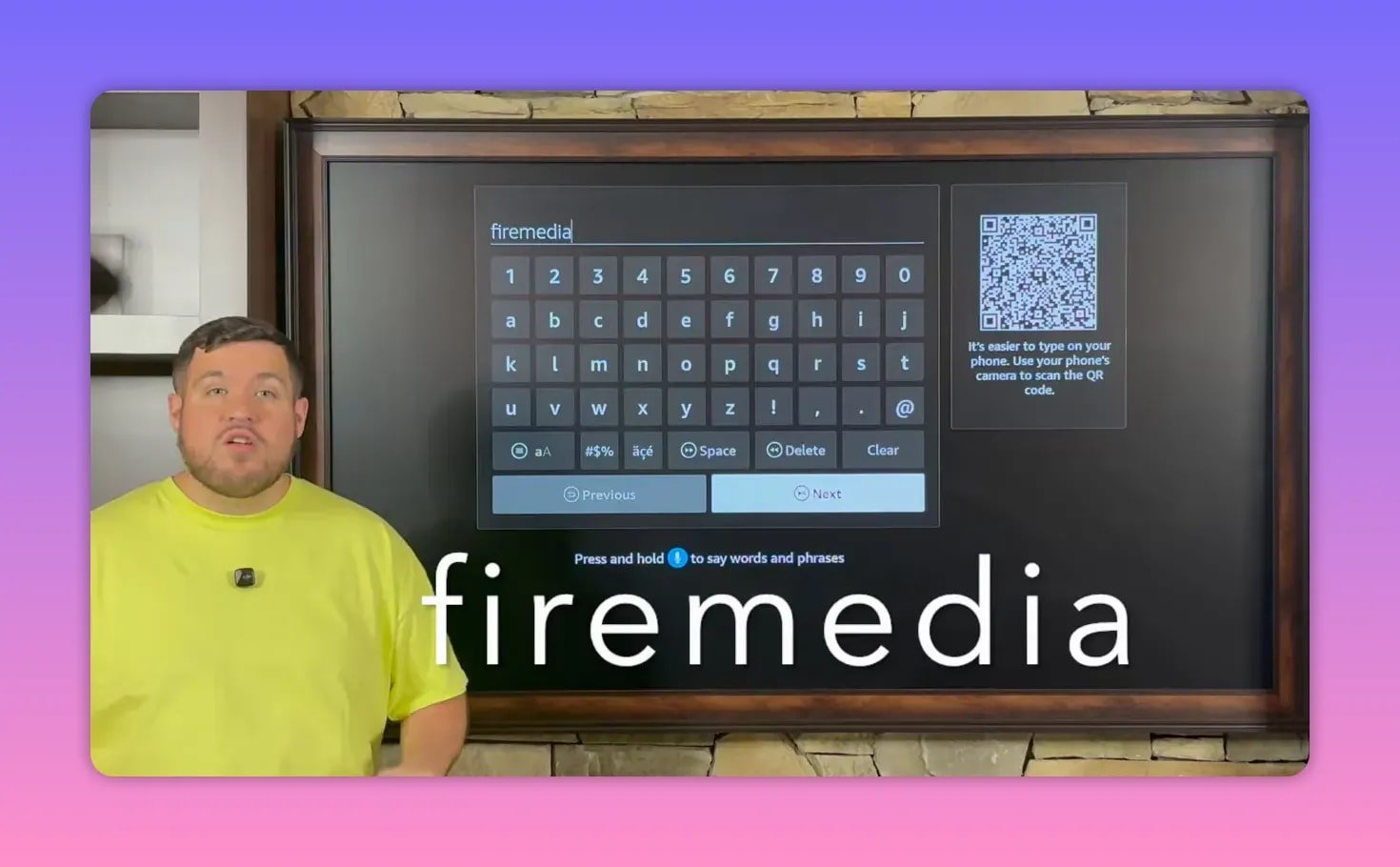
After entering the code, continue through the prompt screen until you reach the library contents.
If you want more Fire Stick and Android TV setup resources, the Fire Prodigy Media resource page may be useful as a starting point.
🔐 Step 6: Install the VPN first
Before grabbing Stream Fire and Sports Fire, the tutorial strongly recommends installing IPVanish VPN first.
That is not treated as an optional extra here. It is presented as the most important app in the process because it helps with three things:
- Privacy by keeping your activity more secure and anonymous
- Access by helping get around ISP restrictions or regional limitations
- Performance by reducing issues caused by throttling from internet providers
The guide also points out a practical reason people often overlook: many app install or playback issues get resolved once the VPN is connected. Complaints like buffering, apps not installing properly, or streams not working often come down to not using a VPN.
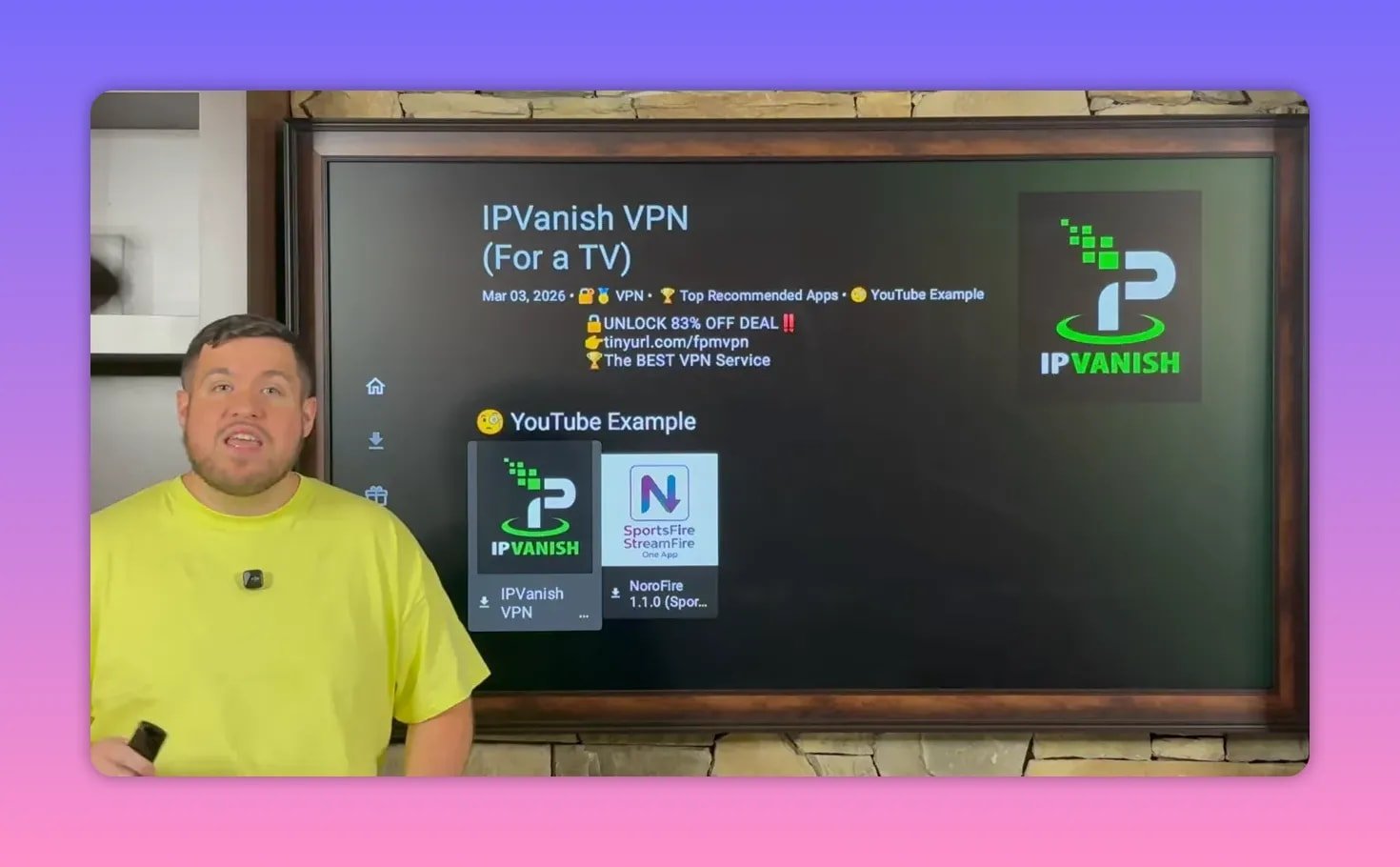
Inside the store, select IPVanish VPN, then choose:
- Download
- Install App
- Install
If you need the APK and related download resources, the download page here may also help.
📺 Step 7: Install Noro Fire, which includes Stream Fire and Sports Fire
Once IPVanish is installed, return to the store and find Noro Fire.
This is the important part: Noro Fire is the app that now gives you access to both Sports Fire and Stream Fire.
So instead of installing Sports Fire and Stream Fire directly the old way, you install Noro Fire first.
Select:
- Download
- Install App
- Install
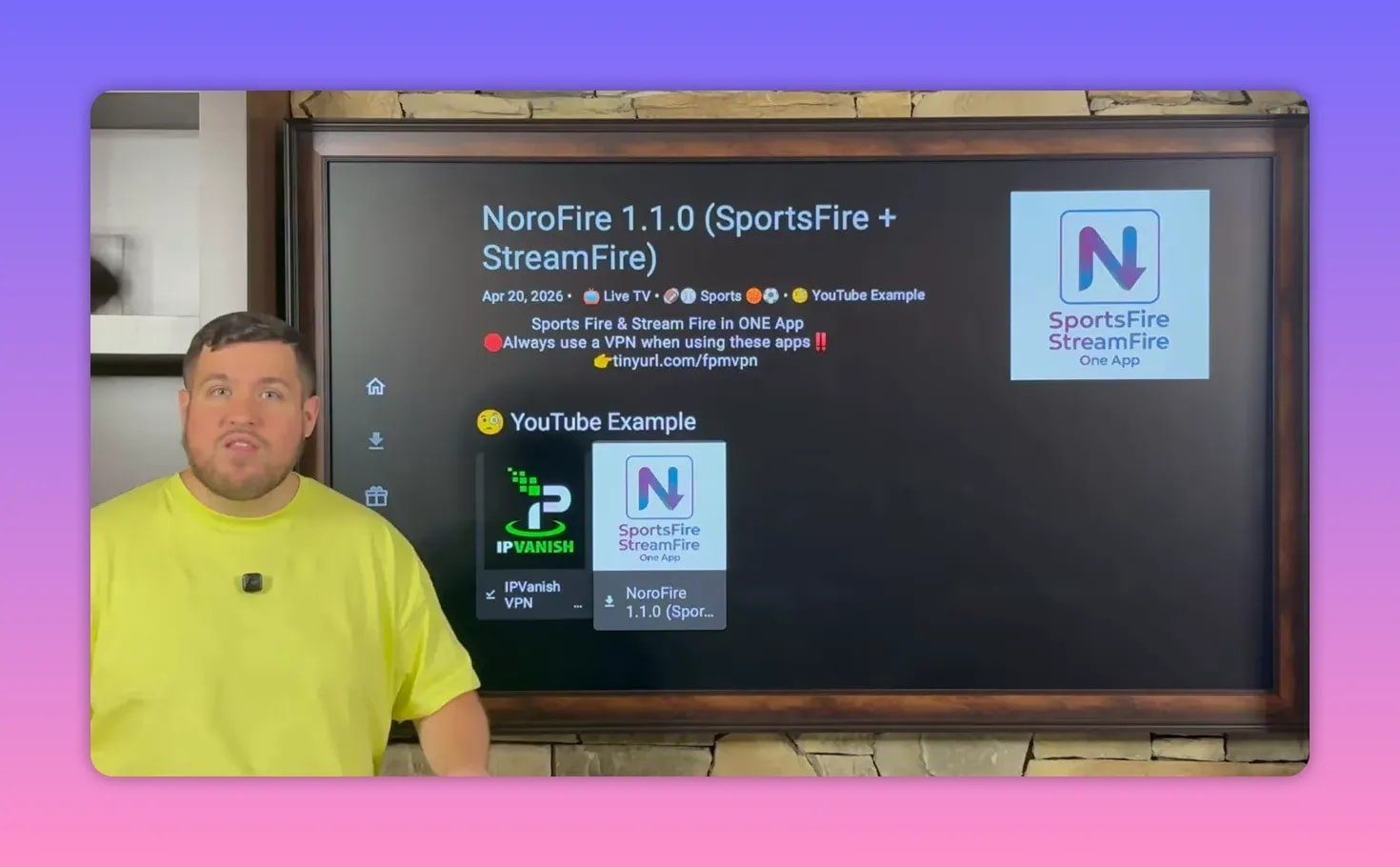
If the YouTube example section in the store changes later, do not panic. Noro Fire may move out of that example section and into its category instead, such as Sports or Live TV.
🚨 Step 8: Enable Noro Fire in Install Unknown Apps
This step is absolutely critical.
After installing Noro Fire, go back again to:
- Settings
- My Fire TV
- Developer Options
- Install Unknown Apps
Find Noro Fire and turn it On.
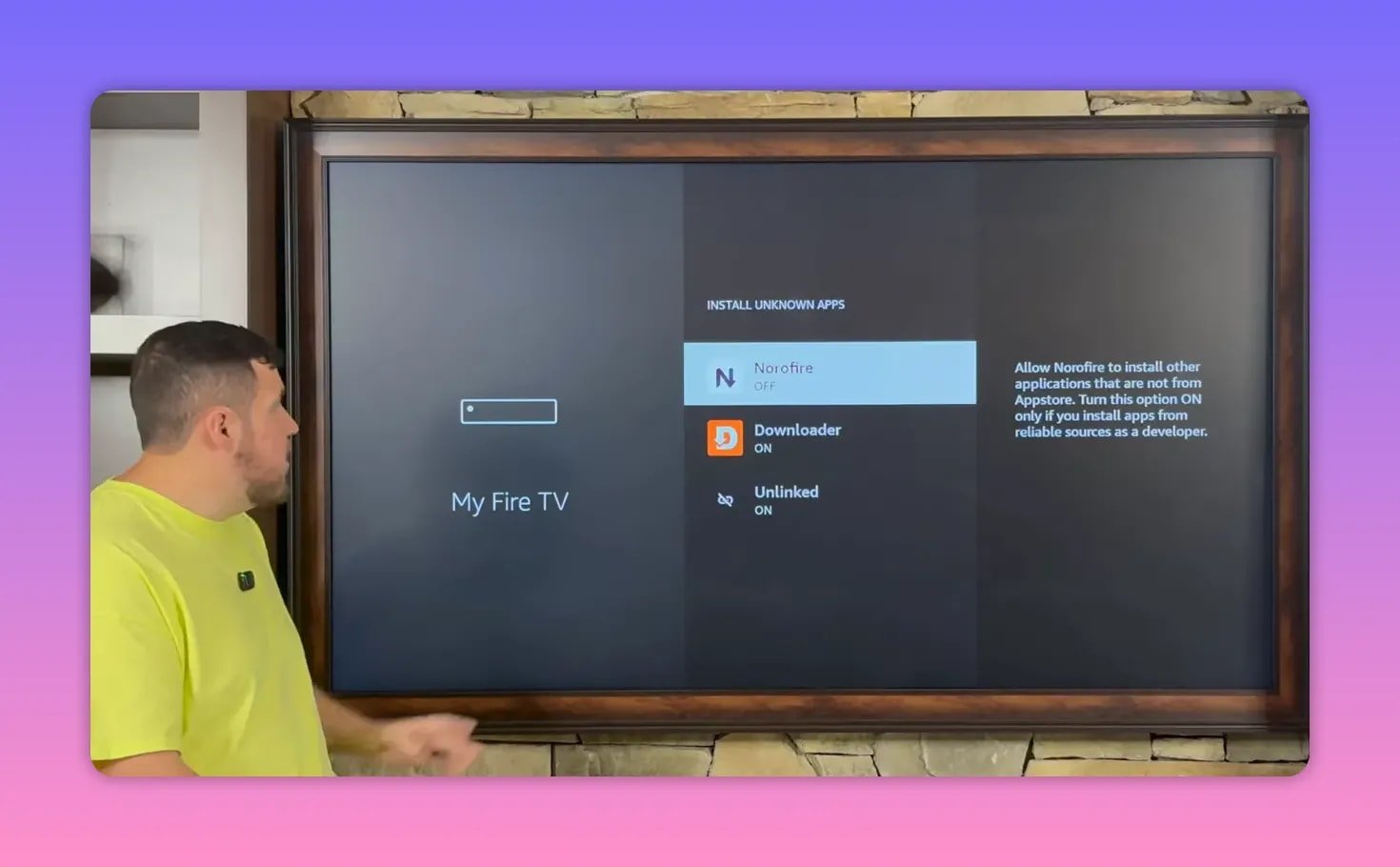
Why does this matter? Because Noro Fire contains the separate installs for Stream Fire and Sports Fire. If Noro Fire is not allowed to install unknown apps, those installs cannot complete.
This is the extra permission step that makes the whole new method work.
🧹 Step 9: Move your new apps to the front
Once everything is installed, your apps are probably sitting at the far end of your app list. That gets annoying fast.
A simple trick used in the tutorial is to move your key apps to the front:
- Unlinked
- IPVanish
- Noro Fire
To do that:
- Highlight the app
- Hold the center button on the remote
- Select Move to Front
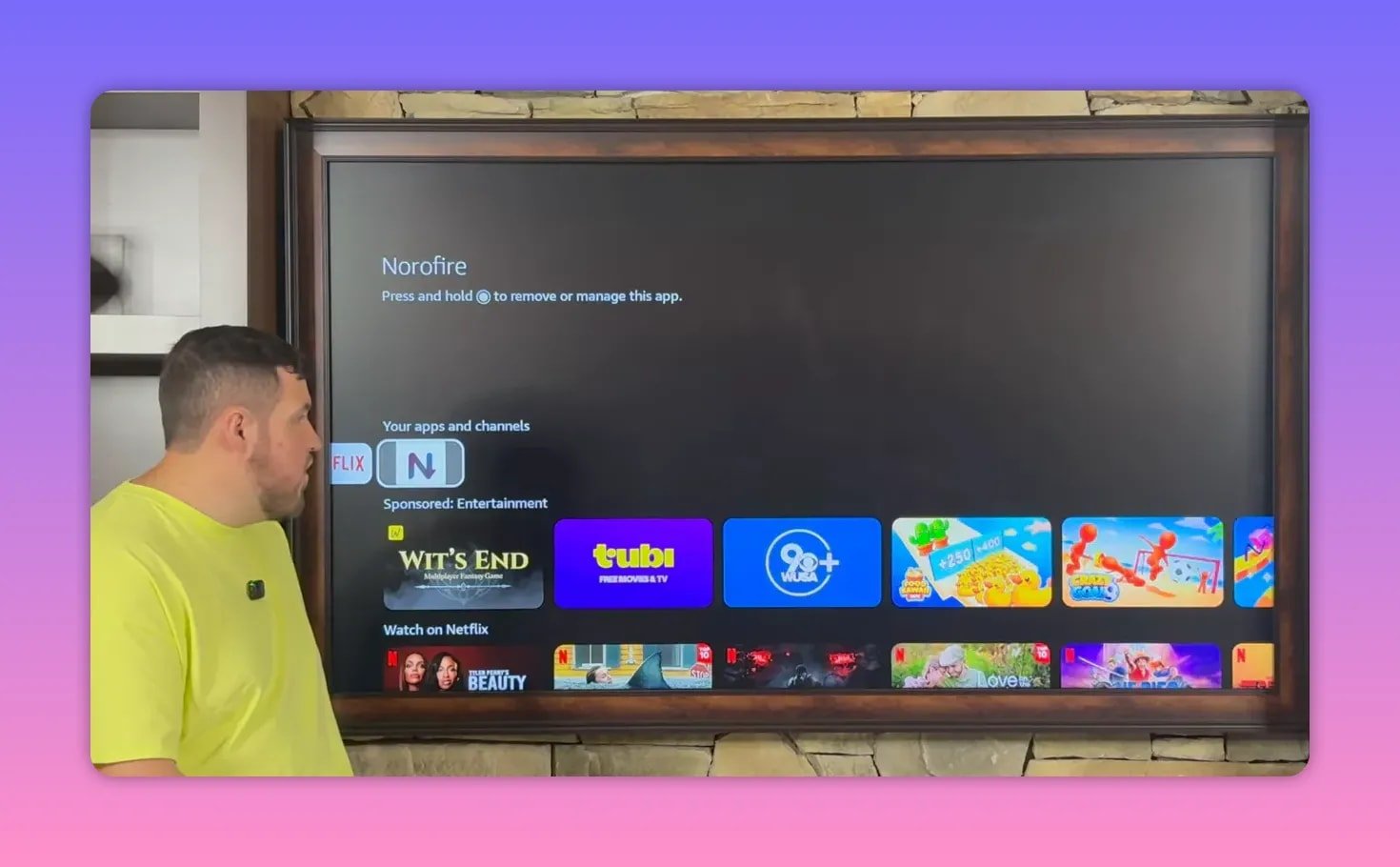
That way, when you hit Home, the apps you actually use are front and center instead of buried at the bottom of a long list.
🌍 Step 10: Connect IPVanish before opening third-party apps
Before opening Noro Fire or anything installed through it, the process recommends turning on your VPN first.
Open IPVanish. If you do not already have an account, you will need to sign up, choose a plan, and log in using the credentials sent to your email.
After signing in, connecting is simple:
- Open IPVanish
- Select the green Connect button
- If prompted, choose OK
Once connected, your country will highlight in green. That confirms the VPN is active.
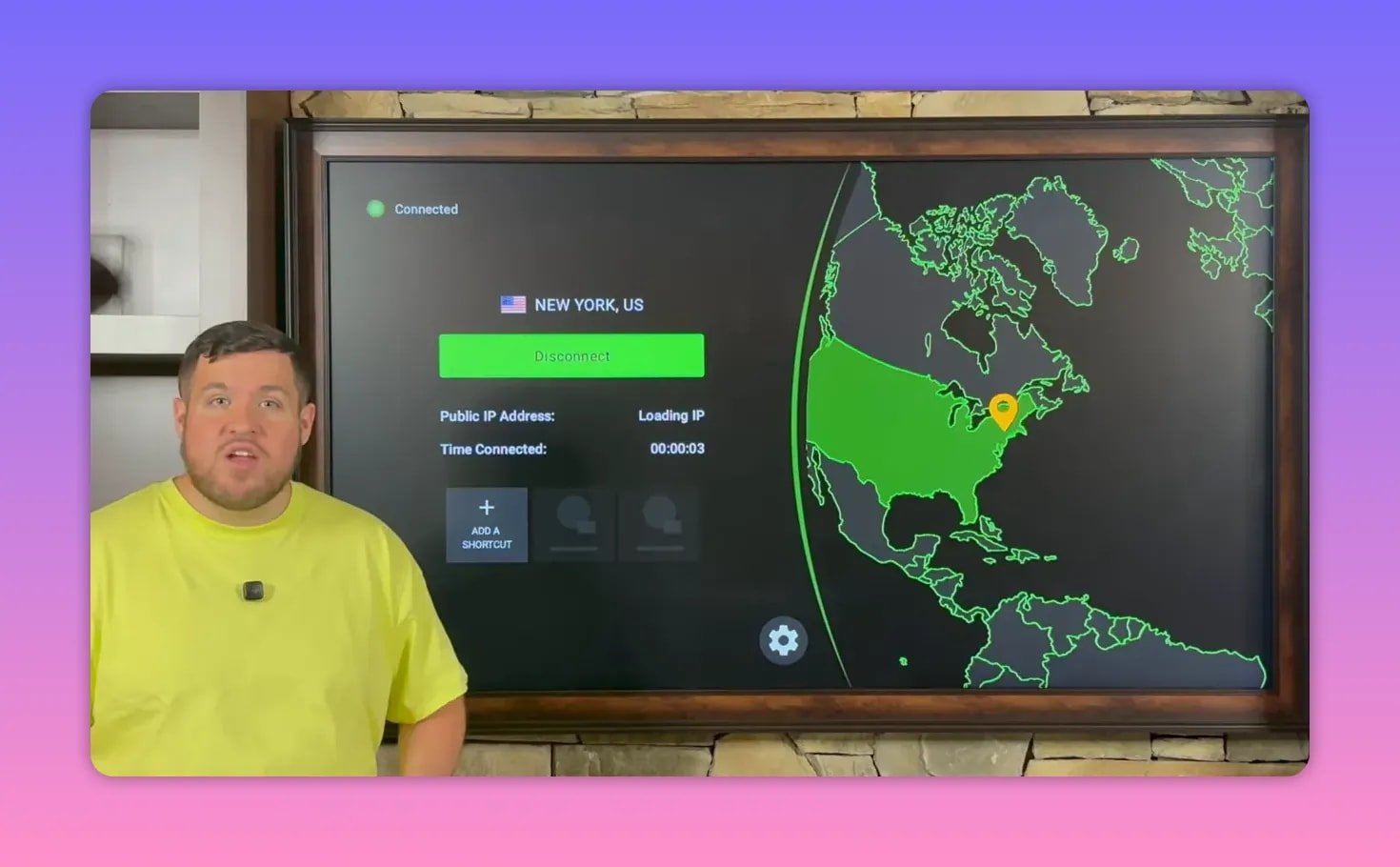
From there, you can also:
- Use the gear icon to change VPN settings
- Use the server/location icon to choose a different server
- Check how long you have been connected
The connection stays active until you manually disconnect or turn off the device.
📱 Final setup: Open Noro Fire and install Stream Fire and Sports Fire
At this point, your device is ready.
You have:
- Installed Downloader
- Enabled Developer Options
- Allowed installs from unknown apps
- Installed Unlinked
- Added the app store library
- Installed IPVanish
- Installed Noro Fire
- Enabled Noro Fire to install unknown apps
- Connected your VPN
Now open Noro Fire and install both Sports Fire and Stream Fire from inside the app.
If Noro Fire has permission enabled under Install Unknown Apps, those installs should go through properly.
✅ A few important reminders
- Do not skip the permissions steps. Downloader, Unlinked, and Noro Fire each need the proper install permissions.
- Use a VPN before opening third-party apps. The tutorial treats this as essential, not optional.
- Delete leftover APK files after installing. It keeps your storage cleaner.
- Move frequently used apps to the front. It saves time every single day.
- If app placement changes in the store, check the proper category. Noro Fire may appear under sports or live TV rather than a featured section.
❓FAQ
Why aren’t Stream Fire and Sports Fire installed directly anymore?
The setup now uses Noro Fire, which combines access to both Stream Fire and Sports Fire in one app. You install Noro Fire first, then install the individual apps from inside it.
Why do I need to enable Developer Options on Fire Stick?
Developer Options gives your device permission to install apps that are not coming from the Amazon Appstore. Without it, Downloader, Unlinked, and Noro Fire cannot do what they need to do.
What if Developer Options is missing from my device?
Go to Settings > My Fire TV > About, highlight your device name, and click the center button several times. That unlocks Developer Options.
Why does Noro Fire also need permission under Install Unknown Apps?
Because Noro Fire installs additional apps from within itself. If it does not have install permission, Sports Fire and Stream Fire cannot be installed from inside the app.
Is a VPN really necessary for this process?
The guide strongly recommends it. A VPN is used to improve privacy, avoid ISP throttling, reduce restrictions, and fix common issues like failed installs, buffering, or apps not working correctly.
Why should I delete installation files after installing an app?
Once an APK is installed, the installer file is no longer needed. Deleting it saves space and keeps your device from filling up with unnecessary files.
Can I use this method on devices other than Fire Stick?
Yes, the setup is aimed at Fire TV and Android TV type devices, including Fire Stick, Fire TV, Fire Cube, Android boxes, Nvidia Shield, and similar Android-based streaming hardware.
🔥 The bottom line
Stream Fire and Sports Fire are working again, but the route to get them has changed. The full process now runs through Downloader, Unlinked, the Fire Vault library, IPVanish, and finally Noro Fire.
It sounds like a lot at first, but once you understand the flow, it is actually pretty straightforward. The biggest keys are enabling the right permissions and connecting your VPN before launching your apps.
Get those two parts right, and you are in business.