If you want a Fire Stick, Nvidia Shield, or Android TV device setup that covers movies, TV shows, sports, live TV, and more, this is the exact kind of layout that makes everything easier. Not random apps that barely load. Not a cluttered mess. A real setup with a few core tools, a clean install process, and apps that actually give you a little bit of everything.
The goal here is simple: get your device ready for third-party app installs, add a library app that gives you access to a bigger app store, install a few strong picks for streaming, and organize everything so it is front and center on your home screen.
If you are brand new to this, no problem. This setup is beginner-friendly. If you have done this before, even better, because this is still one of the fastest ways to build out a fully loaded streaming device.
Table of Contents
- 🔧 Step 1: Install Downloader
- ⚙️ Step 2: Enable Developer Options and Unknown Apps
- 📥 Step 3: Use Downloader to Install Unlinked
- 🛡️ Step 4: Enable Unlinked and Add the App Store Library
- 🔐 Step 5: Start With a VPN
- 📺 Step 6: Install the Core Streaming Apps
- 🗂️ Step 7: Organize the Apps So They Are Easy to Access
- 🌍 Step 8: Connect to the VPN Before Opening Anything Else
- 🔥 Why This 2026 Setup Works So Well
- ❓FAQ
- ✅ Final Setup Checklist
🔧 Step 1: Install Downloader
The first app you need is Downloader. This is the tool that lets you install apps that are not in the Amazon App Store. Think of it like the bridge between your Fire Stick and the APK files you want to install.
- Go to the magnifying glass search icon on your device.
- Search for Downloader.
- Select the orange Downloader app.
- Install it.
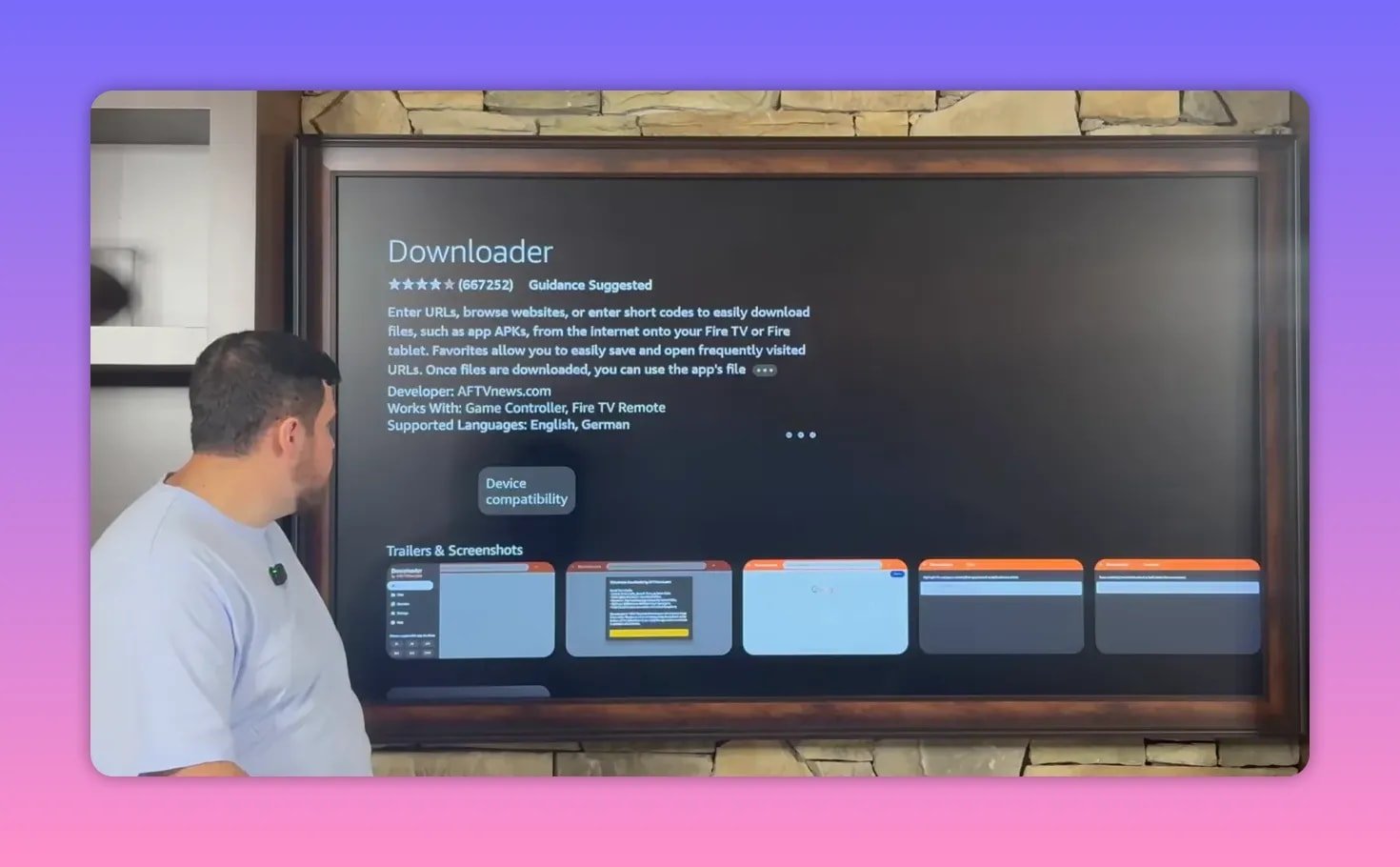
Once Downloader finishes installing, do not open it and start typing random addresses just yet. First, your device needs permission to install apps from outside the official app store.
⚙️ Step 2: Enable Developer Options and Unknown Apps
To allow third-party APK installs, head into your device settings:
- Open Settings.
- Select My Fire TV or My Device, depending on your model.
- Open Developer Options.
If you do not see Developer Options, it is easy to unlock:
- Go into About.
- Highlight your device name.
- Press the center button on your remote several times.
- You should get a message confirming that you are now a developer.
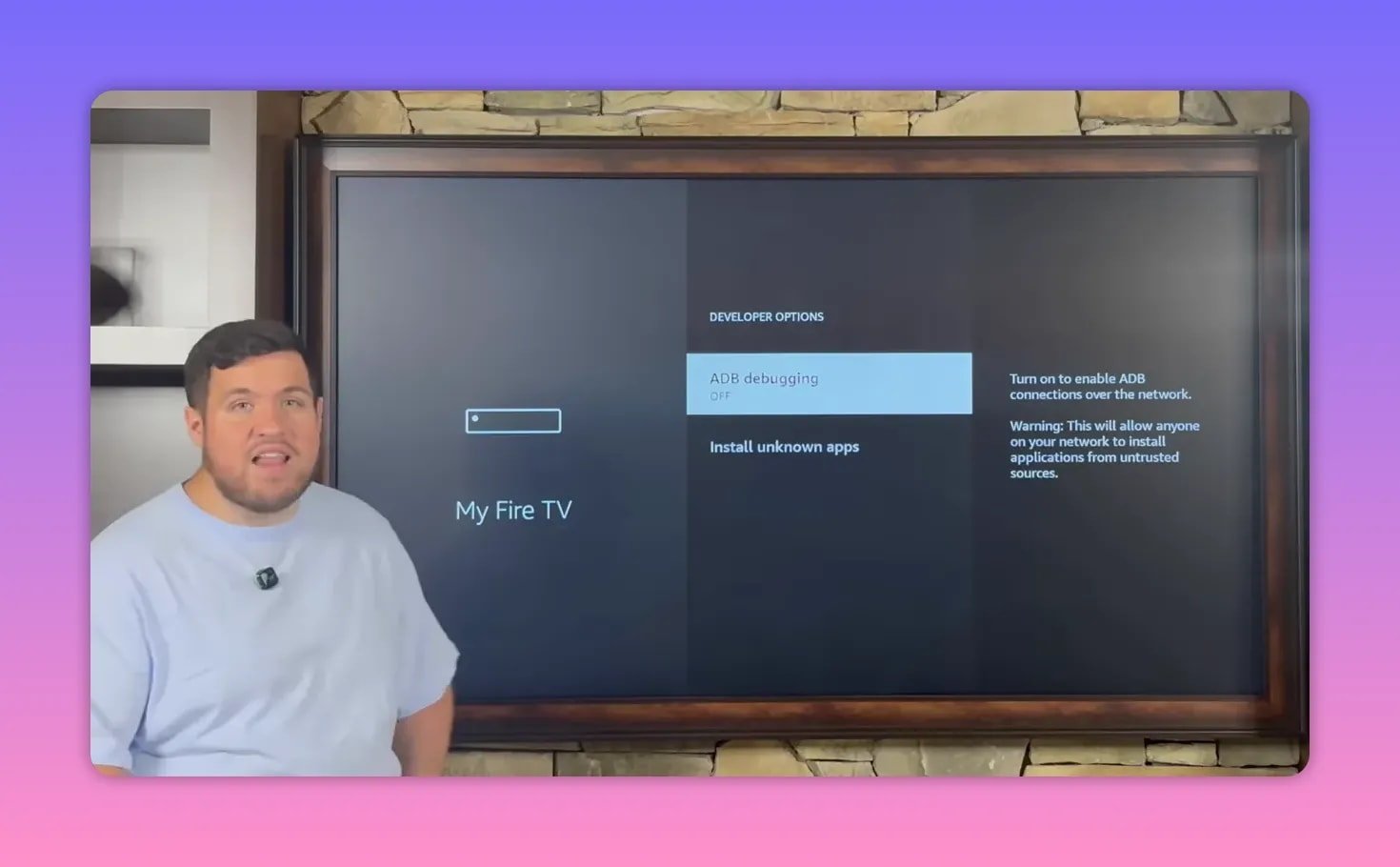
Now turn on these two settings:
- ADB Debugging
- Install Unknown Apps for Downloader
That second one is the key. If Downloader is not allowed, you will hit a wall the moment you try to install anything.
📥 Step 3: Use Downloader to Install Unlinked
Once Downloader is enabled, open it from your apps list. Inside the app, use the search box to enter the URL provided in the setup process. That address takes you to the page where you can download the Unlinked APK.
After the page loads:
- Scroll to the button labeled Download APK Android.
- Select it.
- Choose Install.
- When installation completes, choose Done instead of Open.
- Delete the leftover installation file to free up space.
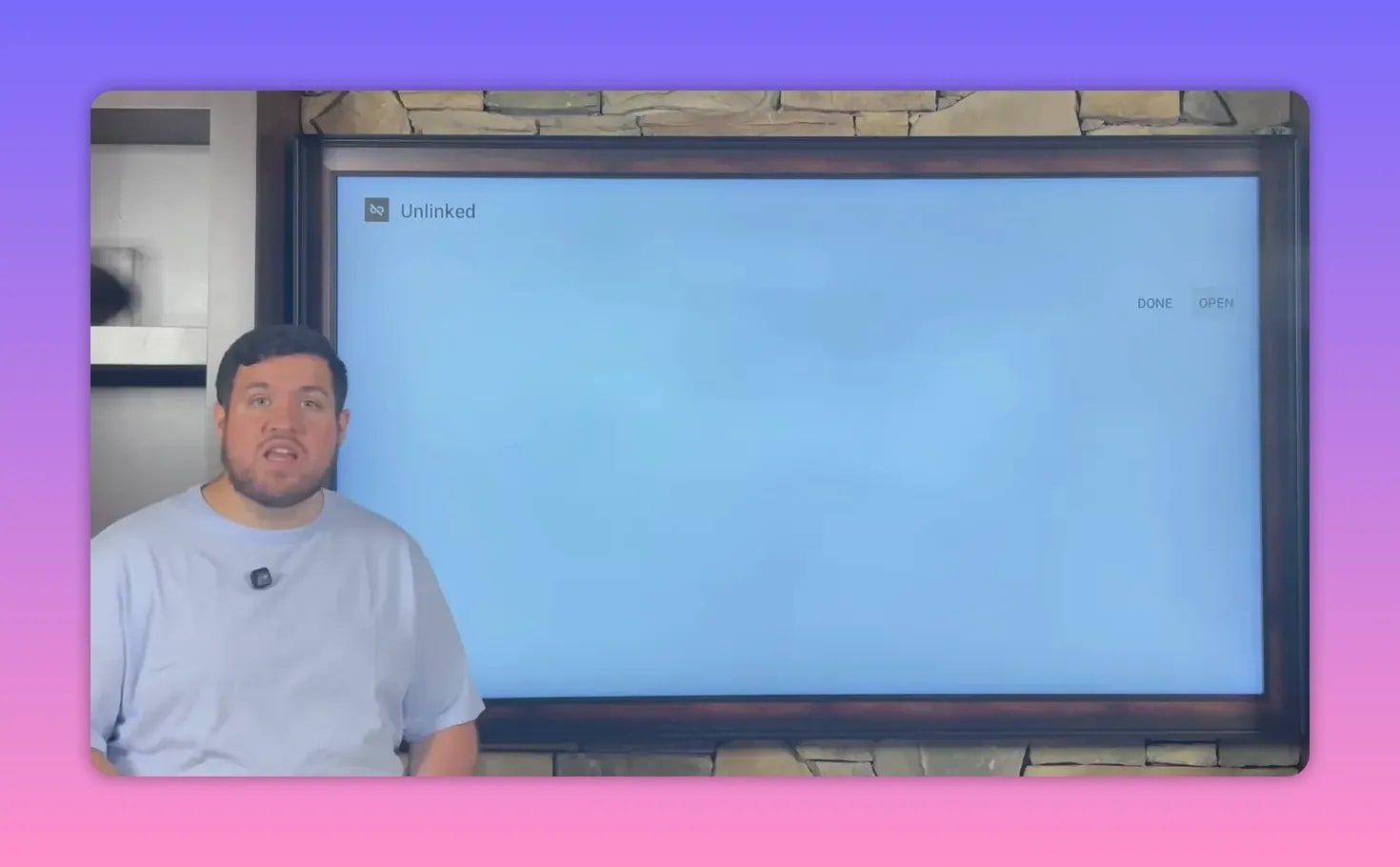
That last step matters more than people think. Those install files are only needed once, and deleting them helps keep your device cleaner.
If you want more Fire Stick setup resources and updates, you can also check https://jobice.org.
🛡️ Step 4: Enable Unlinked and Add the App Store Library
Just like Downloader, Unlinked also needs permission to install apps:
- Go back to Settings.
- Open My Fire TV or My Device.
- Go to Developer Options.
- Open Install Unknown Apps.
- Turn Unlinked on.
Now launch Unlinked. The app will ask you to add a new library. This is where the setup starts getting interesting, because instead of manually hunting for individual APKs, you can enter one code and access a full store.
In this setup, the store is called the Fire Vault, and it includes over 50 applications. These are organized alphabetically and also grouped by category, including movies, TV shows, sports, and live TV.
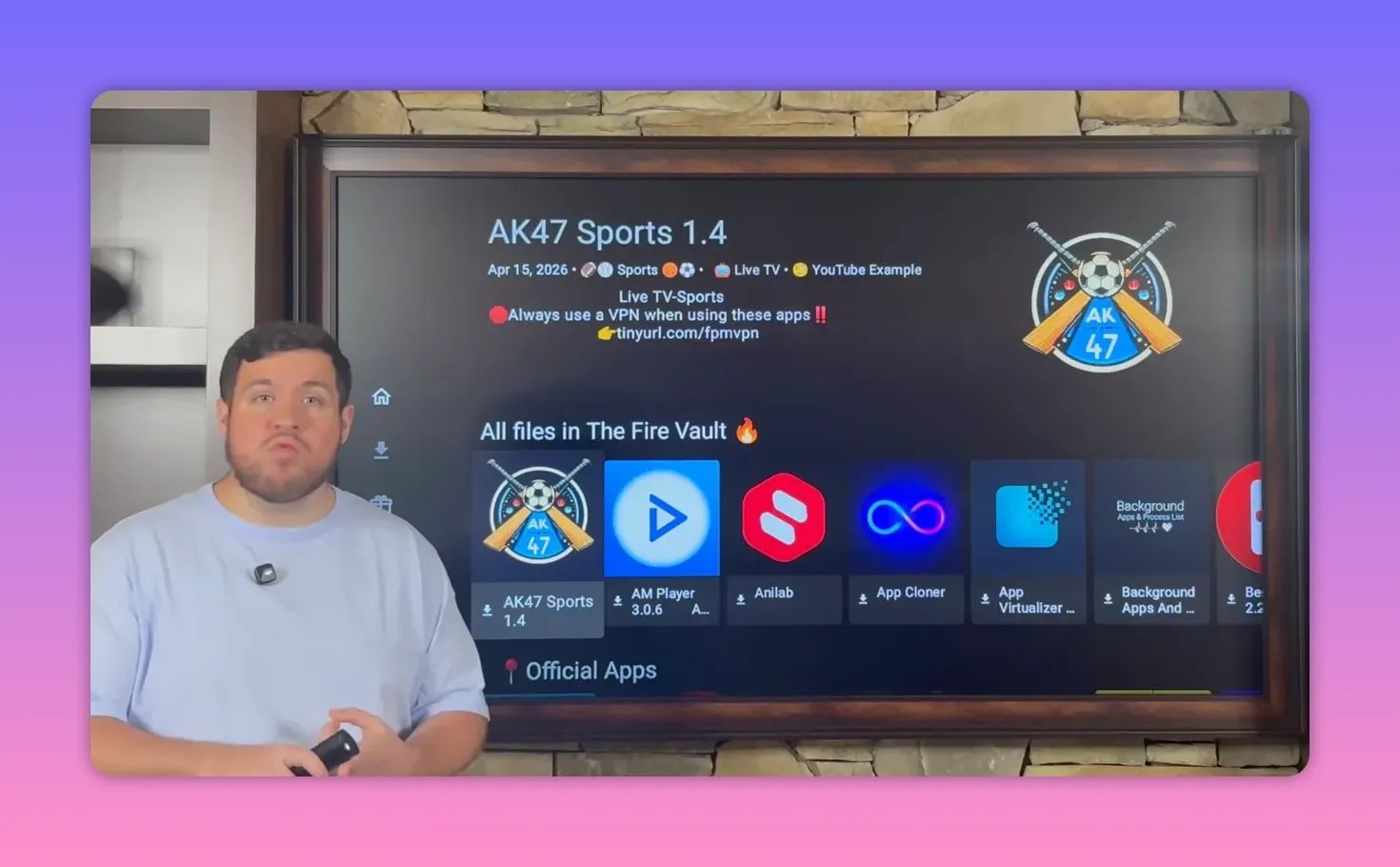
That is what makes this setup useful. You are not just installing one app and hoping it works. You are building a small ecosystem on your device, with options.
🔐 Step 5: Start With a VPN
Before installing the entertainment apps, the first app to grab is the IPVanish VPN. In this setup, it is treated as the most important app of the bunch, and for good reason.
A VPN is used here for a few key reasons:
- Privacy, so your activity is not exposed
- Security, especially on networks you do not fully trust
- Bypassing ISP throttling, which can reduce buffering and connection issues
- Overcoming regional restrictions or internet censorship
There is also a practical side to this. A lot of people run into issues like apps not loading, streams buffering, or installations acting flaky. One of the first troubleshooting steps recommended in this setup is simply turning on the VPN. According to the creator’s experience, that fixes the issue nine times out of ten.
You can find the VPN link in the original video description, and there is also a related download page at https://jobice.org/download.
📺 Step 6: Install the Core Streaming Apps
Once inside the store, a few apps are highlighted as the ideal 2026 combination. The idea is to cover different types of entertainment instead of relying on one app to do everything.
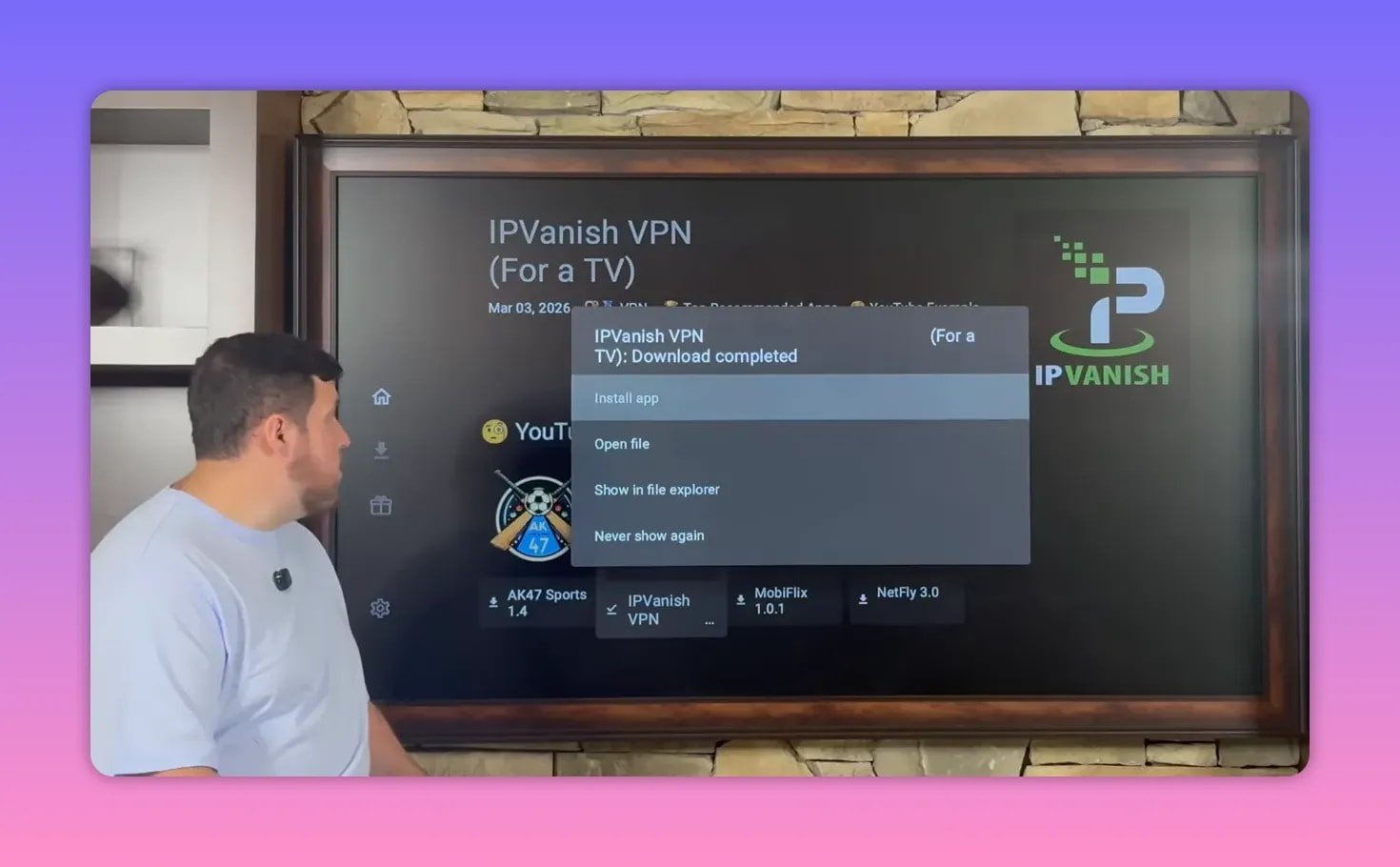
IPVanish VPN
This gets installed first. Download it, choose Install App, then confirm the install. Once complete, you will be returned to the store.
AK47 Sports
If sports are your thing, this is the dedicated sports app in the setup. It is described as a standout option for sports fans and is meant to cover that part of the entertainment stack by itself.
Mobiflicks
This is one of the biggest recommendations in the whole setup. Mobiflicks is praised hard, and repeatedly, for having hundreds and hundreds of movies and TV shows. If you follow any Fire Stick app discussions, you have probably heard this name before. It is positioned as one of those go-to apps that consistently earns a spot on the device.
Netfly
Netfly rounds out the setup with another strong movies and TV shows app. The big selling point here is the interface. It is described as especially impressive, with a layout that makes the app feel polished right away.
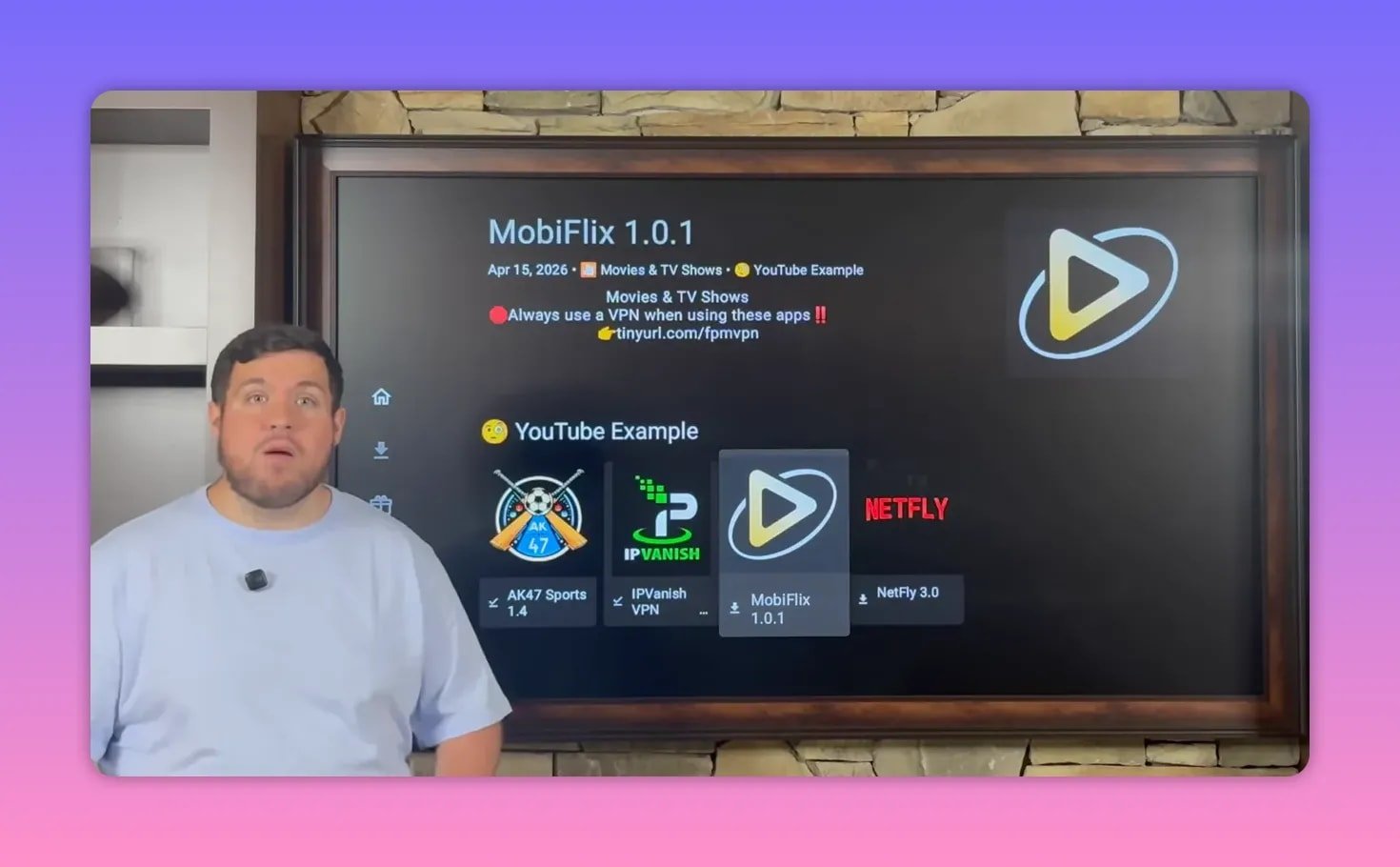
Together, these four apps create a balanced setup:
- IPVanish for privacy and access
- AK47 Sports for sports
- Mobiflicks for movies and TV series
- Netfly for more movies, TV, and a slick interface
That said, the store contains far more than just these examples. If a different app fits your entertainment style better, browse around and build your own combination.
🗂️ Step 7: Organize the Apps So They Are Easy to Access
After installing your apps, they usually land at the end of the app list. That gets old fast.
The quick fix is to move your main apps to the front:
- Go to your full applications list.
- Highlight the app you want.
- Press and hold the center button on the remote.
- Select Move to Front.
Do this for:
- Unlinked
- IPVanish
- AK47 Sports
- Mobiflicks
- Netfly
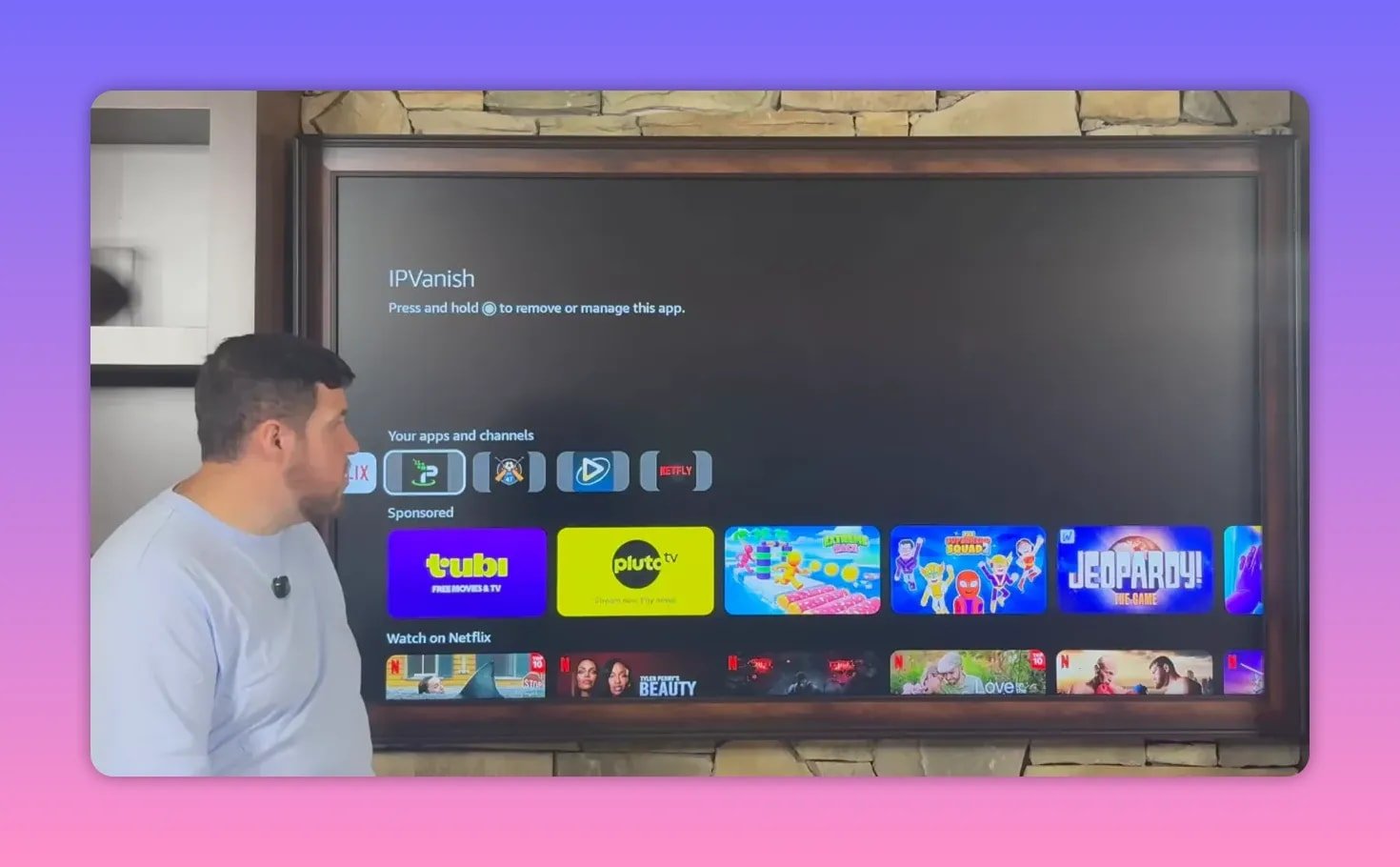
Once that is done, these apps will show up first whenever you open your apps row from the home screen. No more digging through the entire list every single time.
🌍 Step 8: Connect to the VPN Before Opening Anything Else
This part is not optional in the setup. The rule is simple: do not open the streaming apps before turning on the VPN.
Open IPVanish and either sign in or create an account. After that:
- Select the green Connect button.
- If prompted, click OK.
- Wait for your country to highlight green, showing that the VPN is active.
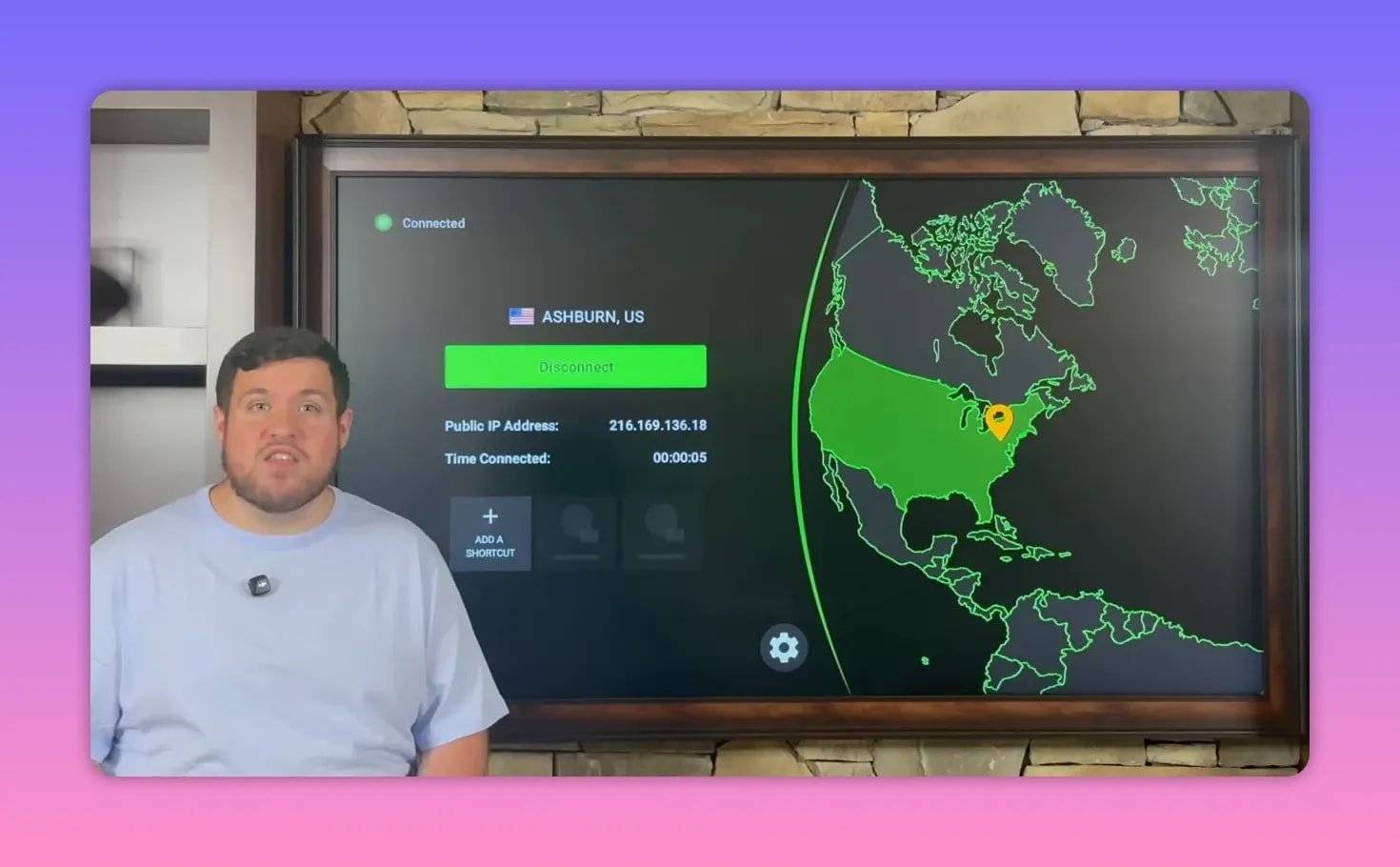
Once connected, you are set up to browse and use your installed apps with more privacy and fewer restrictions.
Inside IPVanish, there are also a couple of useful controls:
- The gear icon opens settings
- The location/server icon lets you change server location
- The time connected area shows how long the VPN session has been active
The VPN stays connected until you either disconnect manually or turn off the device.
🔥 Why This 2026 Setup Works So Well
What makes this setup solid is not just the individual apps. It is the way everything works together.
- You start with the right install tools
- You unlock your device properly through Developer Options
- You use Unlinked to access a much broader app library
- You install a VPN first instead of treating privacy like an afterthought
- You build a mix of sports, movies, TV shows, and live TV instead of depending on one source
- You organize your home screen so the apps you use most are front and center
That is what turns a basic Fire Stick into a far better streaming device. More speed. More options. Less nonsense.
❓FAQ
What devices can use this setup?
This setup is aimed at Amazon Fire Stick devices, Fire TV devices, Nvidia Shield, Android TV boxes, and similar Android-based streaming hardware.
Why do I need Downloader first?
Downloader is the app used to fetch APK files from a web address. Without it, installing third-party apps on a Fire Stick is much harder.
What if Developer Options is missing?
Go to About under My Fire TV, highlight your device name, and press the center button on the remote several times. That unlocks Developer Options.
Why install Unlinked?
Unlinked acts like a library-based app store. Instead of hunting down every APK one by one, you can enter a store code and browse a full collection of apps in one place.
Which apps are recommended in this setup?
The featured apps are IPVanish VPN, AK47 Sports, Mobiflicks, and Netfly. Together they cover privacy, sports, movies, TV shows, and more.
Why is a VPN considered so important?
The setup recommends using a VPN to stay safe, secure, and anonymous, while also helping bypass ISP throttling and internet restrictions that can affect app performance.
How do I make my new apps easier to find?
From your applications list, highlight an app, hold the center button, and choose Move to Front. Repeat that for the apps you use most.
Should I open streaming apps before connecting the VPN?
No. The recommended order is to open IPVanish first, connect to the VPN, and only then open your streaming apps.
✅ Final Setup Checklist
- Install Downloader
- Enable Developer Options
- Turn on ADB Debugging
- Allow Downloader to install unknown apps
- Use Downloader to install Unlinked
- Allow Unlinked to install unknown apps
- Add the Fire Vault library
- Install IPVanish, AK47 Sports, Mobiflicks, and Netfly
- Move your main apps to the front
- Connect the VPN before opening anything else
If you want a clean, practical 2026 FireStick streaming setup, this one checks all the boxes. It is simple enough for beginners, flexible enough for people who like options, and built around apps that cover the full entertainment lineup instead of just one corner of it.